Many users reported the error, the printer status is paused, cannot resume the error in windows. This is generally because of the setting issues of your system. But sometimes hardware damages can also lead to this problem. In this article, we will discuss the methods to fix this issue.
Error_ Printer Status is Paused, Cannot Resume error in Windows
Here are some reasons for the pausing status of printers in computers;
- Printer Spooler Software failure: This software sends the jobs to printers. When a user prints a document, its formatted output is stored on the hard disk. This spooler software feeds the large or small batches of the documents to the printer. If it is not working well they pause the printing. You can resolve this issue by restarting the spooler.
- Outdated Printer Drivers: When you want to tweak the performance of the printer. Similarly, the windows updates do not support outdated printer drivers. It affects their performance. So, in this case, it is necessary to update the drivers.
- Offline status of the printers: The offline status shows that your printer is not connected to your system. It usually happens because of connectivity issues. You can simply resolve this issue by switching to online mode and connecting the printer with your system.
- Damaged Drivers: Damaged drivers can cause power outages and viruses while printing. When you face these issues continuously you need to re-install the drivers. They tweak the performance level.
- Hardware Damages: When your system works properly but still printing status is paused. It may be because of physical damages like Paper jamming, damaged cable or USB port, and faulty Toner Cartridge. You can resolve this issue by going to expert intervention.
1. Run Printer Troubleshooter
Printer troubleshooting helps in assisting to fix the error regarding the pause status of printers. It detects the non-physical problem and fixes the error. The following steps will help you in the troubleshooting process.
- Click on the start menu from the Taskbar. Search for the Settings .
- Select System from the left side of the screen. Now scroll down and click on Troubleshoot option.
- Now press the other troubleshooter So, here you will find the Printer
- So, click on Run , in front of the Printer option. Your system will start to detect the issue regarding printers.
- Now select the printer you are using and press the Printer troubleshooting will start. Wait till the whole process is complete. Run Printer Troubleshooter
2. Disable the Pause Printing Option
This option usually suspends the processing of any documents for the queue. To avoid the suspension disable the Pausing printing option. So, here are some steps that will help you fix this issue.
- Press Window Key + R from the keyboard and the Run window will open.
- Type Control on the search bar and press Enter . Control Panel will open.
- Now press Hardware and Sounds and then click Device and Printers . Disable the Pause Printing Option
- So, from here select your printer. Its properties will open in a new tab.
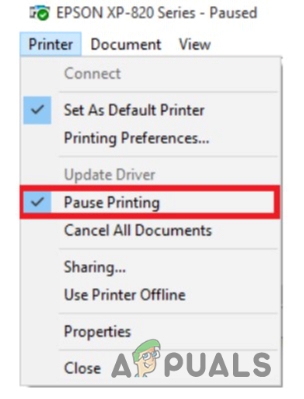
- Go to the Menu bar and press Printer and go to Pause Printing. Fix Printer Status is Paused, Cannot Resume error in Windows
- Now if it works, print a test page.
3. Start/Restart the Printer Spooler
Another thing you can do to rectify this issue is to Start or Restart the printer spooler services. It feeds the print image on the printer. It is just like a buffer or cache. After printing it places the documents where they assemble and prepare for printing. If the printer spooler doesn’t work properly it pauses the printing. So, to fix the issue follow these steps in sequence.
- Go to the start menu and search for the Services app.
- Now click on the Services Scroll down and search for the Printer spooler Option.
- So, right-click on it and press on the Properties. Printer Spooler Services
- Go to the Service status and click on the Stop under the Running option. Wait for a few minutes and again click on Close the window . Press Apply and then Ok option. Configuration of Printer Spooler Services
4. Change the Printer status to Online
Offline status on printer means your system is not communicating with printers well or vice versa. This is generally because of printer errors or connectivity issues. Putting the status online can connect the printers with computers effectively. So, here are a few steps that would help you in fixing the issue of Printer status is paused, cannot resume error;
- Press the Window key + R from the keyboard and then type control on the search bar.
- The Control panel will open. Now go to the Hardware and sounds and then select the Device and Printers.
- Double click on your printer. A new window will open.
- Select the Printer option from its Menu bar . And click on the Use printer online by unchecking the offline status. Change the Printer status to Online
5. Updating the Printer Drivers
If the above method do not work, you can update the printer drivers. The drivers help the system check the technical details of the printer and transfer the data to the printer in its language. Every windows version has its drivers and updates. So, if the drivers are of the older version, your window may not support them. It affects the printing and causes issues like Printer Status is paused, cannot resume error in windows.
- Go to the Start menu and type Device Manager . Open it.
- Now go to the Printer queue option and expand it.
- Right-click on your Printer option and press Update the drivers . Updating the Printer Drivers
- So, close the screen and print a test page.
6. Reinstallation of the Printer Drivers
When the above methods do not work, you can reinstall the drivers. When you are facing power outages or viruses your printer drivers are not working well. So, simply reinstall the drivers by using the following steps.
- Go to the Magnifying Icon from the Taskbar.
- Search for the Device Manager.
- Search and click on the Printer Queue. Right-click on the printer option and press Uninstall the Drivers. Uninstall the Printer Drivers
- So, close the program and Restart your system.
7. Other Possible Issues Regarding Paused Printer Status
If you tried all the above methods but still get the issue of printer status being paused, cannot resume the error in windows. In this case, there is a chance of hardware damage like Paper jamming, damaged cable or USB port, and faulty Toner Cartridge. You can resolve this issue by going to expert intervention.
How to Fix “Printer is in an error state” Issue?
Some Windows users attempting to print content on their HP printer are reporting that the machine suddenly becomes unresponsive to commands before finally stopping the printing job and displaying the OXC4EB827F error code.

HP Printer Error oxc4eb827f
After investigating this particular issue thoroughly, it turns out that there are several different underlying reasons that might cause your HP printer to display the OXC4EB827F error code:
- Generic printer communication issue – If your HP printer is connected to a Windows 10 computer, you might expect to see this error due to a queue glitch. This is very common with HP and Canon printers. In this case, you should be able to fix this problem by running the Printer troubleshooter utility and applying the recommended fix.
- Firmware glitch – This problem can also occur due to a case where the native new HP firmware is available on your printer glitches out and refuses to take on new printer jobs. In this case, a power cycle operation should fix the issue automatically in the vast majority of cases.
- Outdated printer firmware – If your printer is waiting to install a critical firmware update, you will have to download and install the mandatory update before it can resume the active printing jobs. You can do this manually, from your printer menu using the HP Smart App or you can do it automatically if your HP printer supports it.
- Underlying hardware issue – Under certain circumstances, this problem can be caused by some type of hardware problem that cannot be resolved by a non-technical. In this case, you should get in contact with an HP Live agent for the guidance of getting your printer fixed (or sending it for repairs if you’re dealing with a hardware issue)
Now that you are familiar with every potential reason that might spawn the OXC4EB827F error code, here’s a list of methods that other affected users have successfully used to resolve the problem and use their printer normally:
Using the Printer Troubleshooter
If you’re using Windows 10, you can use a built-in utility at your disposal that should be capable of resolving the issue automatically if the error is covered by one of the many automated repair strategies covered by the Printer Troubleshooter.
But this will only be effective if you’re not dealing with a hardware issue.
When you start the Printer Troubleshooter , the utility will start analyzing your current situation and determine if any of the repair strategies included are applicable in this situation. If one of them is a match, you will be prompted to apply the fix. If everything goes well, this will end up resolving the issue with minimal hassle.
Follow the instructions below to run the Printer Troubleshooter :
- Press Windows key + R to open up a Run dialog box. Then, type” ms-settings:troubleshoot” and press Enter to open up the Troubleshoot tab of the Settings app. Opening the Troubleshooter tab
- Once you’re inside the Troubleshooting tab, move to the Get up and running tab and click on Printer. Then, from the list of available options, and click on the Run the troubleshooter button. Running the Printer Troubleshooter
- After the scanning period is complete, then click on Apply this fix if a repair strategy is recommended. Applying the recommended fix
- After the initial investigation is complete, close the troubleshooting window and see if you’re still encountering the same error message when trying to print something from your HP printer.
If the same issue is still persisting, move down to the next method below.
Power-Cycle Printer HP Printer
If the Windows troubleshooter was not able to treat the issue with your HP printer, chances are this problem is occurring due to a glitch with your printer.
In this case, before you move on to other troubleshooting guides, the first thing you should do is reset the entire printing mechanism – The procedure of doing so is pretty much universal and will be applicable to any HP printer model you might be using ( LaserJet and OfficeJet).
NOTE : This operation is by no means technical and will not expose you to the risk of damaging your printing device. This is the equivalent of doing a factory reset on other devices. If the problem is related to a firmware glitch, the procedure below should resolve it swiftly.
Here’s a quick guide on power cycling your HP printer device:
- The first thing you should do is ensure that your printer is fully turned on and in idle mode (no job currently active). If you can still hear noises coming from your printer, don’t move forward! Instead, wait patiently until the machine becomes silent before moving down to the next step below.
- After you ensure that your printer is running in idle mode, go ahead and disconnect the power code from the rear of your printer. After you do this, ensure that you’ve also removed the power cord from the wall outlet. Unplugging your printer
- After you unplug the cord, wait for at least 60 seconds before plugging the cord back in in order to ensure that the power capacitors are completely drained.
- Next, reconnect the power cord and start your printer conventionally.
- Once the warm-up period is finished, initiate another printing job, and see if the problem is now fixed.
In case you are still seeing the same OXC4EB827F error, move down to the next potential fix below.
Update HP Printer Firmware
As it turns out, you can also expect to see the OXC4EB827F error if you’re using a deprecated printer version that is not able to properly communicate with a Windows 10 computer.
HP regularly releases new printer versions aimed at improving quality of life and fixing bugs and glitches. But every once in a while, they end up releasing a mandatory update that is required in order to make the printer compatible with the OS build that it’s currently connected to.
If the reason why you are seeing the OXC4EB827F error code is that you’re missing a critical update, your next step should be to update your printer firmware to the latest available.
When it comes to updating your Hewett Packard printer driver to the latest, you have 3 ways forward. Feel free to follow any of the following guides (if supported by your printer) below to bring your printer build to the latest.
A. Update directly from the printer
The instructions below will only work as long as you’re using a printer released after 2010. In order to be able to update directly from the printer, your device needs to support Web Services and have access to the Internet.
Note: The exact instructions on installing a pending firmware update on your printer will vary a little from model to model.
However, we’ve created a general guide that should make it easier for you to install the pending update:
- On printers with an ePrint button or icon touch or press the HP ePrint icon, then access the Setup (Settings menu). Next, look for a setup entry named Product Update or Check Product Updates. Updating the printer Note: On printers with text-based menus, access the Setup / Settings / Service . Next, access the Preferences / Printer Maintenance / Tools menu, then choose Web Services / Printer Update / LaserJet Update.
- If you see the Terms of Service or sign in with your account, follow the instructions and enable Web Services if required.
- Wait until the update procedure is complete, then restart your printer manually if it doesn’t do so by itself and see if the problem is fixed at the next system startup.
B. Download newer firmware manually
If you’re using an older HP printer that doesn’t support web services, you’ll need to download & install the latest firmware update manually from the HP Customer Support download page.
Important: this is applicable on both Windows and macOS computers.
Follow the instructions below to download & install newer printer firmware manually:
- Make sure that your printer is connected to your local network (via ethernet or USB cable).
- Next, open up the HP Customer Support Download Page and click on Let’s identify your product to get started.
- AFter you do this, click on Printer and follow the on-screen instructions to identify the latest firmware update for your printer Accessing the printer category
- You will be prompted to type in your printer model. Do so, then click on Submit and select the operating system (Windows or macOS).
- The next step is to click on Firmware, then click on Download and wait for the download to finish.
- Once the file is finally saved on your computer, open it to start the firmware updating process.
- Once you’re finally inside the installation window, follow the on-screen instructions to complete the installation of your printer’s firmware. Updating the printer firmware
- Once the installation is complete restart both your computer and your printer, then see if the problem is resolved.
If you already tried this method and you’re still seeing the same error when tying to print or you were already on the latest firmware version available, move down to the final potential fix below.
Contact HP Support
If none of the potential fixes above have worked for you, the only viable thing you can do by now is to get in contact with HP support.
We found several users that went this route and reported that a tech agent successfully troubleshoots the issue for them remotely. But this will work only if the problem is not hardware-based.
By all accounts of users who interacted with a live agent, HP support is fairly responsive as you can expect to reach a live agent without much trouble. The way it usually goes is they’ll offer support over the phone through a series of troubleshooting steps and if the problem still persists, you’ll be asked to send the device in for repairs.
Here’s a quick guide on getting in touch with an HP live agent:
- Open up your default browser and visit the official support page of HP .
- From the list of options, click on Printer at the top of the page. Accessing the Printer category
- At the next screen, enter your printer serial number inside the Serial Number box and click on Submit.
- After you successfully managed to identify your HP printer model, you can advance to the menu by navigating through HP Contact Forms > Get phone number .
- Use the recommended phone number to get in contact with a qualified technician, then follow through with the recommended troubleshooting steps given by the live agent.
49.4C02 error in HP printers is a well-known error among users that halts all the operations being performed on the printer and asks for restart. The error when occurs is displayed on the printer screen. For some lucky users, this was only a one-time thing but for some it became a permanent headache rendering the printer unusable as whenever one would turn this printer on, the error would appear again within seconds.
The 49.4C02 error and other similar errors have been largely attributed to the miscommunication between the target printer and the system that sent the print. That could be easily caused by certain PDF files one is trying to print or an outdated firmware version of that printer. In case of a PDF file print job, the printer will give display this each time it’s restarted unless that specific print job is cancelled from the computer it’s sent. In case of a network printer, it could become problematic tracing down the system that sent the print. Before proceeding with more complicated steps below, try turning the printer off and unplugging the power and the network cable (if connected). If networked, find which computer has a print job stucked in the printer que, and delete it, put the printer power back in and the network cable back in. Turn the printer back on and test.
Solution 1: Upgrade Printer’s Firmware
Firmware in a printer is similar to what Windows is to your computer. It is an operating system for a printer. Outdated firmware is the first suspect when this error occurs on an HP printer. Firmware updates are occasionally released for this exact reason i.e. to fix various bugs and errors in a printer similar to the one you are facing now.
Before we continue, you will have to return the printer into Ready state. As this error generally appears due to a PDF file being sent to print, you will have to cancel that print job.
If you are the only one sending the print, Press the Windows key and type Devices and printers . Click on Devices and Printers in the search results. Right Click on your printer installed and click See what’s printing .
Right Click anywhere on the window that just opened and click Cancel All Documents .
If it’s a network printer and you do not know who is sending the printer, simply Unplug the network cable from the printer to disconnect it from the network. Now Restart your printer and leave the network cable unplugged .
Through Firmware Update Utility
To update the printer’s firmware, firstly you will have to check the current Firmware Version running on your printer. To do, you will have to Print a Configuration page from the troublesome printer. Use the interface on the printer itself and navigate to Administration or Information or the Configuration section in the menu. Its location may differ by the model of the printer you have.
Once you have the current firmware version, Go To the HP’s drivers support website .
Enter your printer model name under “Enter my HP model number”. The support page will open for that printer. Select your Windows version under Operating system.
In the results below, click on the Firmware section.
Latest Firmware will be on top. Next to Firmware update utility, if the Current Version is later than the version you have installed, Click the Download button to download it.
Run the Firmware update Utility you downloaded earlier. Select your Printer to update from the drop down list. If it is a network printer, connect it directly through a USB Printer cable and install it on your system. Now click on Send Firmware.
It may take a few minutes, so be patient.
Through FTP on Network
The HP’s Firmware update utility is known to fail on some printers. On network printers, it can also be done over the network using the FTP protocol . If the printer gives the error every time you connect it to network, then either turn off every other computer attached to it, or change the IP address of the printer.
Now for this method, you will have to Download an . rfu (remote firmware update) file for your printer’s model.
To do so, Go To the HP’s drivers support website . En ter your printer model name under “ Enter my HP model number ”. The support page will open for that printer. Select OS independent or Cross Platform from the drop down menu under Operating Systems .
Expand the Firmware section below. Next to the firmware for Windows Operating system , Check the version number . If the version number is later than the version you have installed, Click the Download button to download it.
Open the Downloaded file. If it was an exe file, it will ask for a location to extract the .rfu file. Extract it and place it on your Desktop .
Now, make sure that you know the IP address of the printer. You can know it through the Configuration page that you can print following the method mentioned above.
Now Press and Hold the Windows key and Press E . Windows explorer will open. In the address bar above, type ftp://[Printers IP Address] . For example, if the IP address is 192.168.5.123 then you would type ftp://192.168.5.123 . Now Press Enter .
There will be a folder named PORT . Copy the .rfu file from the Desktop and Paste it in the PORT folder. The process will take some time. Restart printer once it done. If you cannot see a folder named PORT, you can Paste it in the window itself.
Your firmware will be updated now. Now print the file you were trying to print before and check if the issue occurs. If yes, then move on to the next solution.
Solution 2: Update Drivers to PCL6 Driver
PCL6, PCL5 or PCL5e are scripting languages used in drivers for printers. Using the PCL6 drivers for HP printers is a known remedy for the 49.4C02 error.
To install the PCL6 drivers, first you will have to download it. To do so, go to the HP’s drivers support website .
Enter your printer model name under “Enter my HP model number”. The support page will open for that printer. Select your Windows version under Operating system.
In the results below, click on the Driver – Universal Print Driver to expand it. Search for HP Universal Print Driver for Windows PCL6 and Click the Download button next to it to download it.
Run the downloaded file and it will ask for a location to extract its content. Define a location or leave the default in it and Click Unzip . Its Installation will startup automatically. Follow the onscreen instructions now.
You can also do so manually by first Uninstalling the target printer. Now Reinstall it, but when it asks for drivers, don’t use the drivers already installed. Use the drivers from the folder in which you just extracted the PCL6 drivers . If the extraction location was left as default, then it would be C:\HP Universal Print Driver\pcl6-xxx-x.x.x.xxxxx.
Restart your computer and the error should be gone now. If not, move on to the next solution.
Solution 3: Print PDF as Image
This error mostly occurs after a user prints a PDF file. Usually that PDF file has fonts a little too complex that can mess up the printer’s memory. You can counter this issue by printing the PDF as an image.
To do so, firstly Clear the print queue that has the troublesome PDF file in its list using the method given in Solution 1 . Unless that PDF is removed, the printer will continue giving that error.
Now Restart the printer.
Open the PDF you were trying to print. Press and Hold the Windows key and Press P to bring up the Print Window . Now Click on Advanced button .
Place a Check next to Print As Image . Click OK and Print the document. The location of the Print As Image option may vary from printer to printer.
Check if the issue is resolved. If not, then it’s the PDF file that is corrupt.
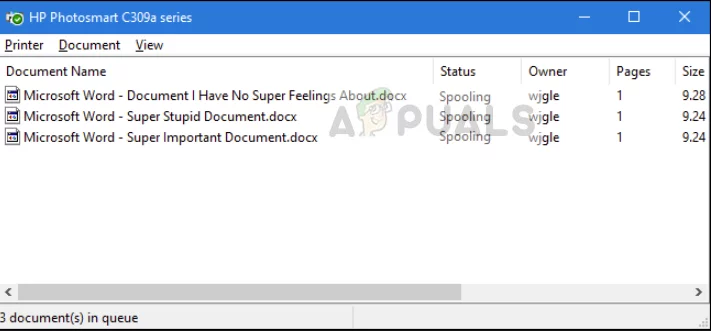
Printer Queue is a list where all the documents pending for getting printed are stored temporarily. It consists of jobs for the printer. When the printer prints one document, it removes it from the list and the next in line is sent for printing.
Printer Queue
There are numerous cases where documents are stuck in the printing queue which prevents other documents from being printed. There are a lot of different reasons for your printer queue to get stuck and not get deleted. Sometimes the job gets shown as ‘pending’ while nothing is going on or sometimes the queue just gets stuck as is.
What causes the Printer Queue to get Stuck?
Like mentioned before, there are several different reasons why your printer queue might get stuck and go in a not responding state. Some of the reasons are but not limited to:
- Printer problems : Your printer might be in an error state with low ink or pages being the primary reason. The printer queue appears to be stuck here and doesn’t entertain further documents until it is deleted.
- Printer Spooler : Spooler is the software which prepares and manages all your documents. It maintains the very list of printable documents and passes them on to the printer. It can be in an error state or might not be configured properly.
- Printer services : The printer services might not be running properly or their running status might be interrupted by another third-party application.
Before we dive right into the solutions, make sure that you have a valid internet connection between the printer and your computer. Also, your printer must be working properly without any errors whatsoever.
The solutions listed will help clear your printer queue but it may get stuck again if your printer is not configured properly.
Method 1: Restarting and Clearing Print Spooler
Print Spooler is the software component which manages all of your printer jobs. It has a list which contains all the documents sent to be printed. It even shows the current status of each job by fetching information from the printer. In the majority of the cases, the issue is solved by restarting and clearing the Print Spooler.
There are two ways through which you can restart and clear your print spooler. You can try out the manual one before moving on to the automatic.
Restarting Spooler Manually
Here we will first close the spooler service and then attempt at deleting all the jobs present at the spooler folder. Make sure that you are logged in as an administrator on your computer.
- Press Windows + R to launch the Run application. Type “ services. msc ” in the dialogue box and press Enter.
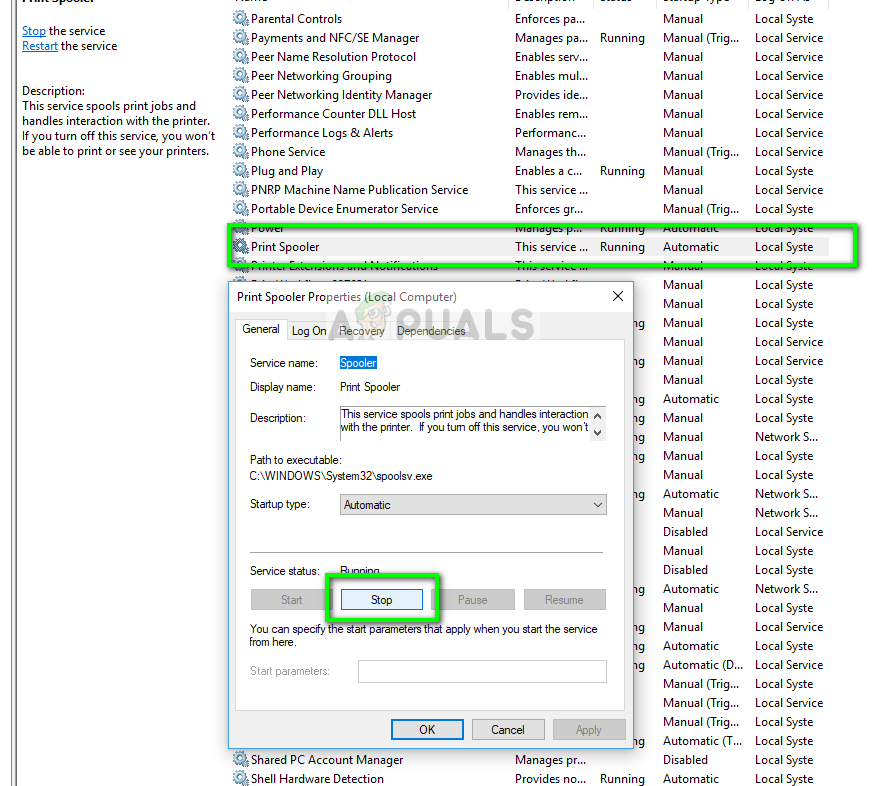
- Locate the service “ Print Spooler ” present in the list of services. Double-click it to open its properties. Click the “ Stop ” button present underneath system status and press “ Ok ” to save changes.
Spooler service properties – Services
- Since we have disabled the service, we can now focus on deleting printer files. Press Windows + R and type the following path in the dialogue box and press Enter to navigate to it.
%windir%\System32\spool\PRINTERS
Permission might be needed to access the following folder. If prompted, press Continue.
- Once in the folder, delete all the files in the PRINTERS folder and close the window.

Spooler folder contents
- Now navigate back to the services and start the service After starting the service, try printing your documents and see if this fixes the issue.
Restarting Spooler Automatically (.bat file)
If clearing and restarting the spooler service fixed the issue for you and you think you have to perform this action more than one time, you can download the batch file linked below. This will automatically stop the spooler service, delete the print queue, and start the spooler service again. Make sure that you are logged in as an administrator to perform this action.

Spooler .bat file to reset Printer Spooler
- Download the bat file from the link and save it to an accessible location.
- Now right-click on it and select Run as administrator . The batch file will execute in the background and your spooler will be restart automatically.
Note: You can also kill the spooler service if the normal method doesn’t work for you. Navigate to the processes in your task manager and end the service ‘spoolsv.exe’. Press Windows + R, type ‘spoolsv.exe’ in the dialogue box and press Enter. Now try printing again.
You also may need to toggle the display of ‘hidden items’ from File explorer settings in order to see the contents of the spooler folder.
Solution 2: Power cycling your Printer
There are several instances where because of the printer being in an error state, the printer spooler fails to clear successfully. This is a very common scenario and is usually fixed with power cycling your printer. Power cycling is an act of completely shutting down a device so all its temporary configurations are erased. This helps in getting a device out of an error state.
- Turn off your printer properly using the power button. Once the printer is turned off, wait a few minutes.
- Take out the power and connection cable from the printer. Now let it sit idle for around 10 minutes.

Power cycling printer
- Plug everything back in and connect the printer with the computer again. Check if this solved the problem.
