While trying to stream a movie or a podcast on Plex, the user may experience the message “An error occurred loading items to play” shown on the screen.
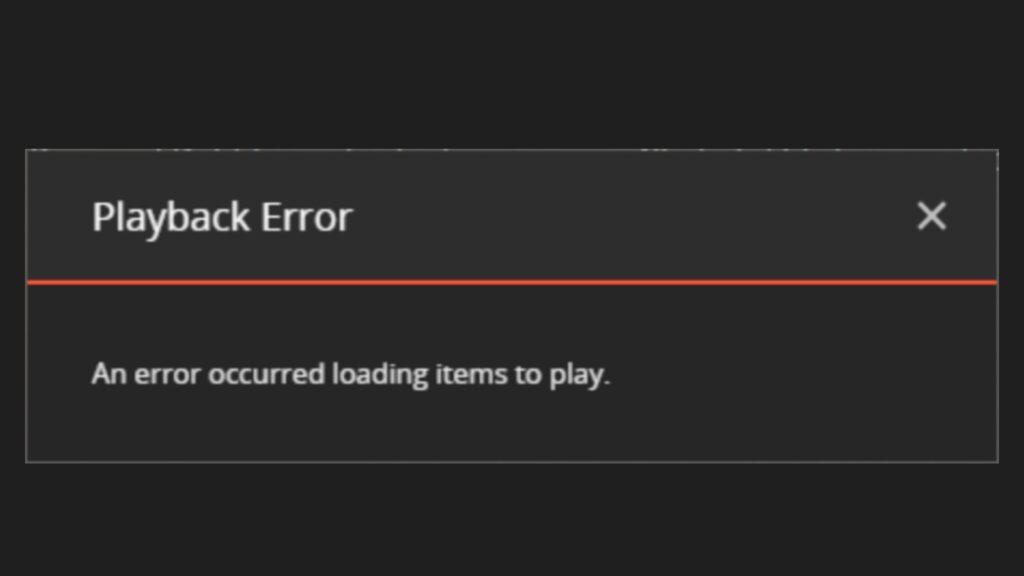
Because of this, the Plex player becomes unable to play any video on whichever platform (Roku, Samsung TV, etc.) you’re using it.
This error is more common for users who choose to play videos on the app. It can also be observed if the Plex media server 0.9.17.X and above is being used.
There can be a variety of different reasons why you might be seeing this error. The primary causes are outdated Plex versions and the wrong configuration.
Make sure your Plex app is up-to-date and the transcoder settings are correct. Besides these two, I’ll describe six more solutions in detail below.
1. Check Plex Servers Status
There are times when the Plex server is undergoing maintenance . Although the developers always inform the users before starting maintenance work, you might miss that notification.
The Plex Media Twitter handle is the one posting these updates, so make sure you check it out first.
2. Delete Additional Linked Devices
Plex gives you the advantage of linking multiple devices, like Plex Roku, Plex Android, Plex Web, etc., to a single account. But this linking might also end up being the cause of the loading items to play error.
This happens due to multiple devices trying to use resources such as interrupt requests, memory, etc. from the same server.
To prevent this, make sure to delete all old devices from your account using the following steps:
- Sign in to Plex and go to Settings .
- Select Authorized Devices and set the filter to All .
- To delete any device, select the red X next to it.

3. Restart Plex
You can attempt to resolve some minor glitches in the app by restarting it, as this helps refresh the app. You can do so by closing the app, waiting for five minutes , and launching it back up again.
Now play any video to check whether the error has been resolved.
4. Update Display Drivers
If your PC’s or laptop’s display driver is outdated, it can cause problems playing videos. Therefore, to avoid issues like “An error occurred while loading items to play”, you should update your drivers regularly.
Here are some steps that show how you can do this on your PC:
For Windows
- Right-click on the Start menu .
- Select Device Manager .
- Double-click on Display adapters .
- Right-click on your display driver and select Update driver .

- Let Windows search automatically for updates .

For Mac
- Go to the top-left of your screen and click on the Apple logo .
- Select System Preferences > Software Update .
- If new driver updates are available, they will show here.
5. Change Plex Transcoder Settings
Transcoding basically converts the file size of the video to a size that consumes less data and allows the video to play with ease.
The processing power of your CPU is what helps Plex transcode the streaming videos and files. By changing the default transcoder settings, you can have them match your CPU’s performance.
To do this, you have to lower the quality of the transcoded files to free up space in your CPU. Follow the steps below to change the transcoder settings:
- Click on Settings on the Plex homepage.
- Select Transcoder .
- The Automatic quality will be selected by default.

- Since we need to lower the quality, select the Prefer high-speed encoding option.
- Now play a video and see if the error returns.
6. Disable Plex Audio Passthrough
Audio passthrough passes high-quality signals to an audio receiver, and it is the way through which you can connect several devices to your television.
Plex efficiently decodes almost all the HD audio formats, so there isn’t a need to enable audio passthrough if you aren’t using a separate sound system.
Follow the steps below to disable audio passthrough on Plex:
- Go to the Settings option on the homepage.
- Click on Advanced.

- Now select Player .

- Click on the Audio passthrough option.
- Select Disable .

7. Clear Cache on Chromecast
The internal storage of the Chromecast with Google TV is pretty low. Once the cache reaches above 1 GB, Plex on CCwGTV will start showing the notification “An error occurred loading items to play”. In short, less space on Chromecast won’t let the videos, podcasts, songs, or anything else load properly.
So, clear your cache by following the steps below:
- Click on your Profile icon .
- Select Settings .
- Navigate to System > Storage .
- Now click on Internal Shared Storage .
- Click on Cached data .
- Select OK to confirm the action and the cached data for all apps will be removed.
8. Enable AC3 and EAC3
It could be that your media format doesn’t support direct playback on Plex. And the audio in unsupported formats is transcoded to AC3 by itself. However, if AC3 or EAC3 are disabled on your player, then it’s obvious that you’ll have some problems playing those particular videos.
Here’s how you can enable AC3 or EAC3 on Plex:
- Select the three-lined menu on the top left.
- Click on the gear icon .
- Select Advanced > Player .
- Click on Optional Audio Support .

- Checkmark AC3 and EAC3 .
- Select OK .
9. Disable External Player in Plex (Android)
Sometimes using an external media player can result in Plex not being able to play any videos. Disabling the external player option is a reliable fix and will solve the issue.
- Open Plex and go to Settings .
- Select Advanced > Player .
- Uncheck the Use External Player option under Other Players .

- Click OK .
10. Get Nvidia Shield Pro
Nvidia Shield Pro is a digital media player for Android TVs and comes with extra RAM and storage space . It also has room for a couple of USBs, so you’ll not run out of memory any time soon.
How to Fix “Printer is in an error state” Issue?
The error “ WinRAR Error: Next Volume Is Required ” usually appears when you’re extracting a multi-part RAR archive and WinRAR can’t find (or can’t correctly identify) the next file in the sequence . This often happens when a volume is missing , stored in a different folder , or renamed in a way that breaks the archive’s expected order .

In this guide, we’ll go over the most reliable fixes confirmed by affected users, along with what each method is doing behind the scenes so you can choose the right one for your situation.
Important: To extract multi-volume archives, you should always start extraction from the first file in the set. This is usually file.part1.rar , or (in older sets) the main .rar file that comes before .r01 , .r02 , and so on.
1. Download and Place the Missing RAR File
WinRAR needs all parts of a multi-volume archive to complete extraction. This error usually appears when one of the volumes in a set like .part2.rar , .r01 , .r02 , .001 , and similar naming formats is missing . Downloading the missing volume and placing it in the same folder as the other parts allows WinRAR to continue extracting normally .
- Look at the error message or review the list of archive parts in the folder.
- Identify which volume is missing (for example, part2.rar , .r02 , .001 , etc.).
- Go back to the website or source where you downloaded the archive.
- Locate and download the exact missing file using the same naming format as the others.
- Make sure the new file name matches the pattern of the rest. Example: If you have file.part1.rar and file.part3.rar , the missing one must be file.part2.rar .
- Move the downloaded missing volume into the same folder as the other archive parts.
- Confirm that all parts are in a single folder before extracting.
- Right-click the first file in the series (usually part1 or the main .rar file) and select Extract Here or Extract to Folder .
- WinRAR should now detect all volumes and continue extraction normally .
2. Manually Browse & Select the Next Volume
Use this method only if the next volume already exists , but WinRAR is failing to detect it automatically. This can happen due to incorrect naming , the file being in a different location , or a temporary file access issue. Manually browsing helps WinRAR locate the correct volume and resume extraction without interruption .
- Right-click the first file in the series (usually .rar or part1.rar ) and select Extract Here or Extract to Folder .
- When WinRAR cannot find the next volume, it will show the “ Next Volume Is Required ” message.
- A small window will appear, allowing you to manually select the next volume .
- Use the file explorer window to locate the folder where the other archive parts are saved.
- Select the next part based on the naming order (example: select file.part2.rar after file.part1.rar ).
- Make sure the selected file matches the naming format of the archive (no extra characters like (1) and no mismatched numbering).
- WinRAR will resume extraction using the selected volume .
- If additional volumes are missing or stored separately, WinRAR may prompt you again. Repeat the same process until extraction completes.
3. Rename the RAR files in Order
WinRAR relies on a proper naming sequence (such as file.part1.rar , file.part2.rar , file.part3.rar ) to extract multi-volume archives. If a file is named incorrectly, contains extra characters, or is out of order, WinRAR may fail to locate the next volume and show this error. Renaming the files correctly helps WinRAR follow the sequence and extract the archive without interruptions .
Note: Renaming only changes the file name , not the file contents. The goal is to restore the correct sequence so WinRAR can detect the next volume.
- Go to the folder where all the RAR files are saved.
- Make sure all parts of the archive are present and stored in the same folder .
- Check how the parts are currently named . Common patterns include:
file.part1.rar, file.part2.rar, file.part3.rar
file.rar, file.r01, file.r02, file.r03
- Look for files that don’t match the expected numbering pattern (for example, file.part01.rar , file.part1(1).rar , or unrelated names).
- Rename each file so it follows the same order without extra characters or mismatched numbering. Example:
Incorrect: file.part1.rar, file.part3.rar, file.part2(1).rar
Correct: file.part1.rar, file.part2.rar, file.part3.rar
- Make sure the text before the number is exactly the same for all files.
- Only the last part number should change.
- Right-click the first file in the series (usually part1.rar or the main .rar file) and select Extract Here .
- WinRAR should now recognize the sequence and continue extraction normally .
If you still get the same prompt: the archive set is likely incomplete (a part was never downloaded or was removed), or one of the volumes is corrupt and must be re-downloaded from the original source.
