Many people like to use the dictate feature available in Microsoft Office. This feature is available for Microsoft Outlook, PowerPoint, and Word. Sometimes, the dictate feature picks up some bugs and you may get the “Oops there was a Problem with Dictation in Office” error. However, the main causes range from issues with the microphone to issues with some corrupt files within the Office itself.
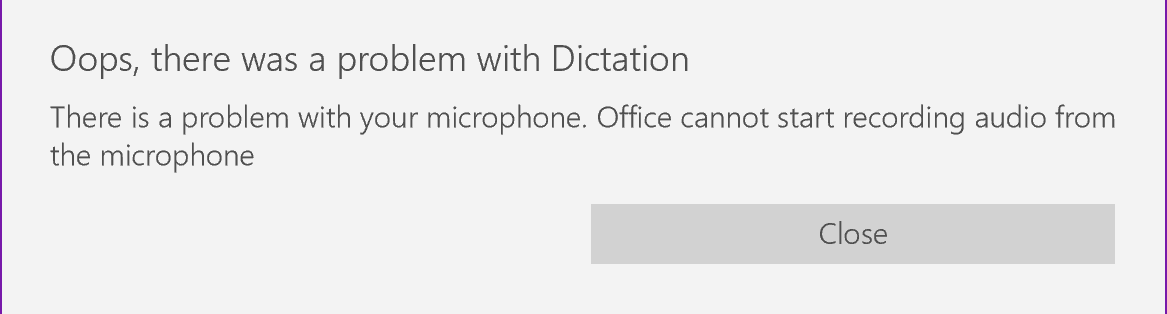
Dictation Error
This problem is usually software related as compared to hardware problems of the microphone. The first thing that you should check is whether any rogue mute option is selected. Once you are absolutely sure that the microphone is working properly, should you move forward with the mentioned solutions.
Method 1: Running Speech Troubleshooter
The first thing to do in issues like these is to rule out hardware failure. Running the built-in speech troubleshooter will tell you if there is a problem with your microphone or with its configuration settings. If there is, it will automatically attempt at fixing the problem and notify you accordingly.
- Ensure that your microphone is plugged in properly and press Windows key + I. This will open the Settings.
- Now, click on Update and Security and then Troubleshoot . Settings App Troubleshoot
- Scroll down till you find Speech.
- Click and run ‘ Run the troubleshooter’. Speech troubleshooter
Method 2: Refreshing Office Credentials
Microsoft Office keeps your account credentials stored in the application. These credentials are sometimes required by Office if you use the Dictation feature. We came across numerous instances where corrupt or bad credentials were causing problems with the Dictation module. Here, we can refresh/remove the credentials and see if this works.
- In Word, go to File and then Account . Now, click Sign Out . Click on File
- Close all Office Applications.
- Open the Control Panel by clicking your Start Button->Type Control and hit Enter . Open Control Panel
- Go to Control Panel -> User Accounts -> Credential Manager -> Windows Credentials. Windows Credentials
- Remove all Office 365 credentials that look like MicrosoftOfficeXXData .
- Restart your computer, open Word, and sign back into your Office 365 account. Now try using Dictation and see if the issue is resolved.
Method 3: Save and Restart Document
There was a bug in the dictate feature in older versions of Word in which if you didn’t say ‘ Stop Dictation ‘ and pressed backspace for editing, the dictation did not work again. A quick workaround to fix the issue is to re-open the Word document again and start dictating from there
- Save your work and close your Word file.
- Now open the Word file again and after a few seconds, press Ctrl + H to enable Dictation again. See if the issue is resolved.
Method 4: Using Legacy Dictation
Legacy dictation is Microsoft Window’s own speech-to-text feature. If dictation is causing issues in your document, then you can use this feature. Do note that this might not contain all the features of Dictation but will still work nonetheless. You might also need to train this module from scratch but it is an easy job.
- First, check that your regional and speech language is selected. Click the Start button, then the gear-shaped icon and from Settings , click Time and Language . Time and Language
- Then go to Region & Language. Check if your preferred language is selected. Regional Language
- Check in Speech that your preferred language is selected. Speech-to-Text Language
- To access Windows Speech-to-Text simply press Windows key +H. Microsoft Speech-to-Text
- This should open a dictation box at the top of the screen and will ask for you to select the area where you want to write if you haven’t already selected it.
Method 5: Changing ‘EnableADAL’ Registry Key
If none of the above solutions seem to work primarily because of login issues in Office, we can try to fix the problem by removing the key of EnableADAL from the Registry Editor. After this, we will sign out from Office and try to login again. Do note that any changes made other than the one mentioned may affect your computer. It is also wise to do a backup of the registry before proceeding.
- Go to the registry editor. Press Windows key + R .
- Type regedit.exe in the Run box and press Enter. regedit.exe
- Go to HKEY_CURRENT_USER and then Software . Expand Software
- Now, expand Microsoft ->Office -> 16.0 ->Common -> Identity . Look for the value in Identity
- Inside “Identity”, a REG_DWORD value called “EnableADAL” value at 0 .
- Delete this entry.
- Sign out of Office and then Sign in.
If none of the above solutions work, you can consider reinstalling Office from scratch. This will fetch fresh files from the servers and if the issue was because of installation files, it will be solved.
How to Fix “Printer is in an error state” Issue?
The error “ WinRAR Error: Next Volume Is Required ” usually appears when you’re extracting a multi-part RAR archive and WinRAR can’t find (or can’t correctly identify) the next file in the sequence . This often happens when a volume is missing , stored in a different folder , or renamed in a way that breaks the archive’s expected order .

In this guide, we’ll go over the most reliable fixes confirmed by affected users, along with what each method is doing behind the scenes so you can choose the right one for your situation.
Important: To extract multi-volume archives, you should always start extraction from the first file in the set. This is usually file.part1.rar , or (in older sets) the main .rar file that comes before .r01 , .r02 , and so on.
1. Download and Place the Missing RAR File
WinRAR needs all parts of a multi-volume archive to complete extraction. This error usually appears when one of the volumes in a set like .part2.rar , .r01 , .r02 , .001 , and similar naming formats is missing . Downloading the missing volume and placing it in the same folder as the other parts allows WinRAR to continue extracting normally .
- Look at the error message or review the list of archive parts in the folder.
- Identify which volume is missing (for example, part2.rar , .r02 , .001 , etc.).
- Go back to the website or source where you downloaded the archive.
- Locate and download the exact missing file using the same naming format as the others.
- Make sure the new file name matches the pattern of the rest. Example: If you have file.part1.rar and file.part3.rar , the missing one must be file.part2.rar .
- Move the downloaded missing volume into the same folder as the other archive parts.
- Confirm that all parts are in a single folder before extracting.
- Right-click the first file in the series (usually part1 or the main .rar file) and select Extract Here or Extract to Folder .
- WinRAR should now detect all volumes and continue extraction normally .
2. Manually Browse & Select the Next Volume
Use this method only if the next volume already exists , but WinRAR is failing to detect it automatically. This can happen due to incorrect naming , the file being in a different location , or a temporary file access issue. Manually browsing helps WinRAR locate the correct volume and resume extraction without interruption .
- Right-click the first file in the series (usually .rar or part1.rar ) and select Extract Here or Extract to Folder .
- When WinRAR cannot find the next volume, it will show the “ Next Volume Is Required ” message.
- A small window will appear, allowing you to manually select the next volume .
- Use the file explorer window to locate the folder where the other archive parts are saved.
- Select the next part based on the naming order (example: select file.part2.rar after file.part1.rar ).
- Make sure the selected file matches the naming format of the archive (no extra characters like (1) and no mismatched numbering).
- WinRAR will resume extraction using the selected volume .
- If additional volumes are missing or stored separately, WinRAR may prompt you again. Repeat the same process until extraction completes.
3. Rename the RAR files in Order
WinRAR relies on a proper naming sequence (such as file.part1.rar , file.part2.rar , file.part3.rar ) to extract multi-volume archives. If a file is named incorrectly, contains extra characters, or is out of order, WinRAR may fail to locate the next volume and show this error. Renaming the files correctly helps WinRAR follow the sequence and extract the archive without interruptions .
Note: Renaming only changes the file name , not the file contents. The goal is to restore the correct sequence so WinRAR can detect the next volume.
- Go to the folder where all the RAR files are saved.
- Make sure all parts of the archive are present and stored in the same folder .
- Check how the parts are currently named . Common patterns include:
file.part1.rar, file.part2.rar, file.part3.rar
file.rar, file.r01, file.r02, file.r03
- Look for files that don’t match the expected numbering pattern (for example, file.part01.rar , file.part1(1).rar , or unrelated names).
- Rename each file so it follows the same order without extra characters or mismatched numbering. Example:
Incorrect: file.part1.rar, file.part3.rar, file.part2(1).rar
Correct: file.part1.rar, file.part2.rar, file.part3.rar
- Make sure the text before the number is exactly the same for all files.
- Only the last part number should change.
- Right-click the first file in the series (usually part1.rar or the main .rar file) and select Extract Here .
- WinRAR should now recognize the sequence and continue extraction normally .
If you still get the same prompt: the archive set is likely incomplete (a part was never downloaded or was removed), or one of the volumes is corrupt and must be re-downloaded from the original source.
