Your NordVPN may fail to verify password auth mostly due to the firewall restrictions, corrupt installations, or use of special characters in the NordVPN password. The affected users encounter this error when they try to connect to a location, which was working fine previously.
This issue can occur on desktop applications, mobile apps, as well as with the browser extension. In some cases, the issue arises only with a particular type of server like the P2P server.
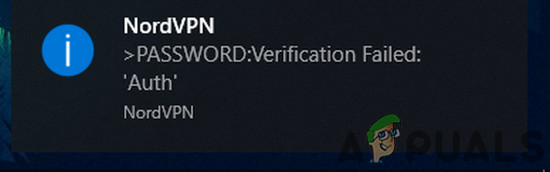
Nord VPN Password Verification Failed Auth
Before moving on with the solutions to fix NordVPN password verification failed, make sure there are no NordVPN server outages . Also, try to connect to a different location to rule out any server overload. Make sure your internet is working fine . A maximum of 6 devices can connect to the NordVPN network by using the same account credentials; so make sure the limit of 6 devices is not reached. Furthermore, try to log in on the NordVPN website using your credentials to confirm if the credentials used are not wrong.
Solution 1: Relogging NordVPN
The failed auth issue could be the result of temporary communication/software glitch. In this case, logging out of the app/extension and then logging back in may solve the issue. For illustration, we will discuss the process for the Windows app. You may follow the instructions as per your app/OS.
- Launch the NordVPN app and then click on the gear icon (near the top right corner) to bring out the Settings menu. Open NordVPN Settings
- Now, in the left pane of the window, scroll down till the end and click on Log Out . Logout of NordVPN
- Then restart your system.
- Upon restart, launch NordVPN and log in using your credentials. Then check if the app is working fine.
Solution 2: Allow the NordVPN Client Through the Antivirus/Firewall of Your System
Your firewall and antivirus play a vital role in the security of your system and data. However, if the firewall/antivirus is blocking the essential files required by the NordVPN app, then the VPN client will be unable to create a successful connection. In this context, either temporarily disabling your firewall or adding an exception for the NordVPN files may solve the problem. For demonstration purposes, we will discuss the process for the NordVPN Windows app.
Warning : Proceed at your own risk as disabling/adding an exception for the files may expose your system to severe threats like viruses, trojans, etc.
- Temporarily disable your antivirus and turn off the firewall . Keep an eye on Windows Defender; if it automatically takes up the role of antivirus/firewall, then either add an exception for the files in its settings or disable Windows Defender as well.
- You can also add an exception for the VPN client in the Settings of your security program. You should add the following files in the exception list for inbound and outbound rules in the antivirus/firewall settings: %ProgramFiles% (x86)\NordVPN\NordVPN.exe %ProgramFiles% (x86)\NordVPN\nordvpn-service.exe %ProgramFiles% (x86)\NordVPN\Resources\Binaries\64bit\openvpn-nordvpn.exe %ProgramFiles% (x86)\NordVPN\Resources\Binaries\32bit\openvpn-nordvpn.exe
- After adding exceptions, launch the VPN client to check if it is clear of the error.
Solution 3: Disable CyberSec, Invisibility on LAN and Obfuscated Servers Settings
NordVPN client has a known bug, in which, if CyberSec, Invisibility on LAN, and Obfuscated Servers options are enabled when connecting to a location, then the VPN client may throw the Auth failed error. In this scenario, disabling these three options and then connecting to a server may solve the problem. After a successful connection, you can enable these options. For illustration, we will discuss the process of the NordVPN Windows application.
- Open the NordVPN app and click on the gear icon to bring out the Setting menu.
- Now, in the left pane of the window, select the General tab and then in the right pane disable the option of CyberSec: Block Ads and Malicious Websites . CyberSec: Block Ads and Malicious Websites
- Now, in the left pane of the window, navigate to the Advanced tab and then disable the option of Obfuscated Servers .
- Now disable the option of Invisibility on LAN . Disable Obfuscated Servers & Invisibility on LAN
- Then restart your system. Upon restart, launch the VPN client and check if the issue is resolved.
Solution 4: Change Your Password for NordVPN
The NordVPN app and extension have known connection issues if your password contains special characters. Moreover, if your account has been shared on social sites like Pastebin and accessed by many users, then NordVPN may show the error under discussion (as there can be a maximum of 6 devices that could connect to the NordVPN account). In this case, changing your password (without the use of special characters) may solve the problem.
- Logout of the NordVPN app, as mentioned in Solution 1.
- Launch a web browser and navigate to the NordVPN UCP and Log in using your credentials.
- Navigate to the Change Password tab and click on Send Reset Link . Send Reset Link of NordVPN
- Now open the email registered with NordVPN and use the link there to reset your password. Make sure that no special characters are used in the new password.
- Then log in using the new password and check if the VPN is clear of the failed auth error.
Solution 5: Repair the Application Installation
If the VPN installation is corrupt, then NordVPN may fail to verify the password auth because of any module not working properly. In this scenario, repairing the installation may solve the problem. The default installer of Nord VPN has a ‘repair’ option that automatically searches for files that are different than the manifest and replaces them accordingly.
- Logout of the VPN client and open the official NordVPN download page.
- Then click on the Download button to download the VPN client. Download NordVPN
- Now launch the newly downloaded setup and when prompted, then click on the Repair button. Repair the NordVPN Installation
- Now restart your system and then launch the VPN client to check if it is clear of the failed auth error.
Solution 6: Reinstall the NordVPN App/Extension
If repairing has failed to rectify the issue, we can consider reinstallation of the VPN client altogether. Do note that this will remove the saved configurations and replace them with default values. You will also need to log in using the Nord activation key.
- Logout of the VPN client. Press the Windows key and in the Windows search bar, type Control Panel . Then in the list of results, open it. Open Control Panel
- Then click on Uninstall a Program . Now uninstall the following applications: NordVPN NordVPN Network TAP NordVPN Network TUN Uninstall NordVPN
- Restart your system after the uninstallation.
- Upon restart, download and install the latest version from the official NordVPN download link.
- After reinstalling, launch the VPN client and log in using your credentials.
If you are encountering the issue on macOS , then upon reinstallation, you may get a prompt to enter the NordVPN password from a keychain. In this case, follow the steps mentioned below:
- Open Keychain and search for NordVPN . Then in the search results, open the NordVPN entry. Search for NordVPN in Mac Keychains
- Now click on Show Password and then copy the password shown. Show Password for NordVPN in Mac Keychains
- Now paste the copied password in the VPN client and check if it is operating fine.
- If not, exit the VPN client. Now delete all the entries related to NordVPN in the Keychain .
- Then relaunch the VPN client, when asked for security permissions , check the option of Always Allow , and then click on Allow .
- Now connect to your preferred country and see if the connection is successful.
How to Fix “Printer is in an error state” Issue?
The error “ WinRAR Error: Next Volume Is Required ” usually appears when you’re extracting a multi-part RAR archive and WinRAR can’t find (or can’t correctly identify) the next file in the sequence . This often happens when a volume is missing , stored in a different folder , or renamed in a way that breaks the archive’s expected order .

In this guide, we’ll go over the most reliable fixes confirmed by affected users, along with what each method is doing behind the scenes so you can choose the right one for your situation.
Important: To extract multi-volume archives, you should always start extraction from the first file in the set. This is usually file.part1.rar , or (in older sets) the main .rar file that comes before .r01 , .r02 , and so on.
1. Download and Place the Missing RAR File
WinRAR needs all parts of a multi-volume archive to complete extraction. This error usually appears when one of the volumes in a set like .part2.rar , .r01 , .r02 , .001 , and similar naming formats is missing . Downloading the missing volume and placing it in the same folder as the other parts allows WinRAR to continue extracting normally .
- Look at the error message or review the list of archive parts in the folder.
- Identify which volume is missing (for example, part2.rar , .r02 , .001 , etc.).
- Go back to the website or source where you downloaded the archive.
- Locate and download the exact missing file using the same naming format as the others.
- Make sure the new file name matches the pattern of the rest. Example: If you have file.part1.rar and file.part3.rar , the missing one must be file.part2.rar .
- Move the downloaded missing volume into the same folder as the other archive parts.
- Confirm that all parts are in a single folder before extracting.
- Right-click the first file in the series (usually part1 or the main .rar file) and select Extract Here or Extract to Folder .
- WinRAR should now detect all volumes and continue extraction normally .
2. Manually Browse & Select the Next Volume
Use this method only if the next volume already exists , but WinRAR is failing to detect it automatically. This can happen due to incorrect naming , the file being in a different location , or a temporary file access issue. Manually browsing helps WinRAR locate the correct volume and resume extraction without interruption .
- Right-click the first file in the series (usually .rar or part1.rar ) and select Extract Here or Extract to Folder .
- When WinRAR cannot find the next volume, it will show the “ Next Volume Is Required ” message.
- A small window will appear, allowing you to manually select the next volume .
- Use the file explorer window to locate the folder where the other archive parts are saved.
- Select the next part based on the naming order (example: select file.part2.rar after file.part1.rar ).
- Make sure the selected file matches the naming format of the archive (no extra characters like (1) and no mismatched numbering).
- WinRAR will resume extraction using the selected volume .
- If additional volumes are missing or stored separately, WinRAR may prompt you again. Repeat the same process until extraction completes.
3. Rename the RAR files in Order
WinRAR relies on a proper naming sequence (such as file.part1.rar , file.part2.rar , file.part3.rar ) to extract multi-volume archives. If a file is named incorrectly, contains extra characters, or is out of order, WinRAR may fail to locate the next volume and show this error. Renaming the files correctly helps WinRAR follow the sequence and extract the archive without interruptions .
Note: Renaming only changes the file name , not the file contents. The goal is to restore the correct sequence so WinRAR can detect the next volume.
- Go to the folder where all the RAR files are saved.
- Make sure all parts of the archive are present and stored in the same folder .
- Check how the parts are currently named . Common patterns include:
file.part1.rar, file.part2.rar, file.part3.rar
file.rar, file.r01, file.r02, file.r03
- Look for files that don’t match the expected numbering pattern (for example, file.part01.rar , file.part1(1).rar , or unrelated names).
- Rename each file so it follows the same order without extra characters or mismatched numbering. Example:
Incorrect: file.part1.rar, file.part3.rar, file.part2(1).rar
Correct: file.part1.rar, file.part2.rar, file.part3.rar
- Make sure the text before the number is exactly the same for all files.
- Only the last part number should change.
- Right-click the first file in the series (usually part1.rar or the main .rar file) and select Extract Here .
- WinRAR should now recognize the sequence and continue extraction normally .
If you still get the same prompt: the archive set is likely incomplete (a part was never downloaded or was removed), or one of the volumes is corrupt and must be re-downloaded from the original source.
