Many programmers face the error message ‘ Non static method cannot be referenced from a static context ’ when they are coding. This error message isn’t specific and can occur in any IDE if the conditions for the error are true.
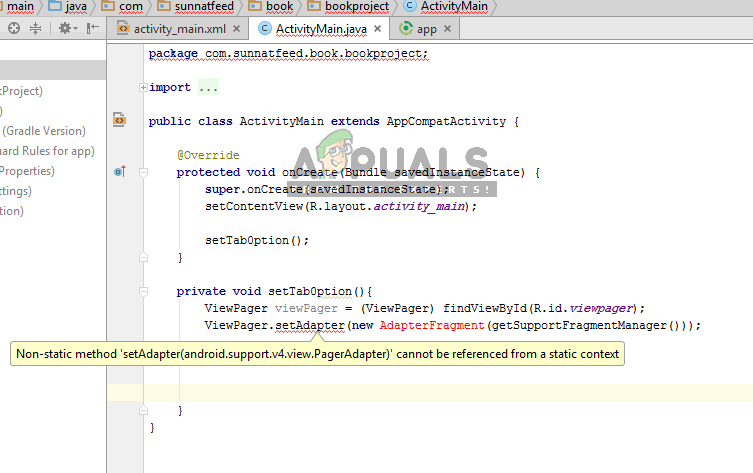
Non Static Method Cannot be Referenced from a Static Context
This is a very common mistake for beginners where the programmer tries to use a class ‘statically’ without making an instance of the class. There are several conditions which must be met when you are using a class which is static. In this article, we will go through several different cases and guide you on how to use a static class.
What is a Static Method?
Adding the keyword ‘static’ to any method makes the method known as a static method. A static method belongs to the class rather than belonging to an object (which is the norm). A static method can be easily invoked without the condition of creating an instance of a class.
There are several different uses of Static methods for example, using it, you can change a static data member and its value. However, there are still some limitations when using a Static method. For example, if you want to access non-static fields of your class, you must use a non-static method. So to sum up, Static methods are used very sparely but they do have their benefits.
Here is a short example of how a static method can be made to change the property of all objects.
class Students{

 int roll_no;

 String name;

 static String college = "InformationTech";

 static void change(){

 college = “Management"; }

 Students (int number, String name_self){

 roll_no = number;

 name = name_self;  }

 void display (){System.out.println(rollno+" "+name+" "+college);}

public static void main(String args[]){

Students.change();

Students stu_1 = new Students (100,"Mexican");

Students stu_2 = new Students (202,"American");

Students stu_3 = new Students (309,"British");

stu_1.display();

stu_2.display();

stu_3.display();

}  }
The output of the program will be:
100 Mexican Management 202 American Management 309 British Management
What is the Difference between a class and instance of a class?
Think you are walking on the street and you see a car. Now you immediately know that this is a car even if you don’t know what is its model or type. This is because you know that this belongs to the class of ‘cars’ which you already know of. Think of class here as a template or an idea.
Now as you move closer, you see the model and make of the car. Here you are recognizing the ‘instance’ of the class ‘car’. Here all the properties will be present in detail; the wheels, the horsepower, the rims etc.
An example of properties can be that the class ‘car’ states that all cars should have wheels. The car which you are seeing (an instance of the car class) has alloy rims.
In object-oriented programming, you define the class yourself and inside the class, you define a field of the type ‘color’. Whenever the class is instantiated, memory is automatically reserved for the color at the backend and later on, you can give this a specific value (for example red). Since attributes like these are specific, they are non-static.
In contrast, static methods and fields are shared with all the instances. These are made for value or items which are specific to the class and not the instance itself. For methods, there can be global methods (for example, stringtoInt converter) and for fields, they are usually constants according to your code (for example, the car type can be static if you are only manufacturing normal cars).
Now, we will look at all the different cases where your coding can go wrong and see the workarounds to fix them.
Issue 1: You are calling something which doesn’t exist
We came across some cases where users were using both static and non-static methods with each other. When we do this, you should be careful of what method is calling what (in terms of static or not). Take a look at the following code:
private java.util.List<String> someMethod(){

    /* Some Code */

    return someList;           }

public static void main(String[] strArgs){

     // The following statement causes the error. You know why..

    java.util.List<String> someList = someMethod();        }
Here, the static method is calling someMethod. In object-oriented programming, we encapsulate the data together with the data which we want to operate on. Here, without an object, there is no instance data and while the instance methods exist as part of the class definition, there should always be an object instance to provide data to them.
So to sum up, you cannot call something which doesn’t exist. Since you might not have created an object, the non-static method doesn’t exist yet. However, on the other hand, a static method will always exist (because of definition).
Issue 2: Methods aren’t made Static
If you are invoking methods from your Static main method without creating an instance of the methods, you will get an error message. Here, the same principle applies; you cannot access something that doesn’t exist.
public class BookStoreApp2 {

    //constants for options

    Scanner input = new Scanner (System.in);

    public static void main(String[] args) {

        BookStoreItem[] item;//declaring array

        item = new BookStoreItem[10];//initializing array

        int itemType = -1;

        printMenu();

        getUserChoice();

        for (int i = 0; i < item.length; i++){

            }//end of switch statement

        }//end of for loop

        for (int i = 0; i < item.length; i++) {

        }//end of for

    }//end of main method
Here in this code, you need to convert both the methods printMenu() and getUserChoice() into static methods.
Hence if you want to get around a situation like this, you can use a constructor instead. For example, you can take the contents of your main() method and place them inside a constructor.
public BookStoreApp2()

{
   // Put contents of main method here}
After doing this, do the following inside your main() method:

public void main( String[] args )

{
new BookStoreApp2();           }
If these tips don’t work on your or your code is different, you should keep in mind the basic principles of Static classes and methods and recheck your code to make sure that the basic principle is not being violated.
How to Fix “Printer is in an error state” Issue?
The error “ WinRAR Error: Next Volume Is Required ” usually appears when you’re extracting a multi-part RAR archive and WinRAR can’t find (or can’t correctly identify) the next file in the sequence . This often happens when a volume is missing , stored in a different folder , or renamed in a way that breaks the archive’s expected order .

In this guide, we’ll go over the most reliable fixes confirmed by affected users, along with what each method is doing behind the scenes so you can choose the right one for your situation.
Important: To extract multi-volume archives, you should always start extraction from the first file in the set. This is usually file.part1.rar , or (in older sets) the main .rar file that comes before .r01 , .r02 , and so on.
1. Download and Place the Missing RAR File
WinRAR needs all parts of a multi-volume archive to complete extraction. This error usually appears when one of the volumes in a set like .part2.rar , .r01 , .r02 , .001 , and similar naming formats is missing . Downloading the missing volume and placing it in the same folder as the other parts allows WinRAR to continue extracting normally .
- Look at the error message or review the list of archive parts in the folder.
- Identify which volume is missing (for example, part2.rar , .r02 , .001 , etc.).
- Go back to the website or source where you downloaded the archive.
- Locate and download the exact missing file using the same naming format as the others.
- Make sure the new file name matches the pattern of the rest. Example: If you have file.part1.rar and file.part3.rar , the missing one must be file.part2.rar .
- Move the downloaded missing volume into the same folder as the other archive parts.
- Confirm that all parts are in a single folder before extracting.
- Right-click the first file in the series (usually part1 or the main .rar file) and select Extract Here or Extract to Folder .
- WinRAR should now detect all volumes and continue extraction normally .
2. Manually Browse & Select the Next Volume
Use this method only if the next volume already exists , but WinRAR is failing to detect it automatically. This can happen due to incorrect naming , the file being in a different location , or a temporary file access issue. Manually browsing helps WinRAR locate the correct volume and resume extraction without interruption .
- Right-click the first file in the series (usually .rar or part1.rar ) and select Extract Here or Extract to Folder .
- When WinRAR cannot find the next volume, it will show the “ Next Volume Is Required ” message.
- A small window will appear, allowing you to manually select the next volume .
- Use the file explorer window to locate the folder where the other archive parts are saved.
- Select the next part based on the naming order (example: select file.part2.rar after file.part1.rar ).
- Make sure the selected file matches the naming format of the archive (no extra characters like (1) and no mismatched numbering).
- WinRAR will resume extraction using the selected volume .
- If additional volumes are missing or stored separately, WinRAR may prompt you again. Repeat the same process until extraction completes.
3. Rename the RAR files in Order
WinRAR relies on a proper naming sequence (such as file.part1.rar , file.part2.rar , file.part3.rar ) to extract multi-volume archives. If a file is named incorrectly, contains extra characters, or is out of order, WinRAR may fail to locate the next volume and show this error. Renaming the files correctly helps WinRAR follow the sequence and extract the archive without interruptions .
Note: Renaming only changes the file name , not the file contents. The goal is to restore the correct sequence so WinRAR can detect the next volume.
- Go to the folder where all the RAR files are saved.
- Make sure all parts of the archive are present and stored in the same folder .
- Check how the parts are currently named . Common patterns include:
file.part1.rar, file.part2.rar, file.part3.rar
file.rar, file.r01, file.r02, file.r03
- Look for files that don’t match the expected numbering pattern (for example, file.part01.rar , file.part1(1).rar , or unrelated names).
- Rename each file so it follows the same order without extra characters or mismatched numbering. Example:
Incorrect: file.part1.rar, file.part3.rar, file.part2(1).rar
Correct: file.part1.rar, file.part2.rar, file.part3.rar
- Make sure the text before the number is exactly the same for all files.
- Only the last part number should change.
- Right-click the first file in the series (usually part1.rar or the main .rar file) and select Extract Here .
- WinRAR should now recognize the sequence and continue extraction normally .
If you still get the same prompt: the archive set is likely incomplete (a part was never downloaded or was removed), or one of the volumes is corrupt and must be re-downloaded from the original source.
