Some users are complaining that the WordPress app refuses to start with the “ MSVCP140.dll is missing ” error. Although this symptom has mostly been reported happening on Windows 10, there are some users who encountered it on Windows 8 and Windows 7.
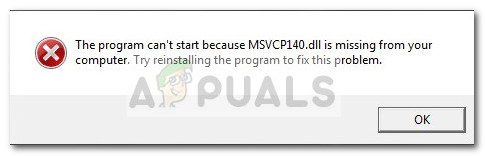
Warning: Do not follow any of that advice that is urging you to download a replacement for the MSVCP140.dll file. Most sites that claim to host the MSVCP140.dll file without the rest of the DirectX redistributable package actually contain a modified version. These modified versions often contain malicious code that will leave your system exposed to future virus infections.
If you’re currently struggling with the “ MSVCP140.dll is missing ” error when you’re opening the Wordpress App, the methods below will most likely resolve the issue. We have managed to identify a couple of fixes that have been helpful for users finding themselves in a similar situation. Please follow the two potential fixes in older until you come upon one that resolves the “ MSVCP140.dll is missing ” error. Let’s begin!
Method 1: Apply all the pending Windows updates
Some users have reported that the issue has properly disappeared after they finished applying all the pending updates through WU (Windows Update) . If you’re struggling with this issue, let’s open Windows Update and find out if you have a pending update capable of fixing the issue automatically:
- Press Windows key + R to open up a Run command. On Windows 10, type “ ms-settings:windowsupdate ” and hit Enter to open the Windows Update screen. Note: If you’re experiencing the issue on an older Windows version, type “wuapp” instead of ” ms-settings:windowsupdate”.
- In the Windows Update screen, click the Check for updates button. If you have any pending updates, follow the prompts to apply them all.
- Once all updates have been applied, restart your computer and see if the issue has been resolved by opening the Wordpress application again. If you’re still encountering the “ MSVCP140.dll is missing ” error, move over to Method 2 .
Method 2: Installing Microsoft Visual C++ Redistributable for Visual Studio 2017
Most users that have struggled with this issue have managed to fix it by installing the latest Microsoft Visual C++ Redistributable for Visual Studio 2017. Here’s a quick guide on how to do this:
- Visit this link ( here ) and download the installer for Microsoft Visual C++ Redistributable for Visual Studio 2017. Make sure that you download the vc_redist executable that is compatible with your operating system architecture.
- Open the installer and follow the on-screen prompts to install Microsoft Visual C++ Redistributable for Visual Studio 2017 on your system.
- Once the installation is complete, restart your computer. after the next startup is complete, open the Wordpress app and see if it opens without the “ MSVCP140.dll is missing ” error.
If you’re still encountering the same issue repeat the steps above with Visual C++ Redistributable Packages for Visual Studio 2013 and with Visual C++ Redistributable for Visual Studio 2015.
