Microsoft Print to PDF is an integrated printer that prints a web page, a JPEG image, a Word file, and some other files as PDF. This is a built-in printer that comes pre-installed on your computer. However, there have been instances where the Microsoft Print to PDF printer has been missing.
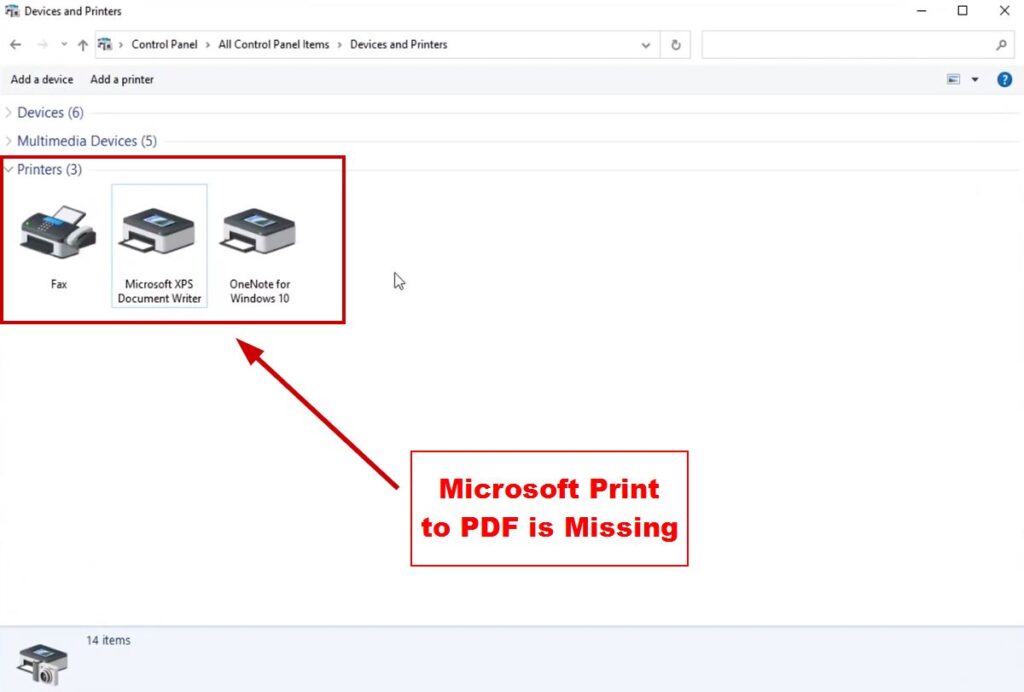
Because of this issue, users struggle a lot while downloading PDFs. Usually, this option could be disabled by the user unintentionally, or the problem could be that the printer drivers are not up-to-date.
There are plenty of methods to fix this issue, which include reinstalling the printer, setting it as default, updating the printer drivers, and more.
I’ll first write a short description of how these methods will help us, and then we’ll move on to the steps.
How do I get Microsoft Print to PDF back?
- Re-Enable Microsoft Print to PDF Option: If the printer was disabled, then it’s obvious that it won’t work. Besides, if there is a glitch in the system, it can also affect the printer. In such cases, it’s better to disable and then re-enable the printer.
- Make Microsoft Print to PDF the Default Printer : If you have more than one printer on your system, then set Microsoft Print to PDF as the default one so there are no problems for Windows to decide which printer to select.
- Add the Microsoft Print to PDF Printer Manually: If, for some reason, the printer isn’t added to your system, then you won’t be able to print the files as PDF. For this, add the printer manually to your PC and retry downloading a PDF.
- Change the Startup Type of the Print Spooler Service: The Print Spooler service basically manages all things related to printers and prints. Make sure the service is set to the automatic startup type so it starts as soon as you power on your PC.
- Update Printer Drivers : Outdated printer drivers are one of the major reasons why printers don’t function properly on a PC. Therefore, make sure you always keep them updated.
- Update your Windows : If nothing else works, then check if you’re running an older Windows version and whether there’s an update available. If there is, then install it and check the printer.
1. Re-Enable Microsoft Print to PDF Option
- Click on Start .
- Type Control Panel .
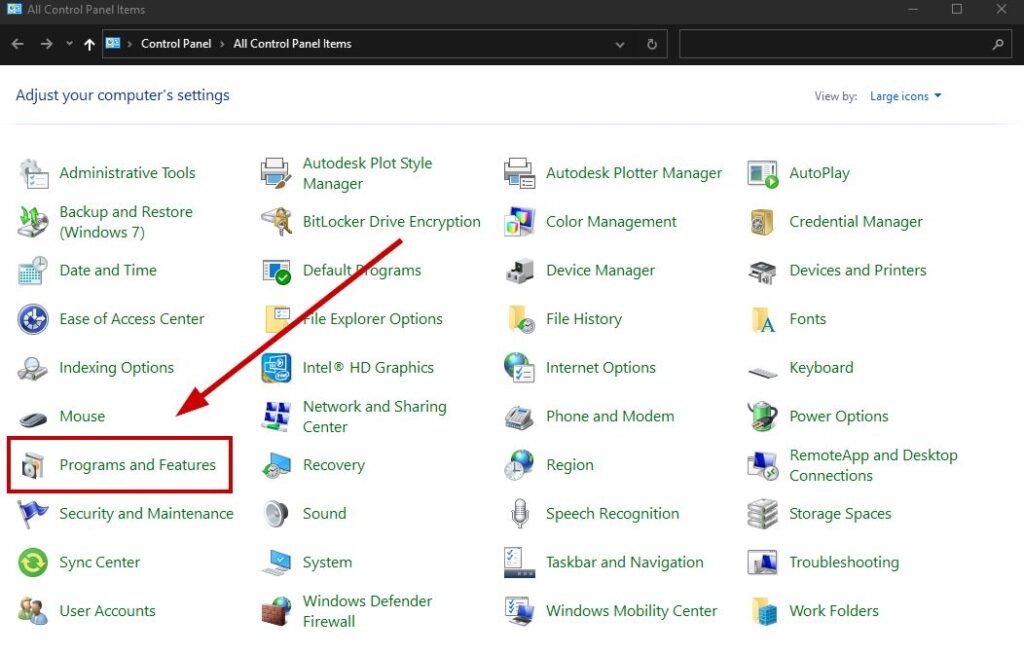
- Go to Programs and Features .
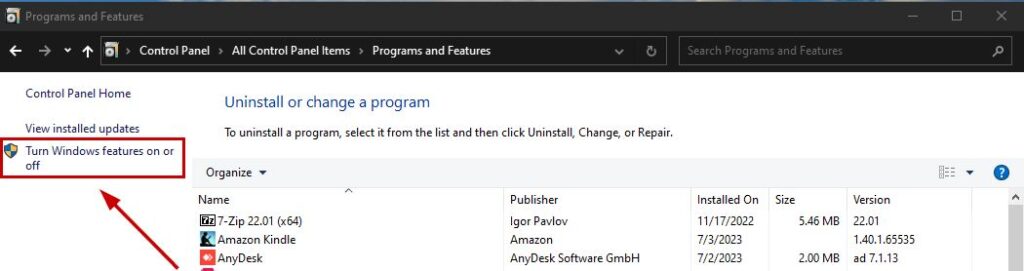
- Select Turn Windows Features on or off .
- Look for Microsoft Print to PDF .
- Tick it if it’s unticked.
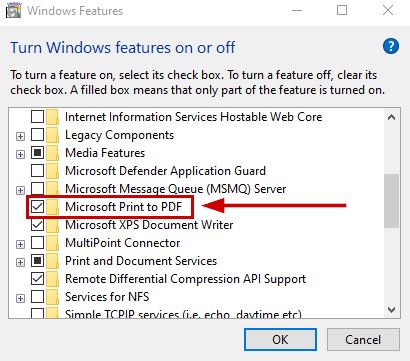
- If it was already ticked , then untick it and select OK.
- Now click Windows features on or off again.
- Tick Microsoft Print to PDF again and check if the printer shows up or is still missing.
- If it’s missing, then reboot your PC and check again.
2. Make Microsoft Print to PDF the Default Printer
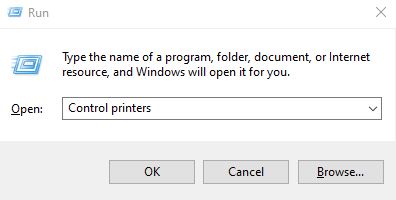
- Press Win + R and type Control Printers in the Run dialog box.
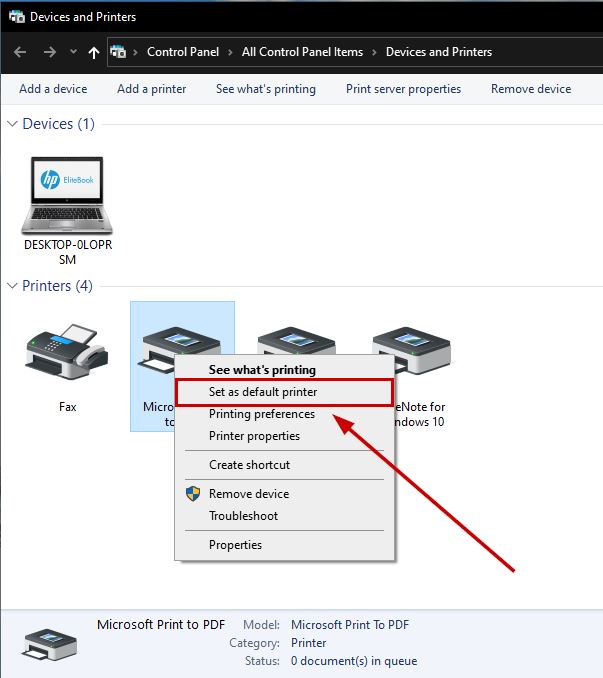
- Right-click on Microsoft Print to PDF .
- Click Set as default printer .
- Restart your computer.
3. Add the Microsoft Print to PDF Printer Manually
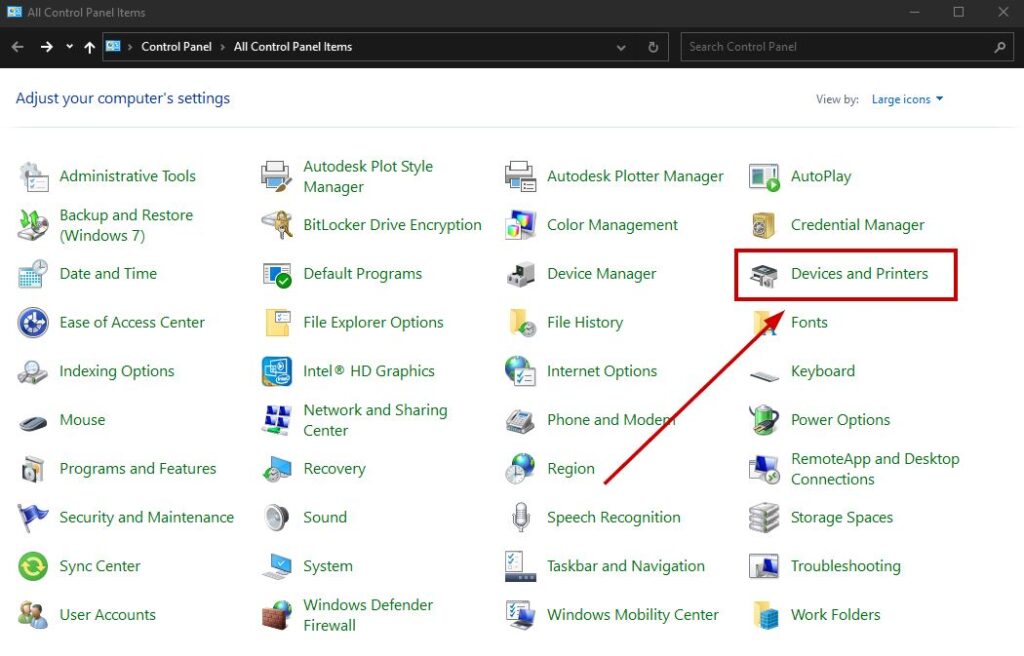
- Select Start and type Control Panel .
- Click on Devices and Printers .
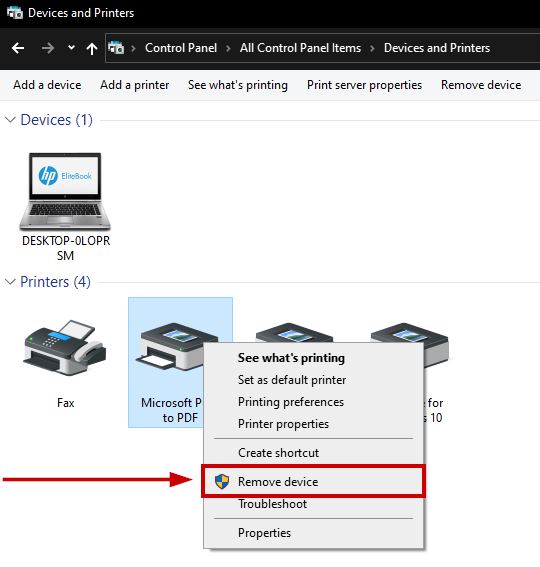
- Right-click on Microsoft Print to PDF .
- Select Remove device .
- Now click on Add a Printer .
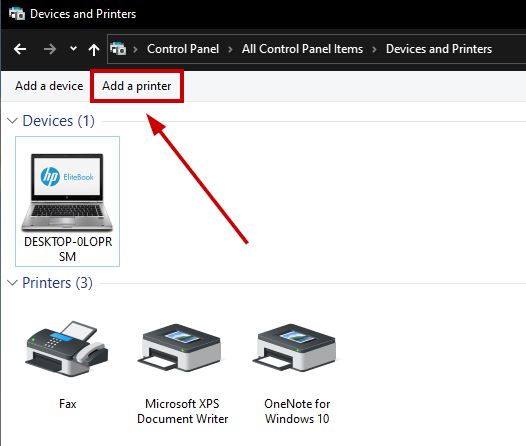
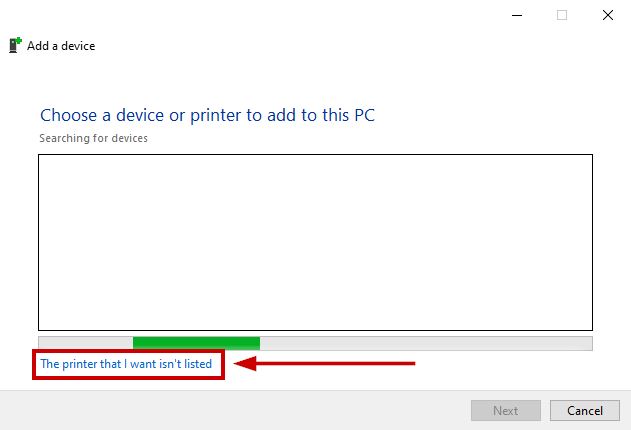
- Select ‘The printer I want isn’t listed’ .
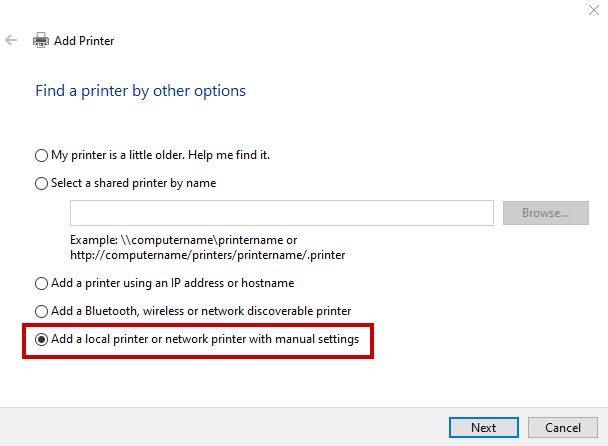
- Click Add a local printer…..with manual settings .
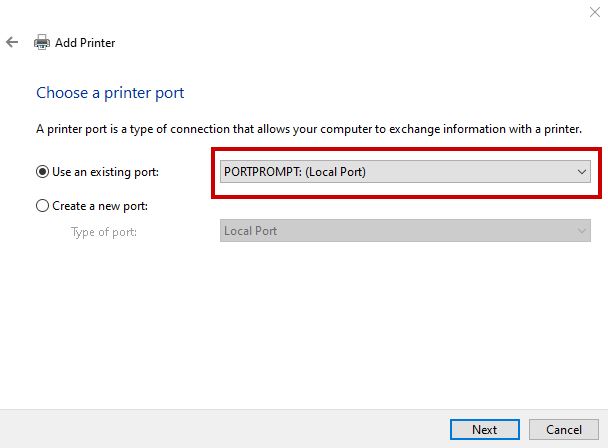
- Choose PORTPROMPT: (Local Port) and click Next.
- Select Microsoft in the Manufacturer tab, and then select Microsoft Print to PDF as the printer.
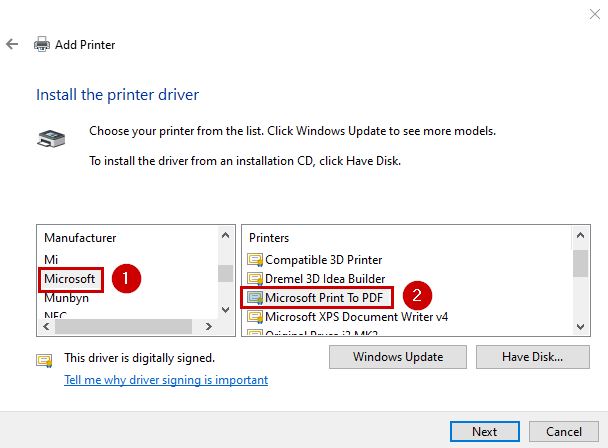
- Now select Next and Finish .
If the Microsoft Print to PDF printer isn’t available in the list, then follow the steps below to get it back:
- Type printui.exe /s in the Run dialog box by pressing the Win + R keys.
- Go to the Drivers tab.
- Click Microsft Print to PDF and select Remove .
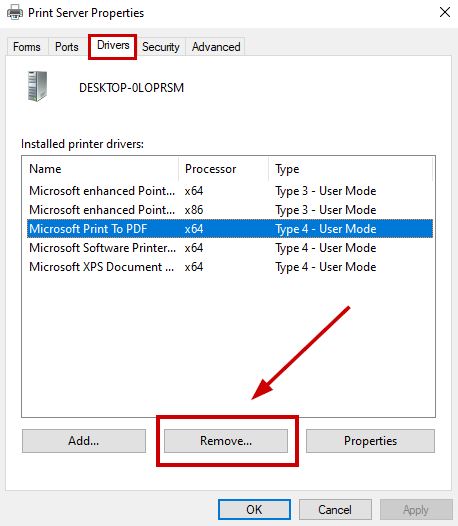
- Select Remove Driver Only and click OK .
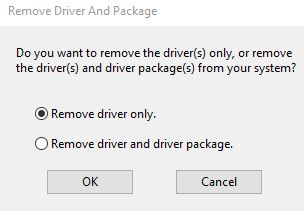
- Click Yes on the next prompt.
- Now type printui.exe /im in the Run dialog box.
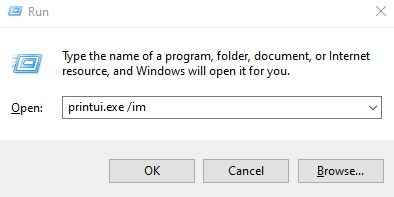
- Select the manual settings printer option and PORTPROMPT (Local Port) .
- Now click Windows Update and wait for 5-15 minutes .
- Once the process is completed, Microsoft Print to PDF will appear in the list.
- Continue with the installation and then check if Microsoft Print to PDF is missing or not.
4. Change the Startup Type of the Print Spooler Service
- Press Win + R and type services.msc .
- Select any service and press P .
- Now look for Print Spooler, right-click on it, and select Properties .
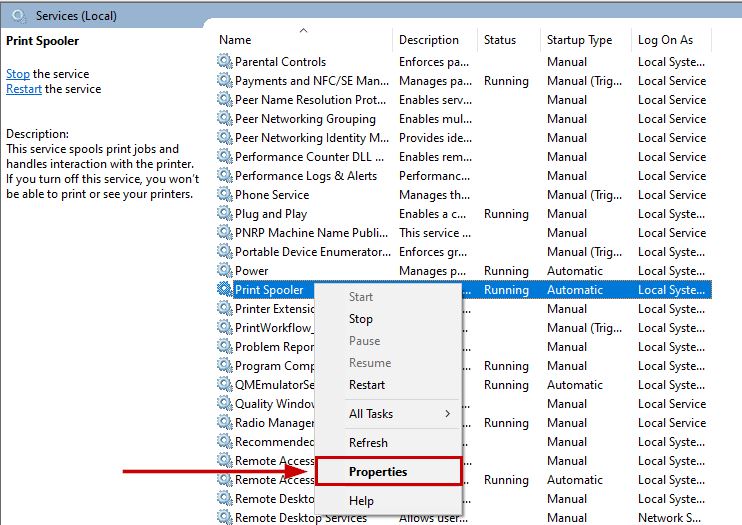
- Make sure the Startup type is set to Automatic.
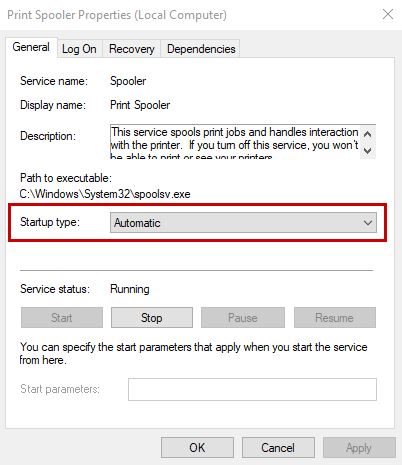
- If Print Spooler isn’t already running, then right-click on it and click on Start .
5. Update Printer Drivers
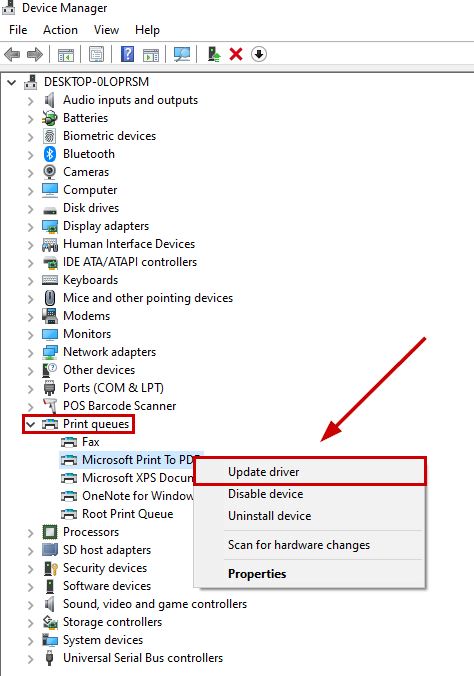
- Type Device Manager in the Start menu.
- Expand the Printer Queues section.
- Right-click on the Printer driver .
- Select Update driver .
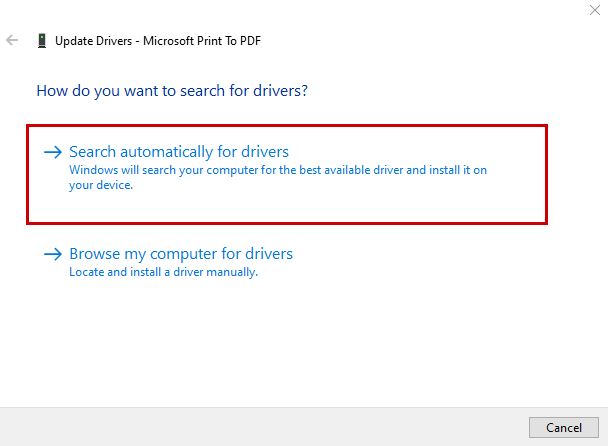
- Select the automatic update option and wait for Windows to install the update.
6. Update your Windows
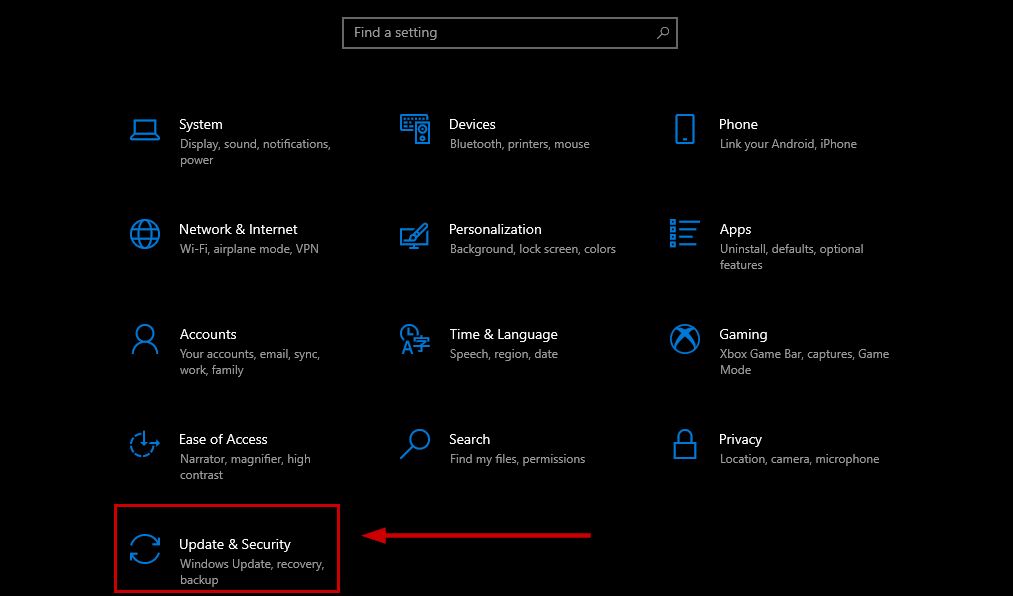
- Press the Win + I keys.
- Now select Update & Security in Settings.
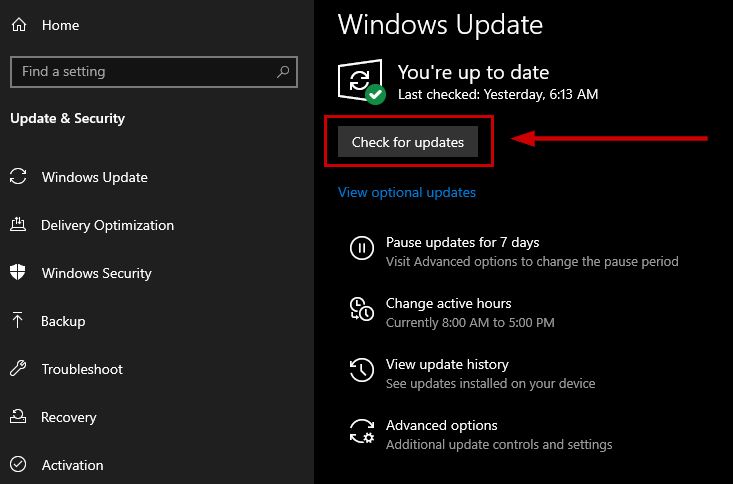
- Check for updates and install if the latest version is available.
If none of these fixes helped you, then feel free to contact Microsoft Support or create a post on the Microsoft forums. The developers will get back to you and help you solve the issue.
How to Fix “Printer is in an error state” Issue?
When a device is changing on its own, it is usually due to one of two reasons. The first is that you have a setting on your computer that allows the computer to change the device to the most suitable one that it deems worthy. There is a settings in Windows 10 which allows Windows to manage printers.
The second is due to some unforeseen error that the computer is not telling you about and that’s because it’s not really an error that will cause a massive problem in the computer due to the fact that it has a device that it can change to in order to remove the problem.
In either case, the two methods below will help you sort this issue out.
Method 1: Disable “Let Windows Manage My Default Printer”
In the newest Windows 10, it is given permission to defaultly control your printer. If your printer is wireless, then it will chose the closest printer towards the location of the devices that the Windows 10 Operating System has been installed on.
Hold the Windows Key and Press A . Choose All Settings and then choose Devices . Select “ Printers and Scanners ” from the left pane and turn off “ Let Windows Manage My Default Printer ”

Method 2: Troubleshoot Printer Status
If your printer is running into issues, or if the driver is corrupt or outdated then Windows may default to another printer because it detects that the existing printer is either offline, or isn’t detected. To check if it’s not running into any issues, look for the Printer Status and make sure it is Set as Default, Connected and Powered On.
Click Start and type Devices and Printers. Click Devices and Printers from the list of results displayed. Once it opens up, take a look at the printer’s listed and make sure your’s is Set as Default , if not then Right Click on it and choose Set as Default . Once it is Set as Default it will show a green tick/checkmark. Then, click the printer once, to see it’s status, look at the bottom to ensure that it shows “ Ready ” – If it doesn’t shows Ready, it shouldn’t show Offline either.
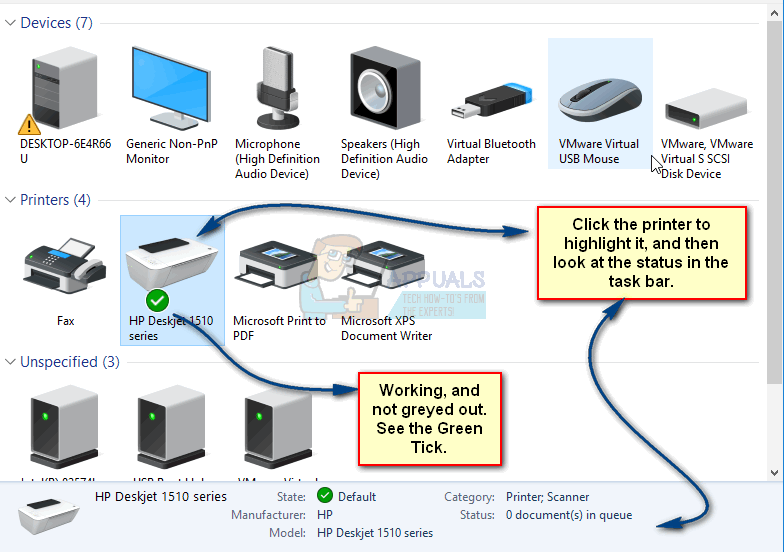
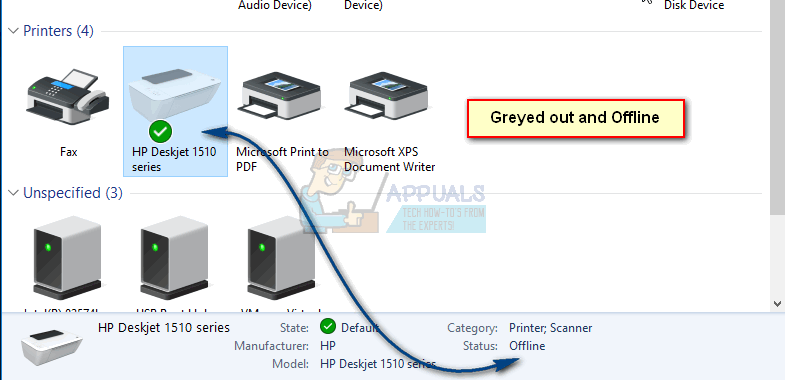
If it shows as Offline or if it Greyed out , then check the connectivity.
If it’s a wireless printer, make sure it is connected to your wireless network. Easiest way to do this is to re-do the wireless setup. If it’s wired over a USB Port , run the printer’s setup and re-add the printer. (this will automatically) install the drivers as well.
If you don’t have access to the setup, then Google your printer’s model number and get the setup from the Manufacturer’s site.
Keeping your printer drivers up to date is crucial for smooth printing operations and to take advantage of new features and bug fixes. In this guide, we will explore the best places to obtain the latest printer drivers, considering different scenarios and providing you with detailed options. Let’s dive in and discover the ideal sources for obtaining the latest printer driver.
The Best Places to Find the Latest Printer Driver.
In the following sections, we will explore the best places to obtain the latest printer driver , catering to various scenarios and providing detailed options for obtaining the most up-to-date software.
1: Printer Manufacturer’s Official Website
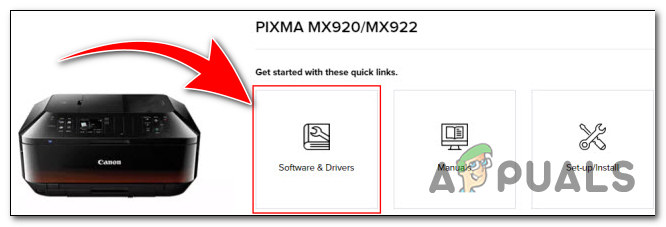
The first and most reliable source for obtaining the latest printer driver is the official website of the printer manufacturer . Reputable printer manufacturers maintain dedicated support sections on their websites, providing access to the latest drivers and software for their printers. Here’s how you can obtain the latest driver from the manufacturer’s website:
- Visit the official website of your printer manufacturer.
- Look for the “Support” or “Drivers” section on the website. Look for the “Support” or “Drivers” section on the website.
- Locate your printer model by entering the model number or navigating through the product categories.
- Once you find your printer model, you will typically find a list of available driver s for different operating systems.
- Select the driver compatible with your operating system and click on the download link. Select the driver compatible with your operating system and click on the download link.
- Follow the provided instructions to install the driver on your computer.
Downloading drivers from the manufacturer’s official website ensures that you have the genuine software specifically designed for your printer model. It provides a reliable and trusted source for obtaining the latest printer driver.
2: Operating System Updates
Operating systems like Windows, macOS, and Linux often include a database of drivers for various hardware devices, including printers . These operating systems periodically release updates that may include the latest printer drivers. Here’s how you can check for printer driver updates through your operating system:
- Windows: On Windows, you can access printer driver updates through the Windows Update feature. Go to the “Settings” menu, select “Update & Security”. and click on “Windows Update”. Windows will automatically search for available updates, including printer driver updates. If any printer driver updates are found, they will be listed for installation . Go to Windows Update to update ur printer drivers on Windows.
- macOS: macOS provides updates for printer drivers through the “Software Update” feature. Click on the Apple menu, select “System Preferences”. and choose “Software Update”. If there are any printer driver updates available, they will be displayed for installation.
- Linux: Linux distributions often have dedicated package managers or software update utilities that handle driver updates. Depending on your Linux distribution, you can use the respective package manager or software update utility to check for printer driver updates. Refer to the documentation or support resources for your specific Linux distribution for more information.
By keeping your operating system updated, you can ensure that you have the latest printer driver provided by the operating system manufacturer.
3: Dedicated Driver Download Websites
If you are unable to find the necessary driver from the printer manufacturer’s website or through operating system updates, there are dedicated driver download websites that can serve as an alternative source . These websites collect and provide drivers for various devices, including printers. However, it is important to exercise caution when using third-party websites. Here are a few reputable driver download websites:
- Driver Guide : Driver Guide offers a vast collection of drivers, including printer drivers. They provide a user-friendly interface, detailed driver information, and instructions for installation .
- Driver Pack Solution : Driver Pack Solution is a comprehensive driver update tool that can automatically detect and install the latest printer drivers . It simplifies the driver update process and ensures you have the most up-to-date drivers for your devices.
- Softpedia : Softpedia is a trusted software and driver download website that hosts a wide range of printer drivers. They ensure the drivers available for download are free from malware and provide user reviews and ratings for additional guidance.
When using dedicated driver download websites, always verify the source, read user reviews, and ensure that the website is trustworthy. Exercise caution to avoid downloading drivers from unreliable sources that may contain malware or outdated drivers.
In conclusion, ensuring that you have the latest printer driver is essential for optimal performance and compatibility. Whether you choose to obtain the driver from the printer manufacturer’s official website, rely on operating system updates, explore dedicated driver download websites, or use automatic driver update software, it is important to prioritize reliability, compatibility, and ease of installation. By obtaining the latest printer driver, you can ensure smooth printing operations and take advantage of new features and bug fixes .
It is recommended to check for printer driver updates periodically, such as every few months or when you encounter compatibility or performance issues. Keeping your drivers up to date ensures optimal printing functionality.
While some third-party driver download websites are reputable, it is important to exercise caution. Verify the source, read user reviews, and ensure that the website is trustworthy before downloading drivers.
In most cases, the new driver installation will automatically replace the old one. However, if you encounter any issues, it is recommended to uninstall the old driver first before installing the latest version.
Generic printer drivers can provide basic functionality, but it is best to use the specific drivers designed for your printer model. Generic drivers may lack certain features or optimizations.
Updating printer drivers ensures compatibility with the latest operating systems and applications, improves performance, fixes bugs, and introduces new features.
