
If some keys are not working, it is possible that those specific keys have dust or items between the physical key and the receptor which might be blocking the signal. In this case, it is recommended that you clean the keyboard after taking the initial casing off.
How to fix Laptop Keyboard not working
In addition to the title of this article, there are also some other topics which fall in the same category and following the solutions listed below also apply to them.
- Dell Laptop Keyboard not Working on Windows 10: When there is a system update or a glitch your DELL Laptop keyboard will not work – Users mainly reported having the issue on Dell Laptops running Windows 10.
- Some Keys on the Keyboard are not Working: You may also experience an issue where some of the keyboard keys wont work this could mainly be due to settings as well and not likely a hardware fault. W
In all of the above cases, the solutions listed below will address the issue.
Note: You can try attaching a keyboard or mouse to your laptop using a USB cable to follow the solutions listed below.
Restart Laptop and remove the battery
- Shut down your laptop completely. If you are unable to shut down, press the power button for a few seconds to shut it down forcefully.
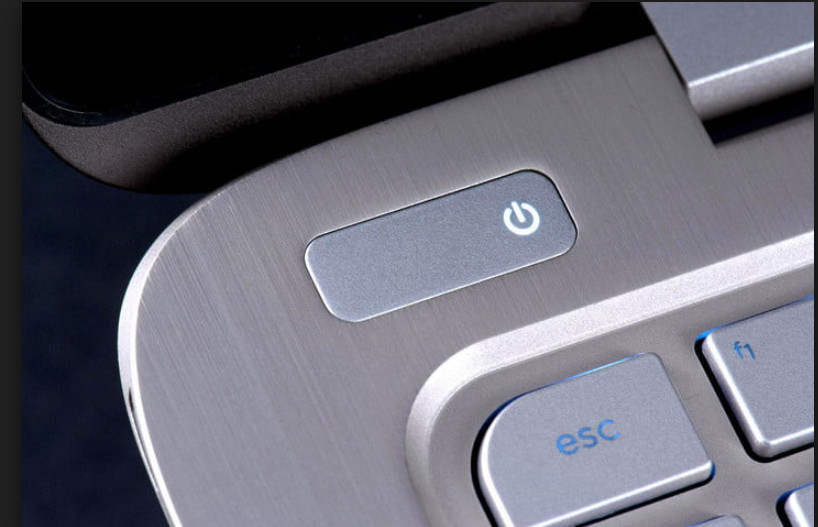
- Once the computer is shut down, take out the battery. Slide the buttons (if present) and after you hear a click sound, slide the battery off the laptop .

- Wait for a few minutes to make sure all power is drained from the computer. Now plug the battery back in, attach the power cord and turn on your computer. Now check if the problem is solved.
Installing Default Drivers
- Press Windows + R, type “ devmgmt. msc ” in the dialogue box and press Enter. You can also click on the Windows icon and select the device manager.
- Once in the device manager, expand Keyboards , select the keyboard, right-click it and select Uninstall device .
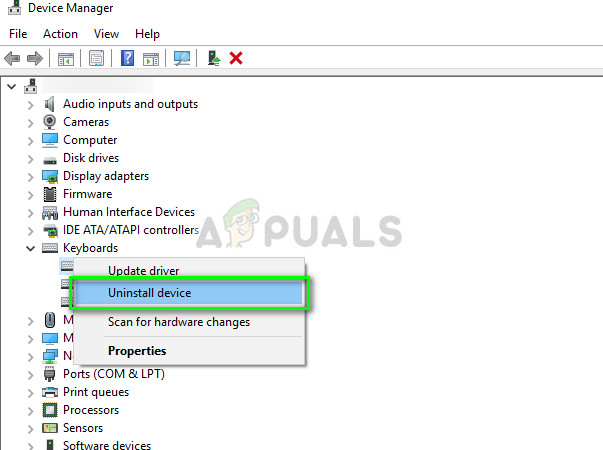
- After uninstalling the device, restart your computer completely. The system will detect that the driver isn’t installed for the keyboard and will install the default driver. If the driver doesn’t show up, you can right-click on any whitespace in the device manager and select Search for hardware changes .
If the keyboard comes as a device with a yellow exclamation mark, right-click it, select Update driver and install the driver after manually downloading it from your laptop manufacturer’s website.
Changing Ease of Access Settings
- Click on the Windows search bar present at the left side of your screen and type “ Ease of Access ”. Open the application which returns in the result.
- Once in the Ease of Access Center, select the category of “ Make the keyboard easier to use ”.
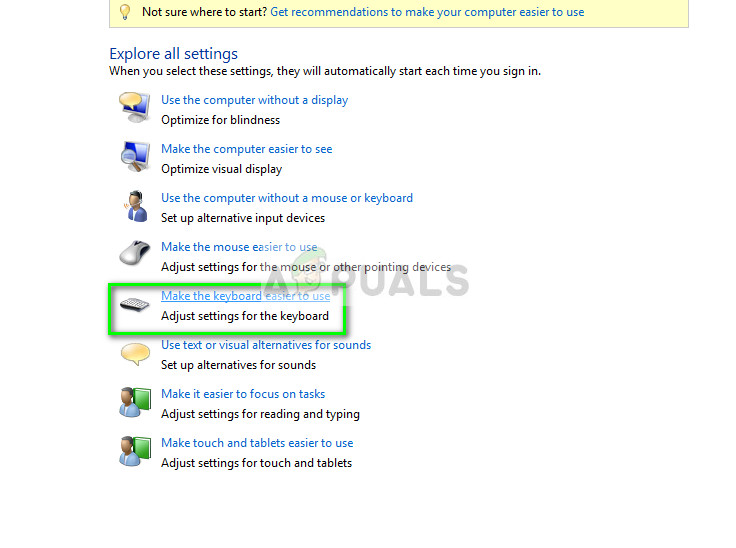
- Uncheck the following options present on the screen:
“ Turn on Mouse keys ”
“ Turn on Sticky Keys ”
“ Turn on Toggle Keys ”
“ Turn on Filter Keys ”
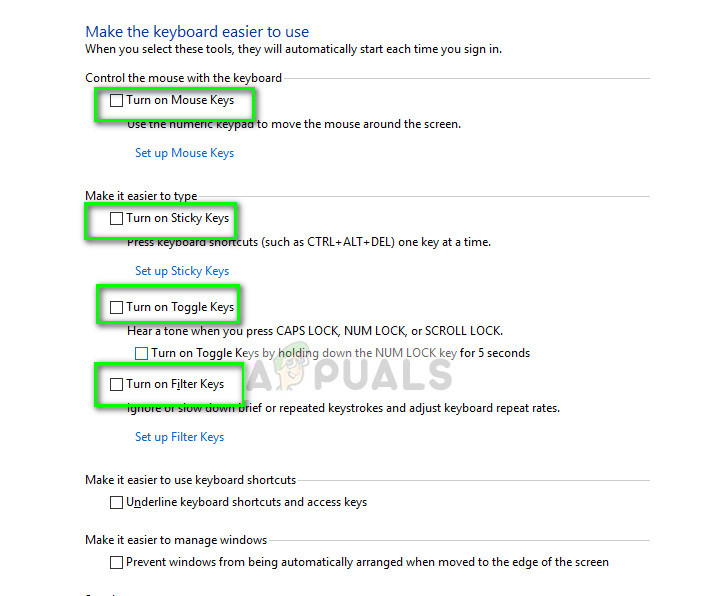
- Now restart your computer completely and try using the keyboard. Check if the problem is solved.
Checking for hardware problems
- Make sure that your keyboard is clean and there are no substances stuck inside.
- Make sure that there are no breadcrumbs or edible items inside the keyboard.
- Make sure that the keyboard’s connecting strip is properly connected to the desired port.
Note: You should also make sure that there is no antivirus software conflicting with the keyboard drivers. You can temporarily disable them to troubleshoot.
