The error AADSTS90100 occurs when users are trying to log in to their Microsoft accounts such as Outlook, Teams, etc. The main cause for this error is an outdated cache and cookies on your browser, but there are other possible ones that we will look into later. In this article, we will see ways to fix the error AADSTS90100 Login parameter is empty or not valid, and what causes it.
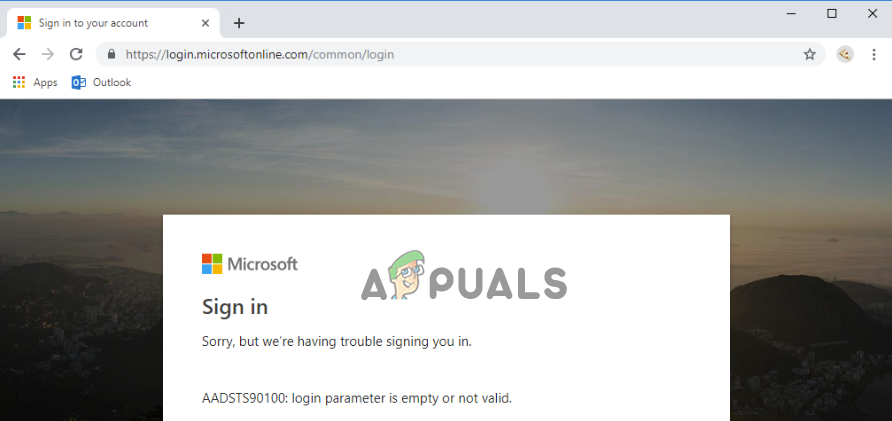
Error AADSTS90100 Login Parameter is Empty or Not Valid
The error is so annoying as a user cannot narrow it down to one specific cause or how to resolve it. It affects individuals, businesses, and organizations that rely on collaborative Microsoft apps to run their daily operations. The error does not also spare developers who integrate different APIs. Sometimes, users can get two main error messages that almost mean the same as shown below:
- Sorry, but we’re having trouble signing you in. AADSTS90100: login parameter is empty or not valid.
- Sorry, but we’re having trouble signing you in. AADSTS90019: No tenant-identifying information found in either the request or implied by any provided credentials.
From the error message, it is clear that the issue is about Microsoft account login problems. Login errors are easy to fix but AADSTS90100 seems to be nagging to many users.
Why do I get the sign-in error AADSTS90100?
There are several possible reasons why you get the error code AADSTS90100 when trying to log in to Microsoft, Outlook, etc. According to Jennifer Shi , a Microsoft Agent, and a moderator, the error can be caused by browser issues, cache, or cookies, as some users have no issue when logging in using the private tabs. Other possible causes of ADSTS90100 error are:
- Tool servers are down . Sometimes, the servers of the app or tool you are trying to access might be down causing you to have login issues. This is a temporary issue and most times the servers work almost seconds after.
- Outdated or corrupted browser cache. If your browser has broken or outdated browsing data like cache and cookies, you will have logging issues like the AADSTS90100 error.
- Incorrect account credentials. Most likely, your company might have made some changes to your account and you are trying to access it using old details or permissions. Also, if you access the app using different user accounts, there can be technical issues that trigger the login error.
- Faulty app installation. If you are accessing your account using a Microsoft app on Windows, the issue could be app files not working properly or they are damaged. This is quite common in different apps but is easy to fix by reinstalling or resetting the affected app.
These are just the common reasons why you get the error but there could be other account-specific issues that can be addressed at a personal level. Let us now look at how you can fix the problem.
How Do I Fix the ‘AADSTS90100 Login Parameter is Empty or Not Valid’ Error?
To fix the ‘AADSTS90100 login parameter is empty or not valid’ error, try to log in again after a minute and see if it will go through. Sometimes, there could be a temporary issue or you missed something. You can also reload your browser and try again. If that doesn’t work, try the following solutions to fix the error:
- Perform preliminary solutions. Before working on more advanced solutions, it is recommended that you start with primary workarounds to try to fix an issue. Some errors are not fatal and are caused by temporary issues like bugs. We will look at these simple solutions shortly.
- Clear browser cache and cookies. Clearing browser data help in creating new error-free data. Cookies and cache get outdated or corrupted and the only way to fix this is by deleting them. The process of clearing cache and cookies depends on the browser you are using.
- Reset the affected app cache . If the error is appearing on an app like Outlook, you can reset the app by deleting its files in the Local Disk and then restarting it. This makes the app update new files. Some apps have in-built resetting mechanisms. We will show you how to clear Outlook cache on Windows .
- Reset network settings. Network issues can trigger the AADSTS90100 login error and the best way is to reset network issues. Re-establish the connection and try to log in again.
- Reinstall or repair the affected app . Reinstalling the affected app ensures that the technical issues the previous app had are fixed or restored. This is the solution you need to perform if all other steps failed to yield any results.
1. Perform preliminary solutions
- Restart your app, browser, or computer.
- Try private browsing. In Google Chrome and Mozilla Firefox, use Incognito mode, and in Microsoft Edge, try Private mode. Try Private browsing
- Try to log in using a different browser
- Wait for a minute or so and try to log in again.
If no preliminary workaround works for you, try the more advanced solutions below.
2. Clear browser cache and cookies
2.1 In Chrome
- Open Chrome and click on the three dots next to your profile picture at the top right side.
- Locate and click Settings.
- On the settings window, select the Privacy and security option which is located on the left side.
- Click on Browsing data.
- Here, select the Time range as All time , and tick the box next to what you want to delete. In this case, you can delete Cookies and other site data and Cached images and files . Clear Chrome data
- Finally, click Clear data and see if you have fixed the error.
2.2 In Edge
- Open Microsoft Edge and press Ctrl + Shift + Del .
- Select the time range and check the box next to all options as we did in Chrome above.
- Finally, click Clear now .
2.3 In Firefox
- Open Mozilla Firefox and click on the hamburger menu at the top right side.
- Scroll down and click on Settings.
- Next, click on Privacy & Security .
- Scroll down and locate Cookies and Site Data . Here, click Clear data which is an option on the right side. Clear browsing data on Firefox
3. Reset the affected app cache
For this solution, we will use Microsoft Outlook as an example.
- Ensure that all data is saved and then close the app
- Press the Windows button + R , type the following file path in the Run box and press Enter on the keyboard: %localappdata%\Microsoft\Outlook
- Double-click the RoamCache folder to open it.
- Delete all files in this folder. You can press Ctrl + A to highlight all files, then press Delete on your keyboard. Clear affected app cache
Tip: Use the same process for other apps. However, the only difference is the file path.
4. Reset network settings
- Open Windows settings by pressing the Windows button + I.
- On the left side, click Network & Internet.
- Next, select Advanced network settings.
- Now, click Network reset and then select Reset now. Reset Network settings
- Finally, when the popup appears, select Yes to confirm your action.
5. Reinstall or repair the affected app
- Press the Windows button + R , type control inside the Run dialog box, and then press Enter on your keyboard.
- Locate and click Programs and Features.
- Look for the affected app, click on it, and select Uninstall or Repair/Change . Reinstall or Repair app
- Follow the on-screen directions to complete the process.
- If you selected Uninstall, go to the official website to download the app and reinstall it.
Need more help?
The solutions in this post have worked for some users and we hope one will help fix the error AADSTS90100 Login parameter is empty or not valid. However, if you still need more help, you can contact Microsoft because some issues might be account-specific. Alternatively, you can leave us a comment below and one of our experts will get in touch with you shortly.
Microsoft might have trouble signing you in because you are using the wrong credentials to access your account. Always ensure the Caps Lock is off. Also, you might have a problem signing in if your session is over and you need to sign in again. Other reasons could be network issues, bugs, etc.
You cannot log in to Microsoft 365 if your password has expired, or you have corrupted browsing data preventing you from accessing your account properly. To fix this, clear the browser cache and clear all site data in your browser. Also, ensure you have stable internet. If nothing works, contact the Microsoft Technical Support team.
How to Fix “Printer is in an error state” Issue?
The error “ WinRAR Error: Next Volume Is Required ” usually appears when you’re extracting a multi-part RAR archive and WinRAR can’t find (or can’t correctly identify) the next file in the sequence . This often happens when a volume is missing , stored in a different folder , or renamed in a way that breaks the archive’s expected order .

In this guide, we’ll go over the most reliable fixes confirmed by affected users, along with what each method is doing behind the scenes so you can choose the right one for your situation.
Important: To extract multi-volume archives, you should always start extraction from the first file in the set. This is usually file.part1.rar , or (in older sets) the main .rar file that comes before .r01 , .r02 , and so on.
1. Download and Place the Missing RAR File
WinRAR needs all parts of a multi-volume archive to complete extraction. This error usually appears when one of the volumes in a set like .part2.rar , .r01 , .r02 , .001 , and similar naming formats is missing . Downloading the missing volume and placing it in the same folder as the other parts allows WinRAR to continue extracting normally .
- Look at the error message or review the list of archive parts in the folder.
- Identify which volume is missing (for example, part2.rar , .r02 , .001 , etc.).
- Go back to the website or source where you downloaded the archive.
- Locate and download the exact missing file using the same naming format as the others.
- Make sure the new file name matches the pattern of the rest. Example: If you have file.part1.rar and file.part3.rar , the missing one must be file.part2.rar .
- Move the downloaded missing volume into the same folder as the other archive parts.
- Confirm that all parts are in a single folder before extracting.
- Right-click the first file in the series (usually part1 or the main .rar file) and select Extract Here or Extract to Folder .
- WinRAR should now detect all volumes and continue extraction normally .
2. Manually Browse & Select the Next Volume
Use this method only if the next volume already exists , but WinRAR is failing to detect it automatically. This can happen due to incorrect naming , the file being in a different location , or a temporary file access issue. Manually browsing helps WinRAR locate the correct volume and resume extraction without interruption .
- Right-click the first file in the series (usually .rar or part1.rar ) and select Extract Here or Extract to Folder .
- When WinRAR cannot find the next volume, it will show the “ Next Volume Is Required ” message.
- A small window will appear, allowing you to manually select the next volume .
- Use the file explorer window to locate the folder where the other archive parts are saved.
- Select the next part based on the naming order (example: select file.part2.rar after file.part1.rar ).
- Make sure the selected file matches the naming format of the archive (no extra characters like (1) and no mismatched numbering).
- WinRAR will resume extraction using the selected volume .
- If additional volumes are missing or stored separately, WinRAR may prompt you again. Repeat the same process until extraction completes.
3. Rename the RAR files in Order
WinRAR relies on a proper naming sequence (such as file.part1.rar , file.part2.rar , file.part3.rar ) to extract multi-volume archives. If a file is named incorrectly, contains extra characters, or is out of order, WinRAR may fail to locate the next volume and show this error. Renaming the files correctly helps WinRAR follow the sequence and extract the archive without interruptions .
Note: Renaming only changes the file name , not the file contents. The goal is to restore the correct sequence so WinRAR can detect the next volume.
- Go to the folder where all the RAR files are saved.
- Make sure all parts of the archive are present and stored in the same folder .
- Check how the parts are currently named . Common patterns include:
file.part1.rar, file.part2.rar, file.part3.rar
file.rar, file.r01, file.r02, file.r03
- Look for files that don’t match the expected numbering pattern (for example, file.part01.rar , file.part1(1).rar , or unrelated names).
- Rename each file so it follows the same order without extra characters or mismatched numbering. Example:
Incorrect: file.part1.rar, file.part3.rar, file.part2(1).rar
Correct: file.part1.rar, file.part2.rar, file.part3.rar
- Make sure the text before the number is exactly the same for all files.
- Only the last part number should change.
- Right-click the first file in the series (usually part1.rar or the main .rar file) and select Extract Here .
- WinRAR should now recognize the sequence and continue extraction normally .
If you still get the same prompt: the archive set is likely incomplete (a part was never downloaded or was removed), or one of the volumes is corrupt and must be re-downloaded from the original source.
