Epson is a Japanese company and is one of the world’s largest manufacturers of computer printers. It has numerous types of printers available and is known to be one of the ‘big’ players in the printing industry.

There have been numerous issues reported with Epson where the printer seems offline even if it is started up and is printing the test page just fine. This issue might occur on a number of different occasions and the cause of this issue might vary from system to system. We have listed down all the workarounds; start with the first one and work your way down accordingly.
Solution 1: Resetting Printer Spooler
The spooler service is a software program which is responsible for managing all print jobs being sent to the computer printer. The print spooler service is usually visible to users and they can also cancel a print job which is being processed. It also allows them to manage jobs which are currently on the waitlist. By resetting this service, we will make sure that all the configurations get reset.
We can try restarting this service and check if this solves the problem.
- Press Windows + R to launch the Run application. Type “ services. msc ” in the dialogue box and press Enter.
- Locate the service “ Print Spooler ” present in the list of services. Double-click it to open its properties. Click the “ Stop ” button present underneath system status and press “ Ok ” to save changes.

- Now open services again and start it once more and make sure that the startup type is set to automatic.
If this doesn’t fix the issue, access the printer using the login credentials and make sure that the printer is connected. If it isn’t connecting wirelessly, try plugging a wire and check again if this helps. Once this is done, navigate to printers, right-click on the device and select “ Connect ”.

Note: Also make sure that the printer is set as the default printer and make sure that the setting “Use printer offline” is not checked.
Solution 2: Disabling SNMP Settings
SNMP stands for Simple Network Management Protocol and is used for a variety of different purposes on your computer. Almost every printer which uses a wireless connection to connect with your computer uses this protocol for some functionalities and tightening the security of the connection. There were several reports which indicated that disabling the SNMP protocol solved the problem for them. Take a look at the steps below.
- Open your control panel and click on Devices and printers. Once in the printers window, locate your device, right-click it and select Properties .
- Once in the settings, click on Ports , now with your IP highlighted, click on Configure ports and uncheck the option SNMP Status Enabled .

- Press OK to save changes and exit. Now right-click on the printer and try connecting. If possible, power cycle your printer properly before proceeding.
Solution 3: Adding the printer using IP address and port
Another thing you can try is adding the printer on your computer using its IP address and port number. There may be problems by the computer in adding the printer automatically. We will manually look up the addresses and try adding it to the computer.
- Open the control panel and navigate to the printers section like we did earlier on. Select your device, right-click it and click Printer Properties .
- Now navigate to Ports , click on the checked entry and select Configure Port .
- A new window will pop up consisting of port name and IP address. Copy these so we can enter them later on.

- Now press Windows + R, type “control” in the dialogue box and press Enter. Once the control panel shows up, click on “Devices and printers” and select Add a printer .

Note: You should delete the existing printer so we can add it again using the IP address.
- The printer will not be detected most probably. If it does, just click on it and the computer will connect. If it doesn’t show up, select “ The printer that I want isn’t listed ”.

- Now select the option “ Add a printer using TCP/IP address or hostname ”.

- Enter the IP address and Port name of the printer and wait for it to connect.

- Once the printer is connected, print out a test page and check if the problem is solved.
Note: This solution is meant to make sure that the IP address which your printer has obtained is the same which is inputted in the computer. If you are having trouble determining the IP address of the printer using the methods listed, you should check the printer manual and see if there is any way to confirm the IP and Port of the printer.
If this doesn’t work, you should allocate a static IP to the printer and try connecting to it again. Follow the steps mentioned in the article Fix: Canon Printer Offline .
How to Fix “Printer is in an error state” Issue?
Canon Inc. is a Japanese company who specializes in the manufacture of imaging and optical devices. Canon printers are famous for being top-notch and produce astonishing results. Like all hardware, even this printer has problems and bugs when interacting with another system.
One of these problems is that the printer shows an offline status even when it is connected properly. Before we start, make sure that your printer is connected properly with all the power outlets as well as you are connected to the network.
Solution 1: Reconnect Printer to Wi-Fi
Before we refer to other workarounds, first we will reconnect your printer your Wireless router. You can forget wireless router from your Canon printer by accessing its settings. Then you can reconnect it from scratch. We have demonstrated how to connect a wireless network to a specific canon printer. Your model might be different but the steps are more or less the same.
- Press and hold the Wi-Fi button on your printer until the notification for Wi-Fi on your printer starts blinking.

- Once you are sure that the light is blinking blue constantly, head over to your router and press the [WPS] button .
The light will keep blinking while searching for available networks. It will also keep blinking when it is connecting to the access points. When the printer successfully connects to the access point, the light will remain lit.
WPS button on your router is present somewhat to its side.
If you don’t want to use the WPS method to connect to your network, you can use the settings on your printer LCD and connect accordingly.
- Open Wireless LAN setup from the settings.
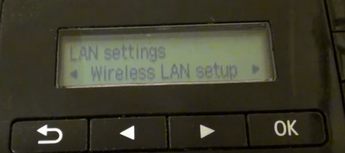
- Now the printer will start searching for various networks available.
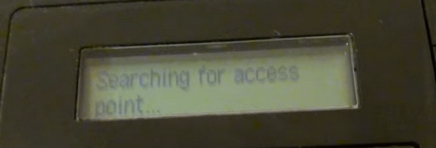
- Once you have located your network , press “ OK ” and the printer will require you to enter the password . After entering all the details, it should connect to the network properly. If these instructions won’t work, please refer to your Printer’s Manual or Search for the User Guide/Manual on Google to get the instructions.
Solution 2: Restarting the Spooler service
The spooler service is a software program that is responsible for managing all print jobs being sent to the computer printer. The print spooler service is usually visible to users and they can also cancel a print job that is being processed. It also allows them to manage jobs that are currently on the waitlist.
We can try restarting this service and check if this solves the problem.
- Press Windows + R to launch the Run application. Type “ services. msc ” in the dialogue box and press Enter.
- Locate the service “ Print Spooler ” present in the list of services. Double-click it to open its properties. Click the “ Stop ” button present underneath system status and press “ Ok ” to save changes.
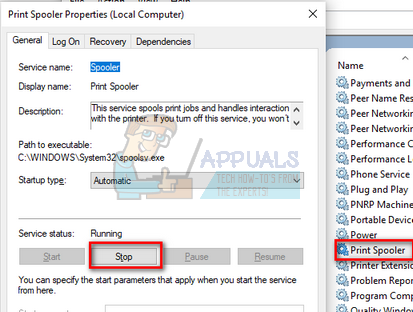
- Since we have disabled the service, we can now focus on deleting printer files. Press Windows + E to launch the quick access and click on “ This PC ” present in the left navigation pane.
- Navigate to the following path:
C:\Windows\System32\spool\PRINTERS

Permission might be needed to access the following folder. If prompted, press Continue.
- Once in the folder, delete all the files in the PRINTERS folder and close the window.
- Now navigate back to the Services tab and Start the “ Printer Spooler ” service. Also, remember to keep the startup type as “ Automatic ”.
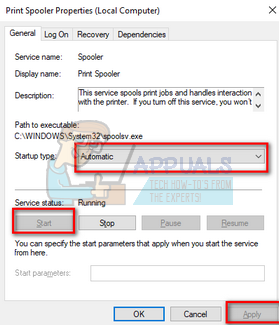
- Restart your computer and check if the printer connects correctly.
Solution 3: Disabling “Use Printer Offline” using Settings application
Another workaround for this problem is taking away the capability of your computer to work with this printer when it is offline. This will ensure that your printer only works when it is properly connected to your computer. You can always revert the changes back if this doesn’t solve anything for you.
- Press Windows + S to launch the search bar. Type “ control panel ” in the dialogue box and open the application.
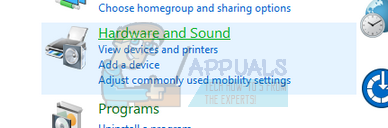
- Select “ Hardware and Sound ” from the list of sub-categories available.
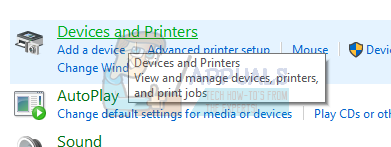
- Click on “ Devices and Printers ” on the window which comes up.
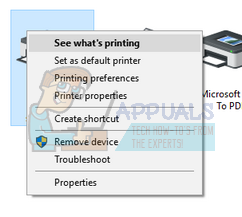
- Right-click on your Canon printer and click “ See what’s printing ”.
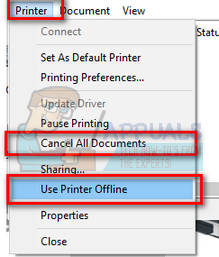
- Click on “ Printer ” present at the top-left side of the screen for the drop-down menu. Make sure that the option “ Use printer offline ” option is unchecked . In this case, the option is unchecked. Once you have made the changes, click “ Cancel all documents ” and try connecting your Canon printer again.
Solution 4: Updating Printer Drivers
If both the above solutions don’t work, it means there is a problem with the driver of your printer. We can try uninstalling them first and then reinstall them manually. You can download the official Canon drivers from their official website .
- Press Windows + R to launch the Run Type “ devmgmt.msc ” in the dialogue box and hit Enter. This will launch your computer’s device manager .
- Navigate through all the hardware, open the sub-menu “Print queues”, right-click on your printer hardware and select “ Update driver ”.
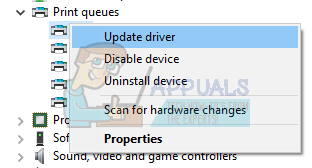
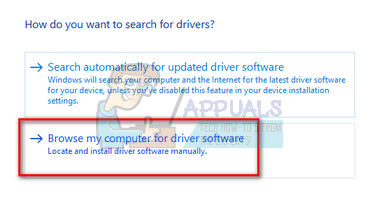
- Now Windows will pop a dialogue box asking you which way do you want to update your driver. Select the second option ( Browse my computer for driver software ) and proceed.
Select the driver file you downloaded using the browse button when it appears and update it accordingly.
- Restart your computer and check if the problem gets resolved.
Note: If you can’t update the drivers manually, you can also select the first option “Search automatically for updated driver software”. This option will make Windows search the web automatically and select the best driver out there.
Solution 5: Unchecking option “SNMP Status Enabled”
Simple Network Management Protocol (SNMP) is a popular protocol used for network management. It is used to collect information from printers and managing them accordingly. We can try disabling this protocol and check if this makes any difference in our case.
- Navigate to hardware and devices as explained in solution 2.
- Once you have located your printer, right-click it and select “ Printer Properties ”.
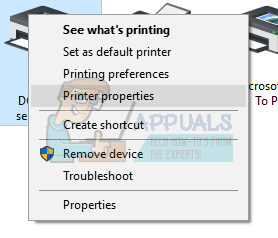
- Navigate to the tab of “ Ports ” present at the top of the window.

- Click “ Configure Port ”.
- Click to clear the “SMP Status Enabled” checkbox. Press Ok to apply changes and exit. Now check if the problem got fixed.
Solution 6: Allotting Printer a Static IP Address
If you are using your printer over Wi-Fi, it is possible that you are having IP address problems. Whenever your printer connects to your router, it says hi and asks the router to assign an IP address to the printer. Suppose the router assigned “…20” to the printer.
After you successfully print all your documents, you turn the printer off. Now someone from your house connects his iPad to the router. Since the IP “…20” isn’t in use with the printer anymore, the router assigns this IP to the iPad. Whereas on the other hand, your computer remembers the printer by “…20”. When you open your printer, it will be assigned a new IP “suppose …21”. Now even though it will be connected to the network perfectly, your computer will not recognize it.
The solution to this problem is to allot a static IP address to the printer . Take a look at the steps listed below:
- Press Windows + S to launch the search bar. Type “ cmd ” in the dialogue box and press Enter.
- Once in the command prompt, type “ ipconfig ” and press Enter. This will provide all the details of your network connection on your computer.
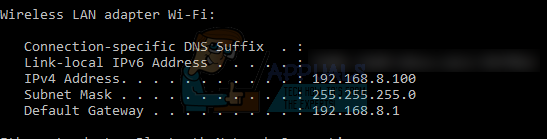
- You can note your IPv4 address in the description. Now before we chose any static IP for your printer, we need to make sure it isn’t taken by any other devices.
Type the following command with a new IP address following it:
ping 192.168.8.101
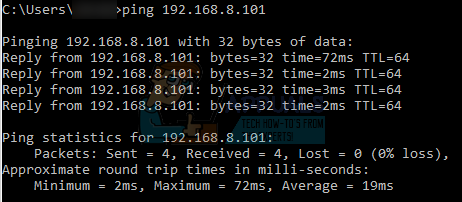
As you can see, the IP address is already taken. We are pinging the target location which is giving us a valid response. Try other IP addresses until you find the one which isn’t taken by any other device.
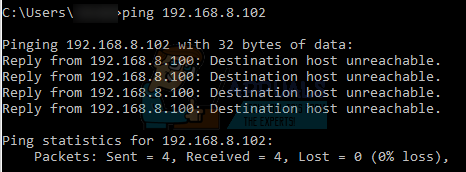
In this case, the IP wasn’t taken so we can use it.
- Now go to your printer’s LCD to set the required IP address. Navigate to the menus listed and change the settings as follows:
- Menu -> Interface Setup -> TCP/IP -> IP Mode and make sure it is set to “ Manual “
- Menu -> Interface Setup -> TCP/IP -> IP Setting -> IP Address and set it to address determined above ( 192.168.8.102 in our example.
Set each field in the address using the OK button to activate a field (large cursor box appears), then right and left arrow keys to adjust , then OK
Move to next field in the address with the right arrow, then repeat above
When done setting address, press the Up arrow until you see “ Save TCP/IP setting ?”, then press OK.
The “Printer is in an error state” message appears when Windows fails to properly communicate with your connected printer. In this condition, print jobs may stay stuck in the queue or fail to initialize entirely, even though the printer seems powered on and connected. The issue can occur with both USB and network printers and usually points to a driver, spooler, or port configuration problem .

Other recurring causes include communication timeouts over USB or Wi-Fi, incomplete driver installations after Windows updates, and queued print data that traps the spooler in an error loop.
1.Clear the Print Spooler and Reinstall the Printer
Over time, damaged or leftover print files can accumulate inside the spool folder. These corrupted entries may prevent new print commands from being processed, locking the spooler into an error state and making Windows think your printer is malfunctioning.
Clearing the print spooler removes those faulty files, while reinstalling the printer refreshes driver links and registry configurations to restore proper communication.
- Press Windows + R , type services.msc , and press Enter .
- Find Print Spooler , right-click it, and select Stop .
- Open File Explorer and navigate to: C:\Windows\System32\spool\PRINTERS
- Delete all files in this folder these are stuck print jobs causing the conflict.
- Return to the Services window, right-click Print Spooler , and choose Start .
- Finally, reinstall your printer through Settings > Bluetooth & Devices > Printers & Scanners .
2.Install the Correct Printer Driver
Sometimes, Windows automatically installs a generic or incompatible driver that prevents proper communication between the printer and the system. This mismatch leads to failed print jobs or detection errors.
Installing the manufacturer’s official driver ensures both devices communicate correctly and eliminates compatibility problems.
- Press Windows + I to open Settings , then navigate to Bluetooth & Devices .
- Select Printers & Scanners .
- Choose your printer and click Remove .
- Visit the official website of your printer’s manufacturer.
- Download and install the latest driver for your exact model (or the Universal driver if recommended).
- Restart your PC and reconnect the printer.
3.Enable Legacy Plug and Play for LPT Port
Older printers connected through LPT ports may rely on Legacy Plug and Play detection to initialize properly. When this option is disabled, Windows might fail to detect the printer during startup.
Re-enabling this feature restores the hardware handshake and allows the printer to initialize automatically when your system boots.
- Press Windows + X and select Device Manager .
- Expand Ports (COM & LPT) , right-click your printer port (e.g., LPT1 ), and select Properties .
- Go to the Port Settings tab.
- Check Enable legacy Plug and Play detection .
- Click OK and restart your computer.
- Inkjet printers excel in high-quality color printing, making them ideal for photos and images but require frequent ink replacements.
- Laser printers are better suited for high-volume, text-heavy documents, offering faster printing speeds and lower long-term costs.
- Choose based on needs—inkjet for versatile, vibrant prints and laser for durability, speed, and cost efficiency in office settings.
Just as a Polaroid camera isn’t suited for professional wedding shoots but excels at capturing true moments, in the world of printing, the two printer types— inkjet and laser — excel in their respective use cases , and one cannot overshadow the other as the best option for everyone. But there certainly can be a better choice for you! How would you know which one? By learning about both, of course !

Which Is Better Inkjet or Laser Printer
- How Do Printers Work?
- What is an Inkjet Printer?
- What is a Laser Printer?
- Inkjet vs. Laser Printer: Pros & Cons 1. Paper Compatibility 2. Timing 3. Cost 4. Durability
- Which One Should You Use?
How Do Printers Work?
With advancements in technology and increased resource availability , printers that were once exclusive to specific groups are now accessible to a broader audience. However, affordability in no way equals a compromise in quality, all thanks to the wide range of printer options available today.
At the basic level, all printers transfer minuscule dots onto a sheet of paper to replicate images and text documents. This is done by sending electronic signals from the computer to the printer’s control board , which interprets them into instructions suitable for the specific printing technology used. And that’s exactly what differentiates the various printer types from one another.
While there are various printing technologies available today, the two most common ones are inkjet and laser . Funny enough, the difference between the two is what remains a mystery for many.
What is an Inkjet Printer?

Inkjet Printer
The mechanism of an inkjet printer is hinted at by its name. But for those who want a bit more explanation, this type of printer produces text and images by spraying liquid ink droplets onto paper. It uses ink cartridges that come in separate colors or combined into a single unit . These cartridges have one or more nozzles that dispense ink in precise patterns, producing the desired output.
But what does that say about inkjet printers’ applications, you ask ? Well, due to their ability to produce vivid colors and fine details , these high-quality prints make them popular for personal / home use and even some areas of commercial printing.
What is a Laser Printer?

Laser Printer
Laser printers, on the other hand, use electrical currents and toner (fine solid particles of powder) to produce images and text on paper.
The laser beam is targeted at a light-sensitive rotating drum to create charged particles (an electrostatic image) that attract the toner dust. This toner is then transferred to a sheet of paper , which passes through a set of heated rollers called a fuser . This helps bond the toner particles to the paper, resulting in a permanent print.
This is what makes laser printers ideal for office and business use. They’re also larger than inkjet printers and capable of printing high volumes at a faster speed. What’s more ? Considering their target audience, they also come with optional trays and advanced security features .
Inkjet vs. Laser Printer: Pros & Cons
While the fundamental difference between the two printer types lies in their printing mechanism , one cannot ignore how the prints come out to be, leading to distinctions in quality , performance , and overall cost .
In terms of quality, both printers have areas in which one excels the other. Inkjet is particularly useful for image printing and color reproduction because of the use of ink cartridges and laser for text-based documents ideal for high-volume environments. But wait, there’s more to the debate !
1. Paper Compatibility
Inkjet printers are capable of printing on numerous paper types , so they can produce glossy photographs, matte prints for framing, or even prints on non-traditional materials like vinyl or plastic .

Various options for photo paper
On the other hand, laser printers don’t work well with many options, which limits their applications beyond those requiring standard printer paper , especially because heat-sensitive paper won’t work with the heat rollers .
2. Timing
Though laser printers are known for quick batch printing, they do, however, take time to warm up before getting started, something that inkjet printers do not require. In terms of printing, inkjet printers do take a little extra time , but they are lighter and more compact , making them easy to fit into cramped settings or limited space desks.
3. Cost
There’s a price at purchase and a price you pay in the long run . Laser printers have a higher initial cost , however, they rely on toner rather than ink cartridges, which takes longer to use up.
Contrarily, ink cartridges get used up quickly and require either a replacement or a refill (if you want to go green ). In fact, they may even dry out if there’s an extended gap between printing jobs , rendering them unusable. However, between ink and toner cartridges, the replacement is easier and cheaper for the former than the latter.

Ink Cartridge (left), Toner Cartridge (right)
4. Durability
One thing’s for sure, laser printers outperform when it comes to text-based documents, and inkjet printers when it comes to graphics and image printing. Of course, both printers can print anything you want, but each has its strong suit.
Inkjet printers blend colors seamlessly, producing sharp , clear pictures but slightly fuzzy text . Conversely, laser printers deliver crisp , bold , and well-defined lettering , but they’re not ideal for printing-colored photos .
Moreover, since laser printers use fusers for binding, their prints are more durable . Then again, ink cartridges are water-based , so printed images may fade and have a higher chance of being damaged when exposed to moisture .
Which One Should You Use?
Asking a cashier to do your taxes or a chef to work on your car sounds pretty silly, right? Well, so does expecting a laser printer to handle photographs and an inkjet printer to manage reports and bulk documents. Each product is designed with specific strengths, even though they may perform multiple tasks.
When choosing a printer, consider factors such as speed , efficiency , affordability , and the desired output . Inkjet printers offer high-quality prints, are affordable , compact , and compatible with various paper types, but they require more frequent ink replacements .
Whereas, laser printers, though pricier , excel in printing clear office documents with greater print yields and lower running costs . Ultimately, the best choice depends on your specific needs and usage patterns .
Printer durability depends on usage frequency and the length of printing jobs. Because laser printers are known for frequent batch printing, they’re made of robust components designed for durability. And due to their reliance on toner rather than liquid ink, they don’t experience issues with ink drying or clogging, thus requiring less frequent maintenance and extending their operational lifespan. However, it cannot be said that an inkjet printer, if used with proper care and not overburdened, cannot last just as long, if not longer.
Although laser printers are popular for printing black and white documents with excellence, they absolutely can produce a range of colors and thus deliver color prints, although their quality is not the very best to rely upon.
Printing professional photo prints is better with inkjet printers as they support higher GSM (grams per square meter) paper and produce better color reproduction. Laser printers, on the other hand, do not offer as much color accuracy and detail, which is needed for high-quality, vibrant printed images.
- Even in our digital age, physical materials like paper still play a vital role, especially in printing, where the type of paper can greatly affect the final product.
- Different printers are best suited to specific paper types, such as glossy for photos or cardstock for invitations, highlighting the importance of choosing the right paper for your project.
- The variety of paper options, with different textures, weights, and finishes, allows for creativity and precision in achieving the desired look and feel for each print job.
Choosing the right paper for your print job is not an easy task. You need to understand factors like paper weight , finish , and brightness . The combination of these qualities results in numerous paper types, each suited to a specific use case.

Types of Paper for Printing
You wouldn’t want to print your cherished pictures on cardstock paper, and you certainly wouldn’t want to print your business card on standard printer paper. Knowing the different options available can help you make the most of your printer for a broader range of projects.
- Types of Printer Papers 1. Inkjet Paper 2. Laser Paper 3. Copy Paper 4. Matte Paper 5. Glossy Paper 6. Photo Paper 7. Card Stock Paper 8. Bond & Label Paper
- Which Paper is Best for Your Print Job?
Types of Printer Papers
1. Inkjet Paper

Inkjet Paper
As the name suggests, inkjet paper is specifically designed for inkjet printers to create clear text and sharp images . It can be further classified into various types, such as glossy , matte , and card , to suit different needs. However, this doesn’t mean that other paper types won’t work with these printers. The specification is simply to achieve the best results, as inkjet paper tends to absorb ink and is thus made slightly thicker .
2. Laser Paper

Laser Paper
Similarly, laser paper is specifically designed for laser printers to produce high-quality results. This type of paper is usually best for office use, such as memos , invoices , and high-volume documents . The finish is typically matte to avoid delaying drying time.
Since the toner stays on the surface of the paper in laser printing, it is not designed for maximum absorption, unlike inkjet paper, which can withstand more moisture comparatively.
3. Copy Paper

Copy Paper
While some may use copy paper and laser paper interchangeably, there’s a distinct difference between the two. Copy paper is the kind you usually find next to your office printer in a large box. It is thinner and less expensive than laser paper and, well , gets the job done. However, color accuracy and print quality may sometimes be compromised .
4. Matte Paper

Plain Matte Paper
Matte paper, or more commonly known as printer paper, features a non-reflective, smooth , and non-textured finish that provides a clean and professional appearance. For this reason, it is ideal for printing reports and resumes , although the latter is less common these days.
But what’s even better, you ask ? You can produce double-sided printouts without having silhouettes show on the other side. Talk about a great balance of cost-effectiveness and resource efficiency in the long run!
5. Glossy Paper

Glossy Paper
Looking for a touch of pizzazz ? Then a glossy finish is the way to go. It not only enhances contrast and color saturation , but when combined with durable inks and color-depth cartridges, it produces brilliant and crisp photographs and marketing materials . Text documents are not the best use of this paper, unless , of course, you’re aiming for an extra element of sophistication.
6. Photo Paper

Photo Paper
Photo paper is specifically designed for printing photographs and is available in several finish options, such as matte , glossy , and satin . In fact, it often has a different finish on each side and is thicker than most papers.
The purpose of this paper, as clear as the results it produces, is to deliver exceptional sharpness and color reproduction . After all , what good is a photograph if it’s not preserved in its best quality for many years to come? However, you should check your printer’s manual or the manufacturer’s website to see if it can handle photo paper and its thickness.
7. Card Stock Paper

Card Stock Paper
You might still be wondering what to use for printing business cards , wedding invitations , flyers , or other formal materials for your brand. Using regular printer paper or glossy paper for these purposes may not be very convincing. For this, you need the durability and sturdiness offered by card stock paper.
The premium feel and longevity of this material can withstand harsh handling and minimize damage. However, keep in mind that not all printers are designed to handle card stock. So, if you use an incompatible printer , be prepared for paper jams or other similar issues.
8. Bond & Label Paper

Bond & Label Paper
Ever noticed how receipts and labels paper feel different from your everyday paper? That’s because it’s a special material called thermal roll or bond roll , which features a texture similar to fabric.
The “ thermal ” in its name refers to the printing process that uses heat to imprint the image onto the paper. This method not only reduces ink costs but also prevents smudging and smearing . However, receipts and labels aren’t its only applications. Thermal paper is used in various fields, from art to business and beyond . But mostly where ink permanence is the top priority.
Which Paper is Best for Your Print Job?
Since everyday tasks typically require standard matte paper and most office printers use laser paper for document reproduction, you don’t need extraordinary printers or thicker paper for these tasks.
But if you wish to print cards , invitations , and brochures , you’ll definitely need to stock up on card stock and glossy paper. And if you’re a photographer with a studio, you wouldn’t need to purchase anything other than photo paper —until you decide to leave the profession, that is.

A and C-Series Paper Sizes
But it doesn’t end there. Each paper type is available in various sizes , ranging from A1 to A10 . While standard printers typically support A4 and/or A3 sizes, specialized printers can accommodate a wider range of sizes, along with different coatings and weights, providing maximum flexibility for your printing needs.
Embarking on the journey of 3D printing is both exciting and, at times, a bit daunting. Thankfully, this innovative technology has become considerably accessible, allowing users to convert digital designs into real-world objects. For 2024, a wide selection of 3D printers is designed specifically for beginners.

This guide offers genuine recommendations whether you are an educator, an entrepreneur working on prototypes, or a hobbyist pushing creative boundaries, to help establish a solid base for your 3D printing endeavors. But before we dive into these top picks, let’s explore what makes a 3D printer truly outstanding. Here’s a breakdown of the key considerations based on specific needs and applications.
Print Quality: Focus on obtaining high-quality prints first and foremost. Opt for a printer that generates detailed, clean, and precise prints, as these are crucial for any printing project. Elements such as resolution, measured in microns, play a role; a lower micron count results in a higher resolution. Furthermore, the layer height is pivotal, with thinner layers yielding finer details. While faster speeds can reduce print time, they might affect print quality, hence balancing speed and quality is key.
Build Volume: The build volume dictates the maximum size of objects you can print. Choose a printer with a build volume that aligns with your intended print sizes.
Reliability and Durability: A dependable 3D printer should consistently produce quality prints and remain durable over time. Prioritize printers with robust construction and reliable components.
Ease of Use: For beginners and those desiring easy printing, prioritize features that enhance usability. Look for elements like a user-friendly interface, perhaps via touchscreens or intuitive software. Automatic bed leveling diminishes the necessity for manual calibration, streamlining the process. Additionally, filament sensors are handy for notifying users about low filament levels or if issues arise during printing.
Material Compatibility: Projects may require diverse materials. Top 3D printers support multiple filaments like PLA, ABS, PETG, and specialized filaments such as flexible or composite variants.
Connectivity: Depending on your setup, connection options for your printer may include USB , SD card, Wi-Fi , or Ethernet. Some models even offer remote monitoring and control via apps.
Software: The software included with the printer, or compatible options, should smoothly translate designs into printable files. Look for slicer software balancing user-friendliness with advanced features.
Safety Features: Safety is paramount, particularly in educational settings or around children. Consider printers with enclosed areas for temperature regulation and burn prevention. Furthermore, HEPA filters reduce potentially harmful particle emissions, enhancing operational safety.
Support and Community: Having a strong user community and excellent customer support is invaluable, especially for troubleshooting and learning how to use your printer.
Price: Lastly, consider the cost. The best printer for you balances these factors with your budget.
Here, we have intricately curated a list of the best 3D printers for beginners. So, let’s get started.
1. Creality Ender 3 V2 Neo
Best Value
Pros
- Auto-Leveling
- Improved Extruder System
- Removable Build Plate
- Print Resume Feature
Cons
- No Touchscreen
- Print Speed Limitations
- No Double Z-Axis
- Bare-Bones Appearance
No products found.
No products found.
The Creality Ender 3 V2 Neo combines accessibility with precision, designed to make 3D printing approachable without sacrificing quality. This model exemplifies Creality ‘s dedication to innovation, incorporating a CR Touch auto-leveling system for perfect layering. The printer features a PC steel printing platform, delivering strong adhesion and a smooth foundation for creations.
Its all-metal Bowden extruder ensures durability and stable performance, suitable for both beginners and experienced users. This upgraded version of the well-known Ender 3 V2 model is crafted with user-friendliness and print quality in focus. It comes 95% pre-installed, facilitating an easy setup.
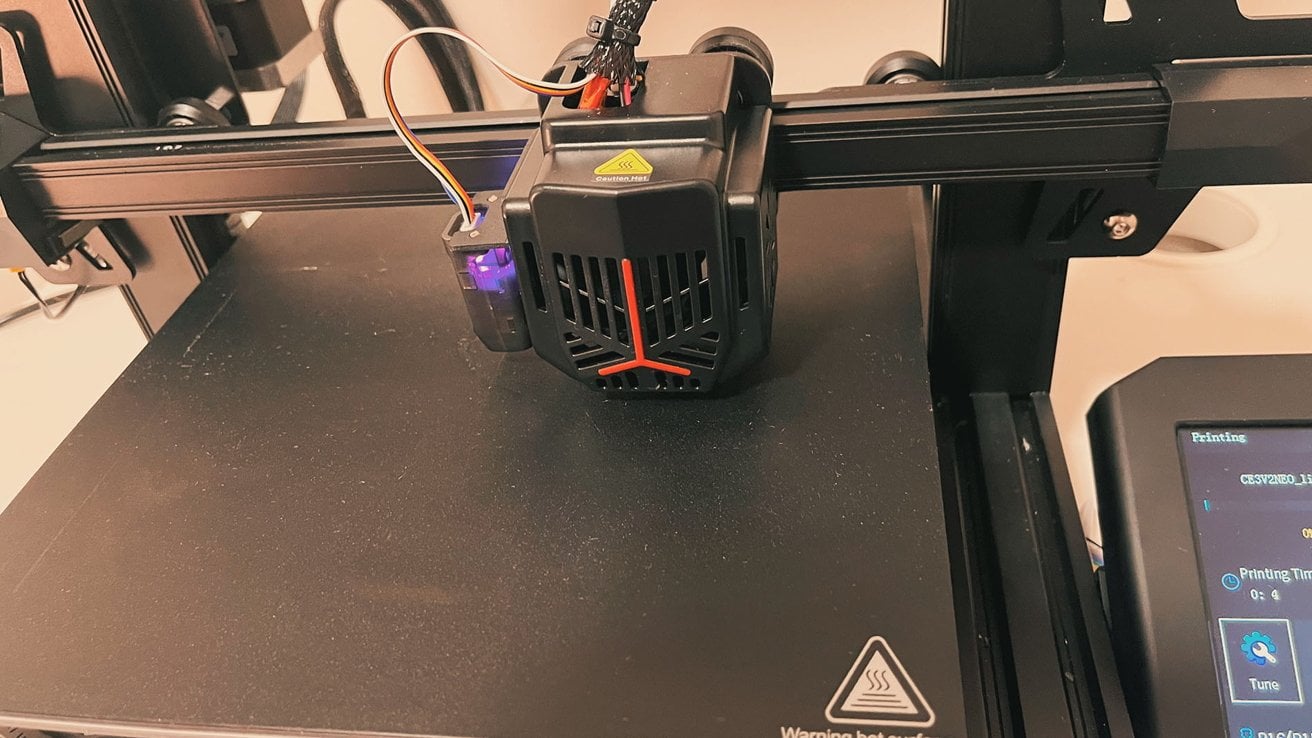
Creality Ender 3 V2 Neo
The addition of the CR Touch auto-leveling kit significantly improves leveling accuracy, while the PC steel platform and all-metal Bowden extruder support its dependability and longevity.
↪Pros
- Auto-Leveling: The CR Touch auto-leveling feature performs excellently, simplifying the process for beginners by negating manual leveling challenges.
- Improved Extruder System: Enhanced with metal construction, the extruder system boosts the printer’s performance and durability.
- Removable Build Plate: The removable build plate eases print removal, preventing damage caused by overly adhered prints.
- Print Resume Feature: The print resume feature saves progress during power outages, allowing for a smooth continuation once power is restored.
↪Cons
- No Touchscreen: Despite its improvements, the Ender 3 V2 Neo lacks a touchscreen interface, which could enhance user experience.
- Print Speed Limitations: Higher speeds (around 120mm/s) may result in reduced print quality, indicating an optimization for moderate speeds.
- No Double Z-Axis: Missing a double Z-axis, the printer might not offer the maximum stability and precision that some users seek.
- Bare-Bones Appearance: Some might find the Ender 3 V2 Neo’s design quite basic, lacking the aesthetic appeal found in other models.
This printer is part of Creality’s initiative to make 3D printing more accessible and user-friendly while incorporating features catering to advanced users. It strikes a balance between usability and performance, making it a suitable choice for many 3D printing enthusiasts.
2. Original Prusa i3 MK3S+
Best Overall
Pros
- High-Quality Prints
- User-Friendly Software
- Good Support Resources
- Included PLA Spool
Cons
Build Volume
No Built-In 3D Scanner
Dated Interface
Price
The Original Prusa i3 MK3S+ symbolizes continuous innovation, reflecting years of meticulous enhancement to provide superior print quality and reliability in 3D printing. A key feature is the SuperPINDA probe, which ensures meticulous first-layer calibration, paving the way for flawless prints. Its advanced extruder is engineered to handle filament smoothly and adapt seamlessly to various types, ensuring hassle-free printing.
More than a tool, this printer opens a world of precision and limitless possibilities, built upon Prusa’s lasting dedication to quality. As an evolution from the MK3S , the MK3S+ introduces enhancements while preserving the reputable Prusa i3 series’ legacy.
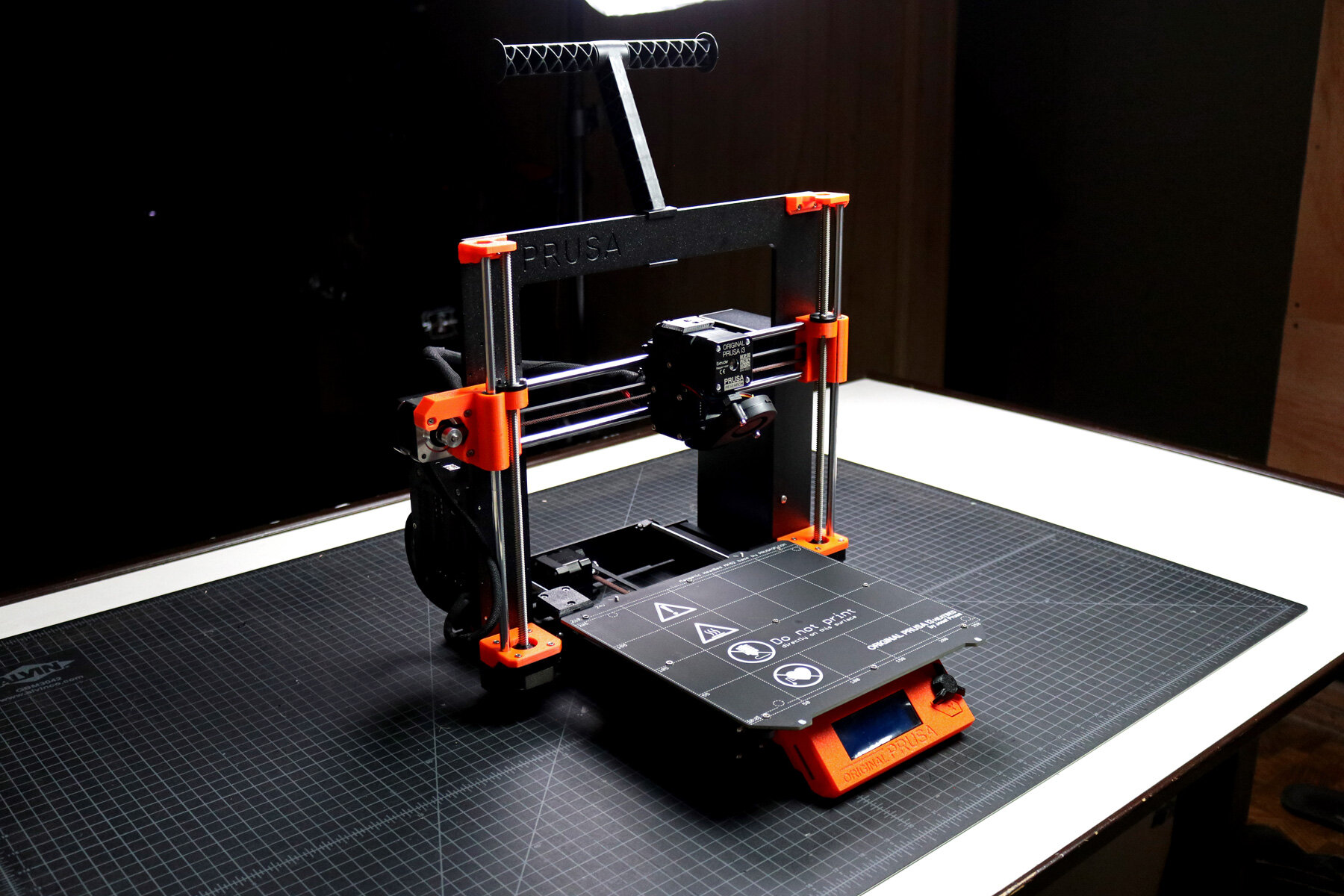
Original Prusa i3 MK3S+
Additionally, the integrated filament sensor detects any filament type or color, enhancing its functionality. Retaining its direct drive system, the MK3S+ remains notably advantageous for printing flexible materials, lending versatility to a broad spectrum of printing requirements.
↪Pros
- High-Quality Prints: The MK3S+ consistently delivers high-quality prints without errors, demonstrating its dependability.
- User-Friendly Software: The printer is accompanied by easy-to-use yet powerful software that supports multiple filament types.
- Good Support Resources: Prusa offers a professionally printed user guide and excellent support materials for the MK3S+.
- Included PLA Spool: A 1-kilogram PLA spool is included with the MK3S+, a beneficial bonus for beginners.
↪Cons
- Build Volume: The build volume might be slightly small for the price, which could limit larger projects.
- No Built-In 3D Scanner: The MK3S+ lacks a built-in 3D scanner, unlike some other models.
- Dated Interface: The LCD screen and interface are somewhat outdated compared to more current 3D printers.
- Price: Although the MK3S+ is a robust printer, some users may feel it doesn’t justify the cost considering market alternatives.
The Original Prusa i3 MK3S+ remains popular in the 3D printing community for its consistent performance and Prusa’s commitment to open-source development. It strikes a balance between ease of use and advanced capabilities for both enthusiasts and professionals.
3. Bambu Lab P1P
Best Speed
Pros
- Blazing Speed
- Simple Auto Bed Leveling
- DIY Custom Side Panels
- Optional Multicolor Capabilities
Cons
Appearance
Noise Level
Proprietary Parts
Filament Wastage
The Bambu Lab P1P excels in speed, characterized by a robust CoreXY framework engineered for rapid printing results. Ready for action from the start, this printer features a direct drive extruder and an all-metal hot end, accommodating various filament types.
Its automatic bed leveling sensor ensures a perfect first layer is effortlessly achieved, enabling prints that are both swift and visually appealing. Bambu Lab’s creation emphasizes not just speed but also reliability and versatility. The P1P offers a spacious build volume of 256 x 256 x 256 mm , coupled with impressive speeds reaching 500 mm/s and an acceleration of 20,000 mm/s .
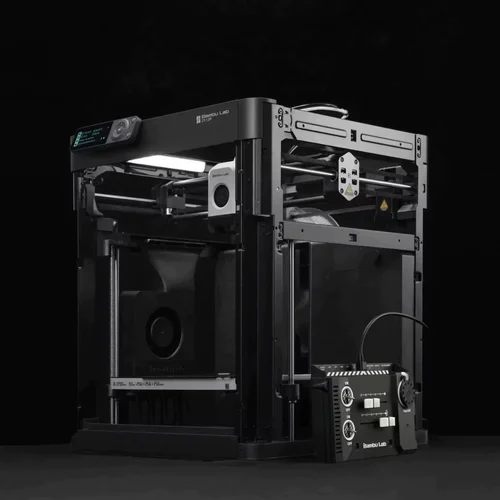
Its direct drive extruder and high-temperature hot end facilitate printing with various filaments, including PLA, PETG , and TPU .
Additionally, the P1P is designed with future enhancements in mind, being compatible with Bambu Lab’s Automatic Material System (AMS) for multicolor printing, and can be further customized with printable mod plates, adding layers of flexibility to meet changing needs.
↪Pros
- Blazing Speed: A key highlight is the P1P’s speed, which facilitates rapid printing without compromising quality.
- Simple Auto Bed Leveling: The auto bed leveling streamlines the printing process, particularly advantageous for beginners.
- DIY Custom Side Panels: Customizable side panels add a degree of personalization.
- Optional Multicolor Capabilities: Utilizing the AMS unit, the P1P supports multicolor prints, enhancing creative opportunities.
↪Cons
- Appearance: The P1P’s “naked” design may not appeal to everyone as it lacks side panels.
- Noise Level: The printer can be loud in operation, which may be a concern for certain settings.
- Proprietary Parts: Using proprietary parts can increase maintenance and upgrade costs.
- Filament Wastage: The AMS unit can lead to filament wastage, affecting cost-efficiency.
The Bambu Lab P1P is appealing to those seeking speed, reliability, and customization with the flexibility to adapt to various needs.
4. Anycubic Kobra Max
Best for Large Prints
Pros
- Enormous Build Size
- Accurate Auto Bed Leveling
- Convenient Build Plate
- Comprehensive Kit
Cons
Large Footprint
Bed Slinger Design
No Larger Nozzle Included
Slow Printing
The Anycubic Kobra Max is a powerhouse in 3D printing, offering an impressive build volume that allows creators to manifest large-scale concepts. With its responsive touchscreen and remarkable printing speed, the Kobra Max distinguishes itself in FDM printing.
Its robust frame and automatic bed leveling offer stability and precision, making it a preferred choice for tackling substantial projects. Designed for hobbyists, enthusiasts, and professionals, the Anycubic Kobra Max boasts a large build volume of 400 x 400 x 450 mm , perfect for ambitious prints. The 4.3-inch LCD touchscreen simplifies navigation and operation.
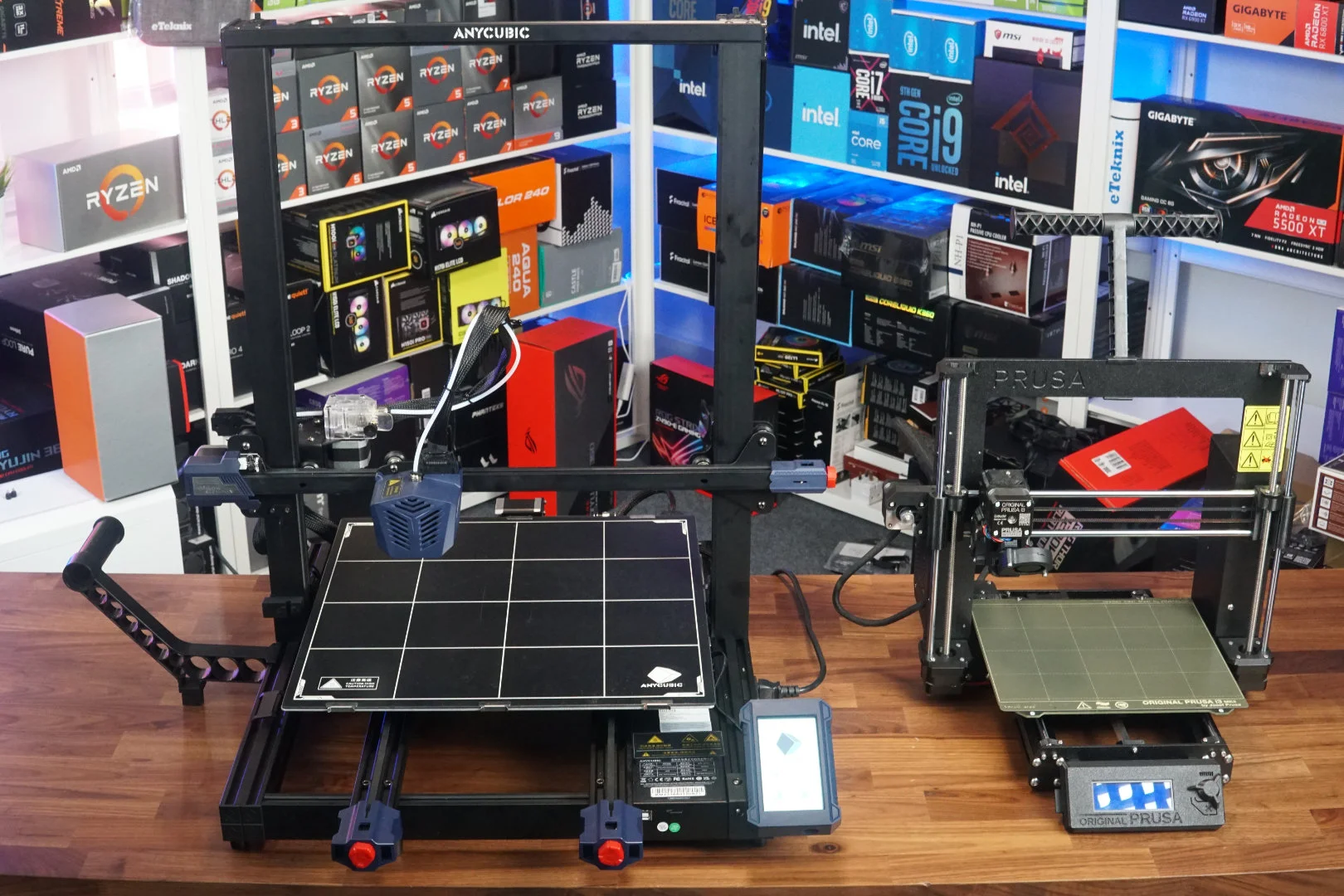
Anycubic Kobra Max
With a maximum printing speed of 180mm/s , faster than many rivals, it ensures swift progress without sacrificing quality, supported by its solid aluminum frame for continuous stability and precision.
↪Pros
- Enormous Build Size: Ideal for large prints like props and costumes, accomplishing projects in a single run.
- Accurate Auto Bed Leveling: The auto leveling yields precise results, simplifying usage.
- Convenient Build Plate: The coated glass bed facilitates easy print releases as they cool.
- Comprehensive Kit: It comes with essential tools and a PLA sample to start off immediately.
↪Cons
- Large Footprint: The significant size requires ample space to operate effectively.
- Bed Slinger Design: The design might be a drawback for some users.
- No Larger Nozzle Included: Lacking a larger nozzle, which can expedite larger prints.
- Slow Printing: Despite a high maximum speed, actual printing can be slow.
The Anycubic Kobra Max offers a budget-friendly solution for those requiring significant build volume, prized for automatic bed leveling and touchscreen interface. However, consider the large size and slower operation pace.
5. Toybox 3D Printer
Best for Newbies/Children
Pros
- Ease of Use
- Creative Freedom
- Kid-Friendly Design
- Educational Value
Cons
Small Build Area
Internet Dependency
Unheated Bed
Proprietary Filament
The Toybox 3D Printer introduces a delightful touch of innovation, sparking creativity for both kids and adults. Its compact, intuitive design reshapes play by allowing users to easily design and print toys. With a simple, user-friendly interface, the Toybox invites everyone into the realm of 3D printing, serving as an ideal gateway for young enthusiasts.
Featuring a modest build volume of 7 x 8 x 9 cm , perfect for small hands and big imaginations, the Toybox operates at a pace of 60 mm/s with a resolution of 200 microns , ensuring precise toy reproduction. The 4mm Smooth-Flow Extruder Head and Easy-Peel bed simplify the printing experience, eliminating complexities.
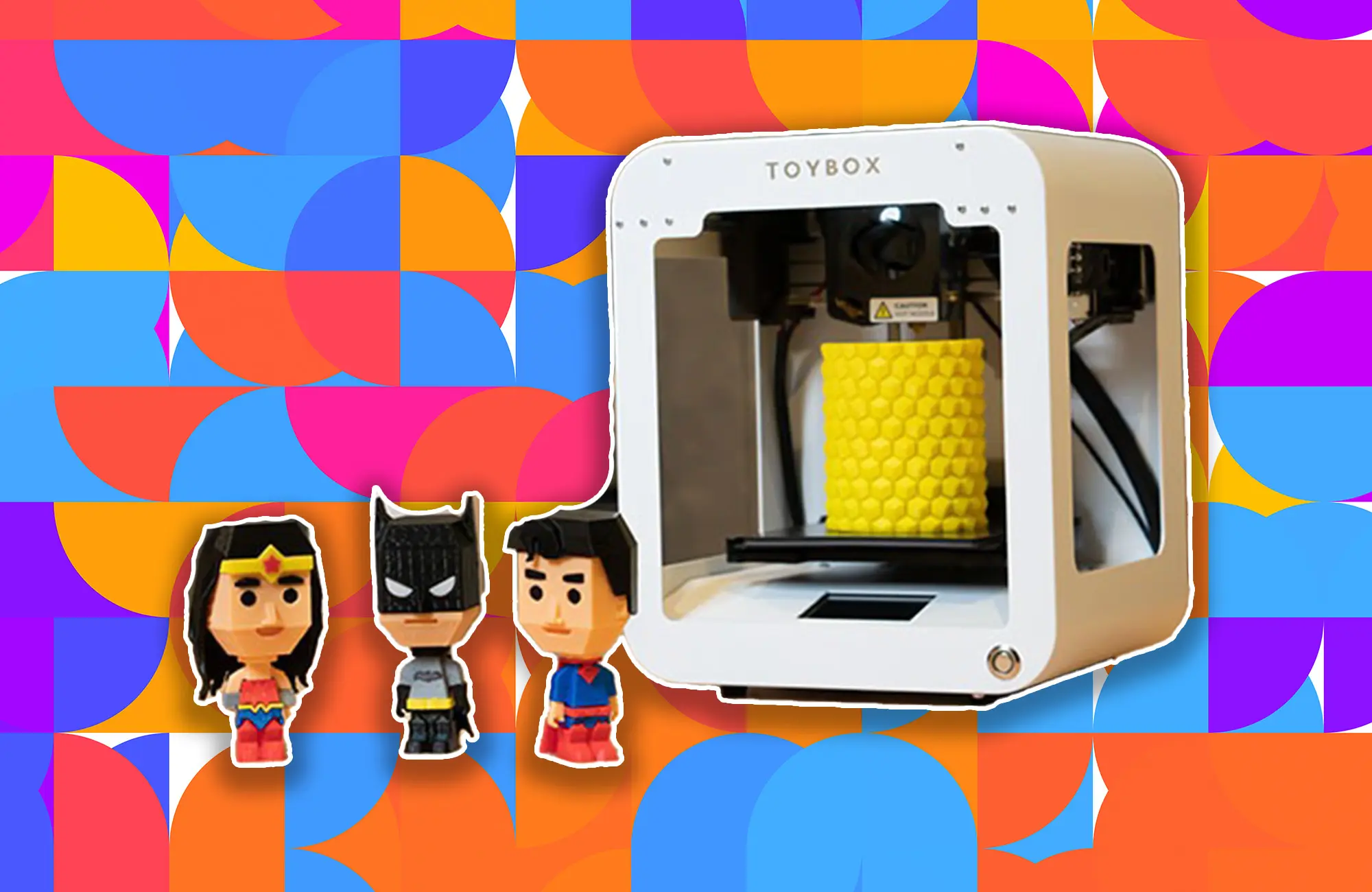
Toybox 3D Printer
Compatible with STL, OBJ , and gCode formats, and offering easy connectivity via 2.4GHz Wi-Fi , sending designs from your smartphone or tablet is seamless. The Toybox puts the magic of creation at your fingertips.
↪Pros
- Ease of Use: Known for reliable, misprint-free performance and one-touch operation, ideal for kids and beginners.
- Creative Freedom: Access to more than 2,000 printable toys and crafting your own designs expands imaginative possibilities.
- Kid-Friendly Design: The robust all-metal frame features rounded edges, safe and easy enough for children to operate with minimal supervision.
- Educational Value: Introduces children to 3D printing and design basics, fostering creativity and problem-solving skills.
↪Cons
- Small Build Area: The build area may limit the size of toys that can be printed.
- Internet Dependency: Requires an internet connection to access its design library, which could be a constraint.
- Unheated Bed: An unheated bed may affect print adhesion compared to other printers.
- Proprietary Filament: Limited to its brand of filament, which may restrict material variety and increase long-term costs.
The Toybox 3D Printer is a doorway into 3D printing, offering a joyful and educational experience that encourages creative thinking and idea realization.
Look for printers with an easy setup, intuitive controls, good customer support, and a robust online community.
Entry-level 3D printers can range from $200 to $500, depending on features and quality.
You can print a wide variety of objects, but always check the printer’s material compatibility and build volume limits.
Yes, if you follow the manufacturer’s safety guidelines, such as proper ventilation and not touching hot surfaces.
Regular maintenance includes cleaning the build plate, lubricating moving parts, and updating firmware.
Check for common issues like bed leveling, filament quality, and slicer settings. Online communities can also offer support.
