When a device is changing on its own, it is usually due to one of two reasons. The first is that you have a setting on your computer that allows the computer to change the device to the most suitable one that it deems worthy. There is a settings in Windows 10 which allows Windows to manage printers.
The second is due to some unforeseen error that the computer is not telling you about and that’s because it’s not really an error that will cause a massive problem in the computer due to the fact that it has a device that it can change to in order to remove the problem.
In either case, the two methods below will help you sort this issue out.
Method 1: Disable “Let Windows Manage My Default Printer”
In the newest Windows 10, it is given permission to defaultly control your printer. If your printer is wireless, then it will chose the closest printer towards the location of the devices that the Windows 10 Operating System has been installed on.
Hold the Windows Key and Press A . Choose All Settings and then choose Devices . Select “ Printers and Scanners ” from the left pane and turn off “ Let Windows Manage My Default Printer ”

Method 2: Troubleshoot Printer Status
If your printer is running into issues, or if the driver is corrupt or outdated then Windows may default to another printer because it detects that the existing printer is either offline, or isn’t detected. To check if it’s not running into any issues, look for the Printer Status and make sure it is Set as Default, Connected and Powered On.
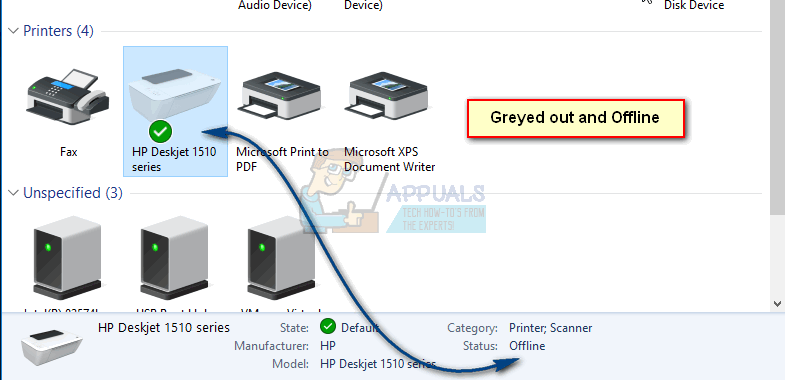
Click Start and type Devices and Printers. Click Devices and Printers from the list of results displayed. Once it opens up, take a look at the printer’s listed and make sure your’s is Set as Default , if not then Right Click on it and choose Set as Default . Once it is Set as Default it will show a green tick/checkmark. Then, click the printer once, to see it’s status, look at the bottom to ensure that it shows “ Ready ” – If it doesn’t shows Ready, it shouldn’t show Offline either.
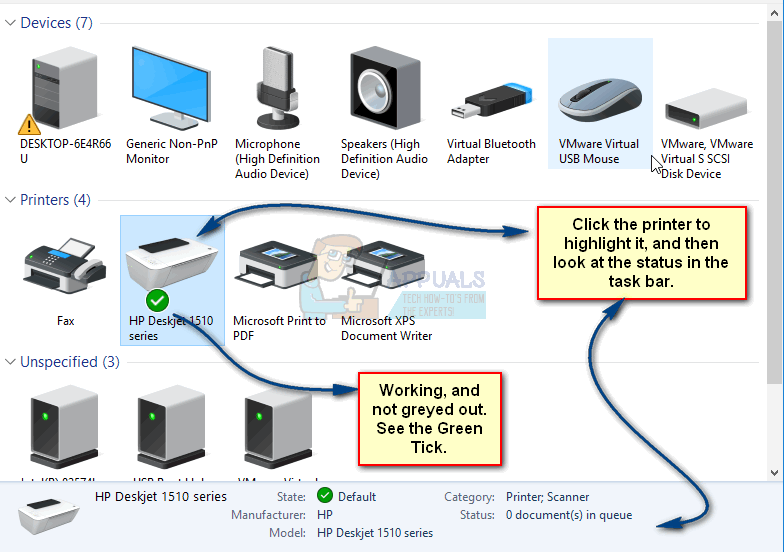
If it shows as Offline or if it Greyed out , then check the connectivity.
If it’s a wireless printer, make sure it is connected to your wireless network. Easiest way to do this is to re-do the wireless setup. If it’s wired over a USB Port , run the printer’s setup and re-add the printer. (this will automatically) install the drivers as well.
If you don’t have access to the setup, then Google your printer’s model number and get the setup from the Manufacturer’s site.
How to Fix “Printer is in an error state” Issue?
Many users reported the error, the printer status is paused, cannot resume the error in windows. This is generally because of the setting issues of your system. But sometimes hardware damages can also lead to this problem. In this article, we will discuss the methods to fix this issue.
Error_ Printer Status is Paused, Cannot Resume error in Windows
Here are some reasons for the pausing status of printers in computers;
- Printer Spooler Software failure: This software sends the jobs to printers. When a user prints a document, its formatted output is stored on the hard disk. This spooler software feeds the large or small batches of the documents to the printer. If it is not working well they pause the printing. You can resolve this issue by restarting the spooler.
- Outdated Printer Drivers: When you want to tweak the performance of the printer. Similarly, the windows updates do not support outdated printer drivers. It affects their performance. So, in this case, it is necessary to update the drivers.
- Offline status of the printers: The offline status shows that your printer is not connected to your system. It usually happens because of connectivity issues. You can simply resolve this issue by switching to online mode and connecting the printer with your system.
- Damaged Drivers: Damaged drivers can cause power outages and viruses while printing. When you face these issues continuously you need to re-install the drivers. They tweak the performance level.
- Hardware Damages: When your system works properly but still printing status is paused. It may be because of physical damages like Paper jamming, damaged cable or USB port, and faulty Toner Cartridge. You can resolve this issue by going to expert intervention.
1. Run Printer Troubleshooter
Printer troubleshooting helps in assisting to fix the error regarding the pause status of printers. It detects the non-physical problem and fixes the error. The following steps will help you in the troubleshooting process.
- Click on the start menu from the Taskbar. Search for the Settings .
- Select System from the left side of the screen. Now scroll down and click on Troubleshoot option.
- Now press the other troubleshooter So, here you will find the Printer
- So, click on Run , in front of the Printer option. Your system will start to detect the issue regarding printers.
- Now select the printer you are using and press the Printer troubleshooting will start. Wait till the whole process is complete. Run Printer Troubleshooter
2. Disable the Pause Printing Option
This option usually suspends the processing of any documents for the queue. To avoid the suspension disable the Pausing printing option. So, here are some steps that will help you fix this issue.
- Press Window Key + R from the keyboard and the Run window will open.
- Type Control on the search bar and press Enter . Control Panel will open.
- Now press Hardware and Sounds and then click Device and Printers . Disable the Pause Printing Option
- So, from here select your printer. Its properties will open in a new tab.
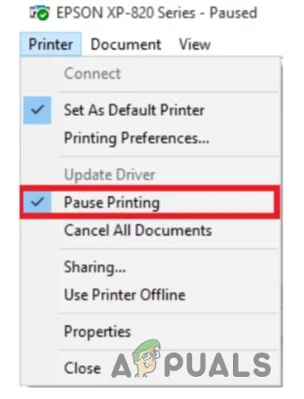
- Go to the Menu bar and press Printer and go to Pause Printing. Fix Printer Status is Paused, Cannot Resume error in Windows
- Now if it works, print a test page.
3. Start/Restart the Printer Spooler
Another thing you can do to rectify this issue is to Start or Restart the printer spooler services. It feeds the print image on the printer. It is just like a buffer or cache. After printing it places the documents where they assemble and prepare for printing. If the printer spooler doesn’t work properly it pauses the printing. So, to fix the issue follow these steps in sequence.
- Go to the start menu and search for the Services app.
- Now click on the Services Scroll down and search for the Printer spooler Option.
- So, right-click on it and press on the Properties. Printer Spooler Services
- Go to the Service status and click on the Stop under the Running option. Wait for a few minutes and again click on Close the window . Press Apply and then Ok option. Configuration of Printer Spooler Services
4. Change the Printer status to Online
Offline status on printer means your system is not communicating with printers well or vice versa. This is generally because of printer errors or connectivity issues. Putting the status online can connect the printers with computers effectively. So, here are a few steps that would help you in fixing the issue of Printer status is paused, cannot resume error;
- Press the Window key + R from the keyboard and then type control on the search bar.
- The Control panel will open. Now go to the Hardware and sounds and then select the Device and Printers.
- Double click on your printer. A new window will open.
- Select the Printer option from its Menu bar . And click on the Use printer online by unchecking the offline status. Change the Printer status to Online
5. Updating the Printer Drivers
If the above method do not work, you can update the printer drivers. The drivers help the system check the technical details of the printer and transfer the data to the printer in its language. Every windows version has its drivers and updates. So, if the drivers are of the older version, your window may not support them. It affects the printing and causes issues like Printer Status is paused, cannot resume error in windows.
- Go to the Start menu and type Device Manager . Open it.
- Now go to the Printer queue option and expand it.
- Right-click on your Printer option and press Update the drivers . Updating the Printer Drivers
- So, close the screen and print a test page.
6. Reinstallation of the Printer Drivers
When the above methods do not work, you can reinstall the drivers. When you are facing power outages or viruses your printer drivers are not working well. So, simply reinstall the drivers by using the following steps.
- Go to the Magnifying Icon from the Taskbar.
- Search for the Device Manager.
- Search and click on the Printer Queue. Right-click on the printer option and press Uninstall the Drivers. Uninstall the Printer Drivers
- So, close the program and Restart your system.
7. Other Possible Issues Regarding Paused Printer Status
If you tried all the above methods but still get the issue of printer status being paused, cannot resume the error in windows. In this case, there is a chance of hardware damage like Paper jamming, damaged cable or USB port, and faulty Toner Cartridge. You can resolve this issue by going to expert intervention.
