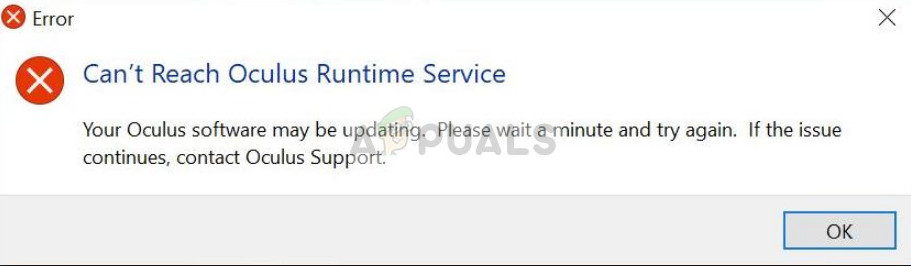
This error was officially recognized by Oculus and they released an update to solve the issue. If your Oculus hardware still doesn’t work (given the time frame), it is also offered to be replaced. Before we move on with the solution, make sure that your headset is connected properly with your computer and the headset is working without any problems. Furthermore, make sure that the installation is done using administrator privileges and it is installed in the correct directory.
Installing the official Oculus patch
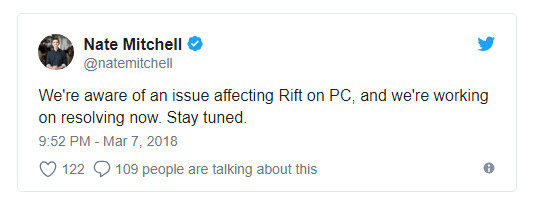
The official patch, however, has fixed the problem for a majority of the users without having to do much. To download the patch, navigate to Oculus official website and download the released patch. Once the patch is downloaded, right-click it and select “ Run as administrator ”.
If your antivirus software blocks the software from installing the modules, unblock the file and continue with the installation. When the fix will be running, click on the Repair option. Now your existing Oculus software will be analyzed and specific modules will be replaced. Restart your computer completely and check if the problem is solved.
Tip: If the repair isn’t working, uninstall the existing software and download the entire software package again from the official website.
Changing Date and Time
- Press Windows + S, type “settings” in the dialogue box and open the application.
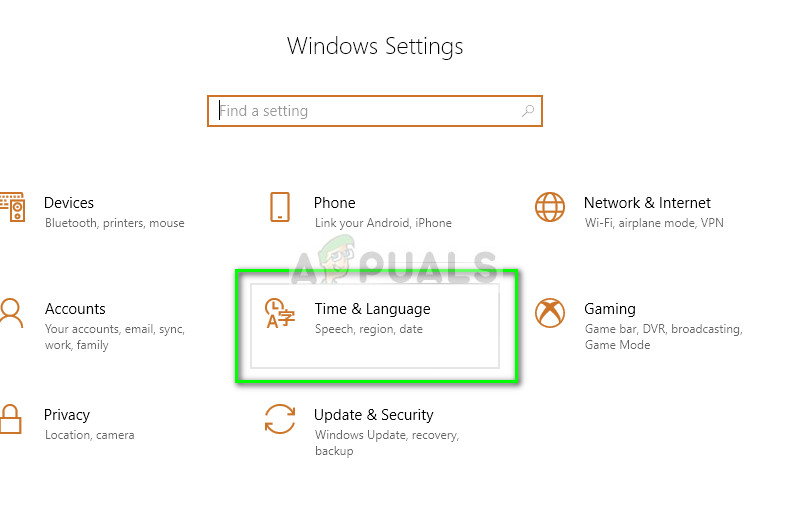
- Once in Settings, click on Time and Language .
- Uncheck the option “Set time automatically” and “Set time-zone automatically”.
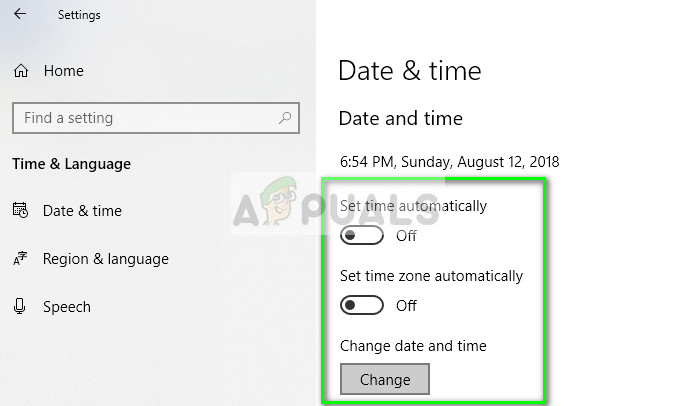
- Now click on Change underneath Change date and time and set the time to a previous date. Preferably near the start of 2018 or late 2017.
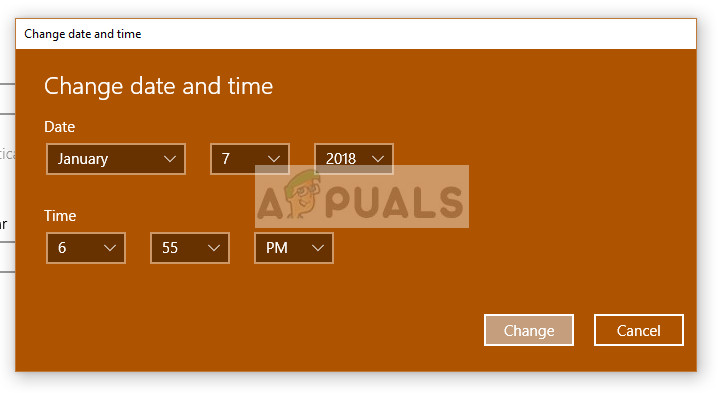
- Click on Change to implement the changes and restart your computer. Now plug in Oculus and try launching its software and check if the problem is solved.
Note: If the time change isn’t working, revert the changes and set the correct time. If this doesn’t fix, it may cause negative consequences.
Launching application from the directory
- Press Windows + E to launch File Explorer and navigate to the following directory:
C:\Program Files\Oculus\Support\oculus-runtime\OVRServer_x64.exe
If you have a different directory where the system is installed, navigate to that directory and locate the file.
- Right-click it and select Run as administrator .
Restarting Oculus VR Runtime Service
- Press Windows + S, type “ services.msc ” in the dialogue box and press Enter.
- Once in the services tab, search for the service “ Oculus VR Runtime Service ”. Right-click it and select
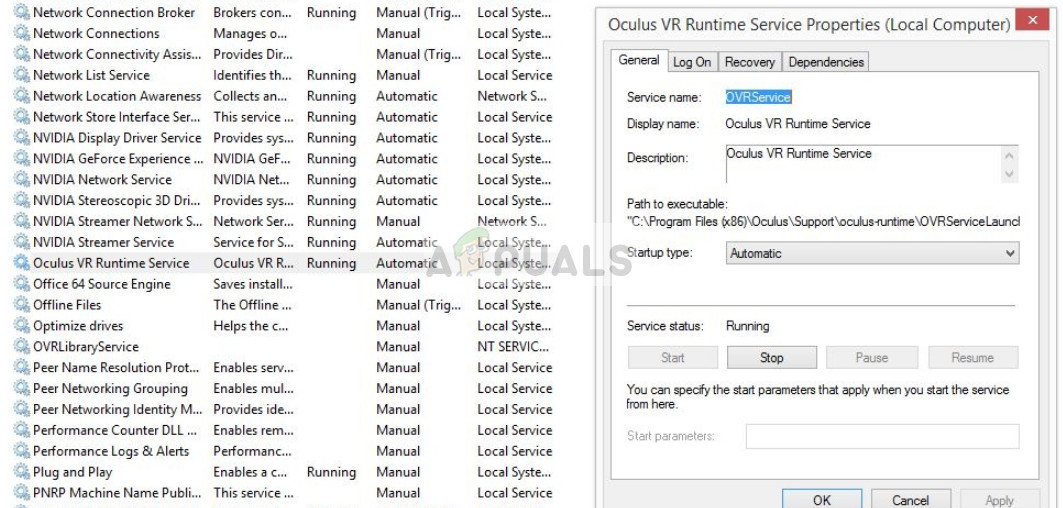
- Once in the properties, click on Now wait for a few minutes and click on Start .
- Now try launching the application and see if the problem is solved.
Reinstalling the software
- Press Windows + R, type “ appwiz.cpl ” in the dialogue box and press Enter.
- Search for Oculus software, right-click it and select Uninstall .
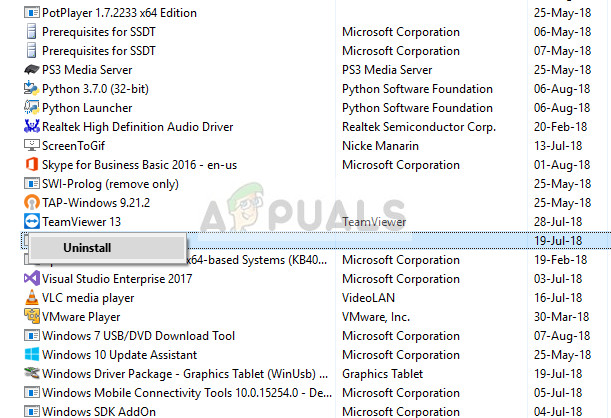
- Once uninstalled, restart your computer and after downloading a fresh copy from the official website, install the package and try launching it.
