
Amazon
- Amazon Servers Down: As with other applications/websites, there are instances where the main servers are down for either maintenance or there is some other issue. This is usually fixed within a few hours so nothing to worry about.
- Android Web View: There was a unique case where Android Web View not updated to the latest version seemed to cause the problem. This is only limited to Android users.
- Bad Application Data: Amazon stores application data on your mobile locally which includes all your preferences and information. If the application data is bad or corrupt, you will not be able to load the application.
- Bad Internet Connection: Of course, if you don’t have a good and stable internet connection, the application or website will fail to load properly and might time out.
- Browser problems: If you are having trouble accessing the website in your browser on your PC, there are chances that there is some problem with your browser. Refreshing it might solve the issue.
Before we start to implement the solutions, make sure that you have your credentials at hand. You might be required to re-enter them.
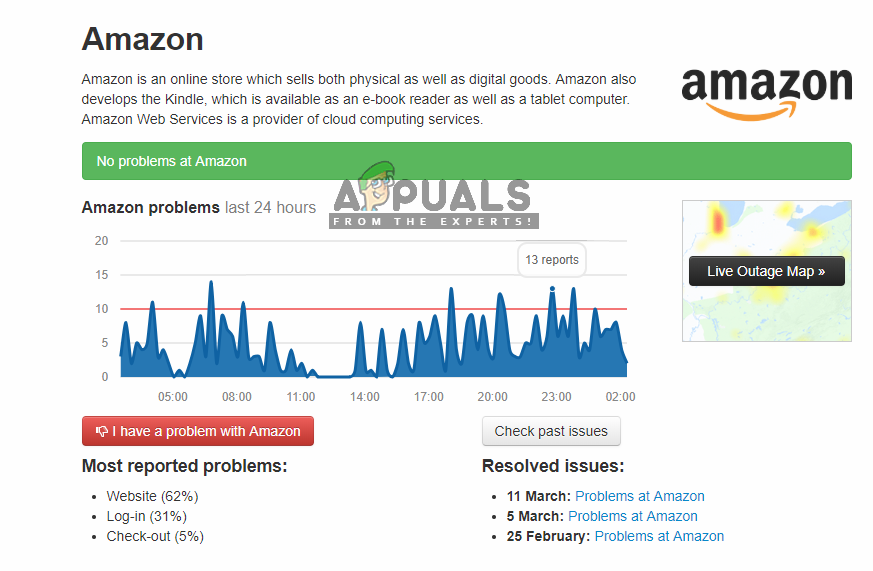
Checking Amazon Status
You can check other third-party sites to check the status of Instagram. You can also look at several forums and see if people are reporting an issue like the one you are facing. If you see a pattern, the best choice is to wait the situation out. Usually, this gets solved within an hour or so. A day at maximum.
Solution 2: Updating Android WebView
- Locate and open the Play Store from your Android’s menu.
- Once in the Play Store, search for Android WebView . Installing Android System WebView
- Once the entry comes forth, click on it. Now if you have an outdated version, you will be able to update it using the Update.
- Restart your device after updating the application and check if the issue is resolved.
Solution 3: Checking Internet Connection
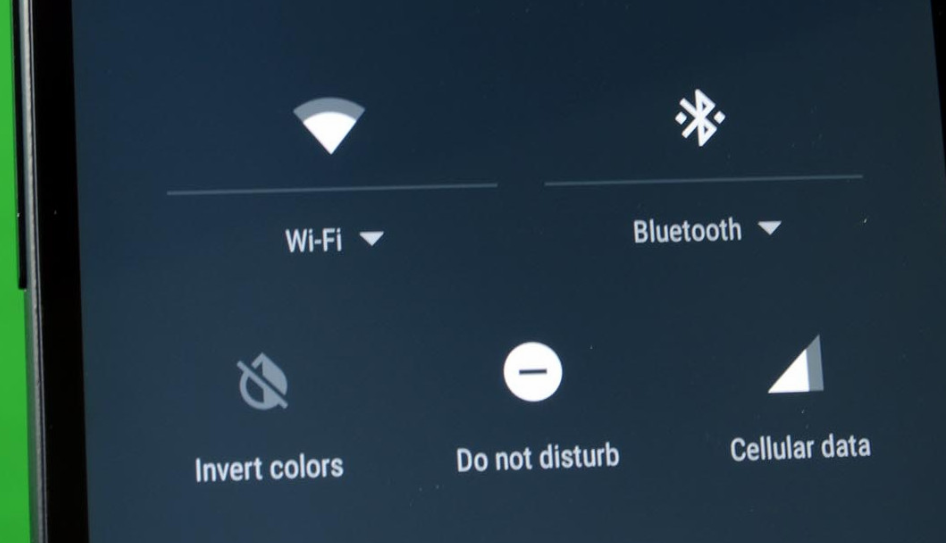
Android WiFi Settings
Hence you can try switching to Mobile data and reload the application and see if it does the trick for you. If this still doesn’t fix the issue, consider changing to another Wi-Fi network which you know is working perfectly. Proceed to the other solutions only when you are absolutely sure that your network connection is valid.
Instead of clearing data of the application and then trying, we can directly try to reinstall the entire application. This will help us in solving the issue of Instagram not working if its installation files were corrupt or were incomplete.
For Android:
First, we will uninstall the application right from the home screen and then navigate to the PlayStore to install the application again.
- Press and Hold the Instagram application. Once other options appear, click on Uninstall .
- Now navigate to the Play Store in your device and search for Amazon at the top of the screen.
- Open the application and select Install from the options. Installing Amazon Application
- After the application has installed, launch it and check if the issue is resolved.
The main steps are more or less, the same in iDevices. Just the way of doing them might be a little different. Follow the steps below:
- Navigate where Amazon is located in your device. Press and hold the application. The applications will now start some animation.
- Now press the cross icon present at the top-left side and click on Delete when prompted to delete the data.
- Now navigate to the App Store and search for Amazon. Open the entry and Install it on your device.
- Now launch the application and check if the issue is resolved.
Solution 5: Browser Issues (Bonus for PC)
- Try clearing browsing data of your browser. This includes cookies, history, etc.
- You can also try using another browser (for example, Edge instead of Chrome) and see if the website works there.
- If the website works in one browser and doesn’t in another, consider reinstalling the affected browser.
- Make sure that you are not using any type of proxies or VPNs . These components are also known to cause several issues.
