Alienware Command Center may not work if you are using an outdated version of Windows or system drivers. Moreover, the corrupt installation of the Command Center or Windows may also cause the error under discussion.
The issue arises when the affected user launches the Alienware Command Center, but the application fails to launch or launches with a spinning circle in it but does not load. For some of the users, the application launched, but some of its components/plugins could not be accessed. The issue is reported on nearly all Alienware systems, usually after an OS or Command Center update. Following are the type of messages received by the user:
No supported AlienFX devices were detected.

System.Management.ManagementException: Not found

System.NullReferenceException:

Could not load file or assembly 'Alienlabs.UpgradeService, Version=1.0.49.0, Culture=neutral, PublicKeyToken=bebb3c8816410241' or one of its dependencies. This assembly is built by a runtime newer than the currently loaded runtime and cannot be loaded.

Object reference not set to an instance of an object.

System.TypeInitializationException: The type initializer for AlienLabs.ThermalControls.Controller.Classes.ThermalControlsTaskbarIcon' threw an exception. --> System.Null.ReferenceException: Object reference not set to an instance of an object.
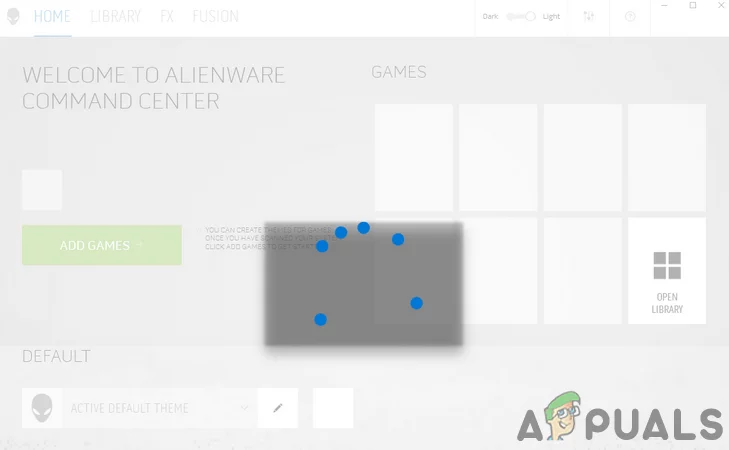
Alienware Command Center Not Working
Before proceeding with the troubleshooting process to fix Alienware Command Center, make sure your system supports the Alienware Command Center. Moreover, it will be a good idea to power off your system and open your system’s cover. Now reseat all the hardware connections, especially your graphics card. Furthermore, if the command center asks to install/update applications or drivers, let it install/update.
Additionally, make sure your antivirus is not interfering in the operation of the Command Center. Keep in mind there can be two programs with the same name as Command Center, one for peripherals, and the other for controlling lights, so make sure you are using the right application. Also, delete any themes from the AlienFX or similar locations until the issue is resolved. Moreover, try to right-click in the spinning circle of the Command Center as some users were able to solve the issue this way. Last but not least, update your Windows & system drivers , especially the touchpad driver and Alienware gaming peripheral driver, to the latest build after completely draining the power of your system.
Solution 1: Change the Start Up Type of AWCCService to Automatic
The Command Center might stop working if its service (i.e., AWCC.Service) is not configured to startup automatically, leading to delay responses from the Command Center (if any). In this case, setting the start-up type of AWCCService to Automatic may solve the problem.
- Exit the Alienware Command Center (if possible) and right-click on the Taskbar of your system, and in the resulting menu, click on Task Manager . Open Task Manager
- In the processes tab, make sure no Command Center process (you might see Alienware Command Center and AWCCService processes) is running by right-clicking it and then clicking on End Task.
- Then navigate to the Services tab and near the bottom of the window, click on Open Services . Open Services
- Now, in the Services window, right-click on AWCCService, and in the menu, click on Properties . Right Click AWCCService
- Then, open the drop-down of the Start-Up type and change it to Automatic . Change Start Up Type of AWCCService to Automatic
- Now, click on the Apply and OK button and then restart your system.
- Upon restart, check if your system is clear of the error.
Solution 2: Remove / Disable 3rdParty Applications
In a Windows environment, applications coexist and share system resources. You may encounter the error under discussion if any of 3 rd party applications interfere in the operation of the Alienware Command Center. In this context, removing or disabling 3 rd party applications may solve the problem.
- Right-click on the Windows button, and in the resulting menu, select Apps & Features . Open Apps & Features
- Now expand MSI Afterburner and then click on the Uninstall button. If you do not want to uninstall, then clean boot your system and make sure none of the problematic applications load at the startup. Uninstalling MSI Afterburner and Rivatuner
- Then confirm to uninstall and follow the prompts on your screen to uninstall MST Afterburner.
- Now follow the same procedure to uninstall all the problematic applications (RivaTuner is also known to create the issue, or you can create a profile in Riva Tuner for the Command Center) and then check if the issue is resolved.
Solution 3: Repair the .NET Installation
The Alienware Command Center may not work if the .NET installation of your system is corrupt. It makes use of this framework in its internal operations. In this context, repairing the .NET installation of your system may solve the problem.
- Launch a browser and download the .NET framework repairing tool . Download Microsoft .Net Repair Tool
- Now, launch the downloaded file with administrative privileges and follow the prompts on your screen to repair the .net framework.
- Then check if the Command Center is working fine.
The Alienware Command Center might not work if its installation itself is corrupt. This can occur if the installation was hindered or the installation files were moved from the original directory. In this case, using the Windows built-in functionality to repair the Alienware Command Center’s installation may solve the problem.
- Right-click on the Windows button, and in the displayed menu, click on Settings . Open Windows Settings
- Then, select Apps and expand Alienware Command Center . Uninstall the Alienware Command Center
- Now click on Uninstall and then select the Repair option. Repair the Alienware Command Center Installation
- After repairing the installation, check if Alienware Command Center is clear of the error.
- If not, try to use the built-in administrator account to repair the Alienware Command Center installation by following steps 1 to 4.
Solution 5: Reinstall the Alienware Command Center
The Alienware Command Center may not work if its installation itself is corrupt, and none of the solutions discussed above could fix the issue. In this context, reinstalling the Alienware Command Center may solve the problem.
- Exit the Alienware Command Center and make sure no process related to it runs in the Task Manager of your system (as discussed in solution 1).
- Then download/install the latest version of Alienware Command Center over the current installation (without uninstalling it) and check if the issue is resolved.
- If not, click in the Windows Search bar and type Control Panel . Then (in the results) select Control Panel . Search and open Control Panel
- Then click on Uninstall a Program (under Programs). Navigating to Uninstall a Program
- Now, in the list of installed applications, select Alienware Command Center and click Uninstall . Uninstall the Alienware Command Center
- Then follow the prompts on your screen to uninstall the application.
- Now, repeat the same process to uninstall the OC Controls application and .NET Framework (you may have to use Turn Windows Feature on or off option) versions (3.5, 4.0, and 4.5). Also, make sure there is no Alienware application is installed in the Microsoft Store . Moreover, it will be a good idea to remove any of the Microsoft Visual C++ versions . Uninstall Microsoft Visual C++ from Your System
- Then, restart your system, and upon restart, download and install .Net Framework 3.5 and 4.5.
- Now, make sure there is no pending Windows update except hardware driver updates, and then restart your system.
- Then launch the File Explorer of your system and navigate to the following path: %appdata% as a Run command
- Now delete the Alienware folder there (if any).
- Then, navigate to the following path: %programdata% Open %programdata%
- Now, delete any Alienware Folder there (if any).
- Then navigate to the following path: C:\Program Files\Alienware\ Or C:\Program Files (x86)
- Delete the Command Center folder.
- Now, navigate to the Documents folder and delete the following folders: AlienFX Alienware TactX Delete AlienFX and Alienware TactX Folders
- Now, delete your system’s temp files and then open the Run command by pressing Windows + R keys and type Reg Edit .
- Then, in the results shown, select Reg Edit (right-click and then click on Run as administrator) and backup Registry of your system. Open Registry Editor as Administrator
- Now navigate to the following path: HKEY_LOCAL_MACHINE\SOFTWARE\Alienware
- Delete the following folders: AlienFXMediaPlugin Alienware AlienFX CCPlugins Command Center
- Now, navigate to the following path: HKEY_LOCAL_MACHINE\SOFTWARE\WOW6432Node\Alienware Delete Alienware Folder from Registry
- Then delete the following folders: AlienFXMediaPlugin Alienware AlienFX Command Center
- Now restart your system, and upon restart, download and install (use custom install) Alienware Command Center (for your particular system’s model) with administrative privileges (if it asks for any missing components, follow the prompts to install the components) and check if the issue is resolved.
- If not, then try to repair the Command Center’s installation, as discussed in solution 4, and check if the Command Center is working fine.
- If it still doesn’t work, repeat the same process through the built-in administrator account (it will be better to disable UAC ) of your system (you may have to enable the built-in administrator account) and then check if the issue is resolved. Use the Built-in Administrator Account of Your System
- If the issue persists, then try to use a 3 rd party uninstaller/registry cleaner (proceed at your own risk as these applications may harm your system and data) to clear out any remnants of the installation and then reinstall to check if the application is operating fine.
- If not, uninstall the Command Center through the built-in administrator account and then reinstall it using the Microsoft Store (you may have to install 5 to 6 applications) to check if the issue is resolved.
Solution 6: Restore Your System to an Earlier Date
You may encounter the error at hand if any of the recent OS updates or installation of 3 rd party applications have broken the operation of Alienware Command Center and reinstalling the application did not solve the problem. In this case, restoring your system to an earlier date when things worked fine may solve the issue.
- Restore your system to an earlier date when the Command Center was operating normally. System Restore
- Then check if Alienware Command Center is working fine.
Solution 7: Reset Your System to the Factory Defaults or Perform a Clean Install of its Windows
If none of the solutions were able to fix the issue, then most probably, the issue resulted from a corrupt installation of Windows of your system. In this case, resetting your system to the factory defaults or performing a clean install of Windows may solve the problem (but do not forget to back up the data/information essential for you).
- Reset your system to the factory defaults and then check if the issue is resolved. Resetting with Keep My Files Settings
- If not, then perform a clean install of the Windows and check if the issue is resolved.
- If not, use the built-in administrator account of your system to uninstall Alienware Command Center (as discussed in solution 6) and restart your system.
- Upon restart, reinstall the application using the same account, and hopefully, the command center issue is resolved.
If the issue persists even after the Windows reinstall, then you may have to revert to an older version of Windows or the Alienware Command Center (you may have to stop automatic updates) or contact Dell support for any hardware troubleshooting.
(Advanced Users) Update the BIOS of Your System to the Latest Build
The BIOS of your system is updated regularly to pace with the latest technological advancements. The Alienware Command Center may fail to operate if your system’s BIOS is not updated to the latest build that may lead to compatibility issues between the system modules. In this scenario, updating the BIOS of your system to the latest build may solve the problem.
Warning : Proceed at your own risk as updating the BIOS of your system requires a certain level of experience, and if done wrong, you may brick your system and cause a non-recoverable loss to your system/data.
Before updating, it will be a good idea to reset your BIOS to the factory defaults and then check if any of the customized BIOS settings was the reason for the issue. If not, update your system’s BIOS by following the instructions specific to your make and model.
- Gateway
- Lenovo
- HP
- Dell
After updating the BIOS of your system and then check if the Command Center is operating fine.
How to Fix “Printer is in an error state” Issue?
The error “ WinRAR Error: Next Volume Is Required ” usually appears when you’re extracting a multi-part RAR archive and WinRAR can’t find (or can’t correctly identify) the next file in the sequence . This often happens when a volume is missing , stored in a different folder , or renamed in a way that breaks the archive’s expected order .

In this guide, we’ll go over the most reliable fixes confirmed by affected users, along with what each method is doing behind the scenes so you can choose the right one for your situation.
Important: To extract multi-volume archives, you should always start extraction from the first file in the set. This is usually file.part1.rar , or (in older sets) the main .rar file that comes before .r01 , .r02 , and so on.
1. Download and Place the Missing RAR File
WinRAR needs all parts of a multi-volume archive to complete extraction. This error usually appears when one of the volumes in a set like .part2.rar , .r01 , .r02 , .001 , and similar naming formats is missing . Downloading the missing volume and placing it in the same folder as the other parts allows WinRAR to continue extracting normally .
- Look at the error message or review the list of archive parts in the folder.
- Identify which volume is missing (for example, part2.rar , .r02 , .001 , etc.).
- Go back to the website or source where you downloaded the archive.
- Locate and download the exact missing file using the same naming format as the others.
- Make sure the new file name matches the pattern of the rest. Example: If you have file.part1.rar and file.part3.rar , the missing one must be file.part2.rar .
- Move the downloaded missing volume into the same folder as the other archive parts.
- Confirm that all parts are in a single folder before extracting.
- Right-click the first file in the series (usually part1 or the main .rar file) and select Extract Here or Extract to Folder .
- WinRAR should now detect all volumes and continue extraction normally .
2. Manually Browse & Select the Next Volume
Use this method only if the next volume already exists , but WinRAR is failing to detect it automatically. This can happen due to incorrect naming , the file being in a different location , or a temporary file access issue. Manually browsing helps WinRAR locate the correct volume and resume extraction without interruption .
- Right-click the first file in the series (usually .rar or part1.rar ) and select Extract Here or Extract to Folder .
- When WinRAR cannot find the next volume, it will show the “ Next Volume Is Required ” message.
- A small window will appear, allowing you to manually select the next volume .
- Use the file explorer window to locate the folder where the other archive parts are saved.
- Select the next part based on the naming order (example: select file.part2.rar after file.part1.rar ).
- Make sure the selected file matches the naming format of the archive (no extra characters like (1) and no mismatched numbering).
- WinRAR will resume extraction using the selected volume .
- If additional volumes are missing or stored separately, WinRAR may prompt you again. Repeat the same process until extraction completes.
3. Rename the RAR files in Order
WinRAR relies on a proper naming sequence (such as file.part1.rar , file.part2.rar , file.part3.rar ) to extract multi-volume archives. If a file is named incorrectly, contains extra characters, or is out of order, WinRAR may fail to locate the next volume and show this error. Renaming the files correctly helps WinRAR follow the sequence and extract the archive without interruptions .
Note: Renaming only changes the file name , not the file contents. The goal is to restore the correct sequence so WinRAR can detect the next volume.
- Go to the folder where all the RAR files are saved.
- Make sure all parts of the archive are present and stored in the same folder .
- Check how the parts are currently named . Common patterns include:
file.part1.rar, file.part2.rar, file.part3.rar
file.rar, file.r01, file.r02, file.r03
- Look for files that don’t match the expected numbering pattern (for example, file.part01.rar , file.part1(1).rar , or unrelated names).
- Rename each file so it follows the same order without extra characters or mismatched numbering. Example:
Incorrect: file.part1.rar, file.part3.rar, file.part2(1).rar
Correct: file.part1.rar, file.part2.rar, file.part3.rar
- Make sure the text before the number is exactly the same for all files.
- Only the last part number should change.
- Right-click the first file in the series (usually part1.rar or the main .rar file) and select Extract Here .
- WinRAR should now recognize the sequence and continue extraction normally .
If you still get the same prompt: the archive set is likely incomplete (a part was never downloaded or was removed), or one of the volumes is corrupt and must be re-downloaded from the original source.
