Several Adobe Premier users are getting the “Adobe Premiere Pro could not find any capable video play modules” error whenever they try to launch the software. The issue is not specific to a certain Adobe Premier or Windows version as user reports vary when it comes to the operating system and the build number of the application.
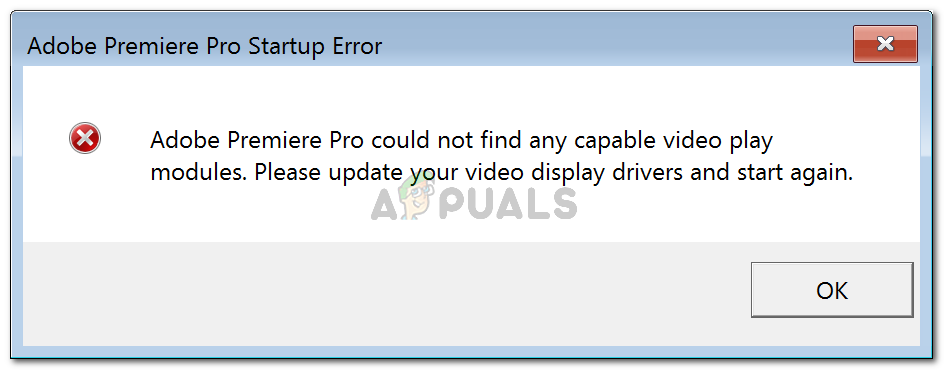
Adobe Premiere Pro could not find any capable video play modules. Please update your video display drivers and start again.
What is causing the “Adobe Premiere Pro could not find any capable video play modules” error?
We investigated this particular error by looking at various user reports and the repair strategies that they used to get the issue resolved. From what we gathered, there are several common culprits that are responsible for the apparition of this particular error message:
- GPUSniffer.exe and dynamicklinkmanager.exe are blocked by a firewal l – One or both of these processes are known to be flagged and blocked by several 3rd party security solutions.
- Windows account doesn’t open Adobe Premiere with admin privileges – This particular error message might occur if the program does not have administrative privileges. Ensuring that you run the executable as admin should do the trick if this scenario is applicable.
- Adobe Premiere Pro is running with incompatible startup parameters – On Windows 8 and Windows 7, several users have reported that the issue was resolved after they ran the Compatibility Troubleshooter on the AdobePremierePro executable. This seems to suggest that the program was previously running with incompatible startup parameters.
- The laptop is set to power saving mode – The error might also occur if your laptop is set to the power saving mode. Keep in mind that the power saving mode will switch to the integrated display card. In this case, the fix is as simple as switching your laptop to high-performance mode.
If you’re currently looking for ways to resolve the “Adobe Premiere Pro could not find any capable video play modules” error, this article will provide you with a collection of verified troubleshooting steps. You’ll notice below collection methods – all of those have been confirmed to be working by at least one affected user.
For the best results, follow the methods below in the order that they are presented. You should eventually stumble upon a fix that resolves the error for your particular scenario.
Let’s begin!
Method 1: Running Adobe Premiere as admin
Some affected users reported that for them, the fix was as easy as opening the program with administrative privileges. As it turns out, this particular error might occur if you’re trying to open Adobe Premiere from an account without admin privileges.
If this scenario is applicable, the fix is as easy as opening the executable (or shortcut) with admin privileges. To do this, simply right-click on the executable (desktop shortcut) and choose Run as Administrator .
If you’re still encountering the Adobe Premiere Pro could not find any capable video play modules error even after opening with administrative privileges, move down to the next method below.
Method 2: Troubleshooting compatibility on AdobePremierePro executable
Some users have reported that the issue was resolved entirely after they ran the Troubleshoot compatibility feature on the main Adobe Premiere Pro executable. What this does essentially, is modifying some launching parameters according to the Windows version that you are using.
If you are encountering the issue due to a compatibility problem, the steps below should be able to resolve the Adobe Premiere Pro could not find any capable video play modules error. Here’s what you need to do:
Note: The steps below should work for Windows 7 and later.
- Navigate to the location of Adobe Premiere Pro installation. By default, you will be able to find it in Program Files / Adobe / Adobe Premiere Pro (version).
- Once you get there, simply right-click on the AdobePremierePro executable and choose to Troubleshoot compatibility . Troubleshooting compatibility of Adobe Premiere Pro
- Wait until the Compatibility troubleshooter detects the problems. Be patient as this process can take over one minute. Waiting for the compatibility scan to complete
- Once the scan is complete, click on Try recommended settings to run the program using the recommended compatibility settings. Running the program with the recommended settings
- Click on Test the program to ensure that the steps have been successful. If the error no longer occurs, click on Yes, save these settings . Saving the compatibility settings If this method didn’t allow you to resolve the Adobe Premiere Pro could not find any capable video play modules error, move down to the next method below.
Method 3: Ensuring that 3rd party firewall doesn’t block Premiere executables (if applicable)
The number one reason why the “Adobe Premiere Pro could not find any capable video play modules” error occurs is due to an overprotective 3rd party firewall that ends up blocking a couple of executable files that Adobe Premiere uses to communicate with some external servers ( GPUSniffer.exe and dynamicklinkmanager.exe ).
While this situation is not reported to occur with Windows Defender, there are a lot of 3rd party firewalls that are confirmed to cause this particular issue.
If you think this scenario is applicable to your particular situation, you have two ways forward:
- You either allow those two files (GPUSniffer.exe and dynamicklinkmanager.exe) through your Firewall by adding them to the exception list.
- You uninstall your third-party firewall and let Windows Defender take its place.
If you decide to go with the first route, keep in mind that the steps of doing so are specific to the 3rd party AV/firewall that you’re using. However, regardless of the security application that you’re using, you’ll need to enter it’s Settings menu and look for an option that allows you to add the GPUSniffer.exe and dynamicklinkmanager.exe to the exclusion list.
In the event that you didn’t manage to find the exclusion list of your firewall/antivirus, an easier solution will be to uninstall the firewall properly and let Windows Defender take over. To do this, you can follow the steps presented in this article ( here ).
Once you followed one of the routes above, restart your computer and see if the error message has been resolved. If you’re still encountering the “Adobe Premiere Pro could not find any capable video play modules” error when opening Adobe Premiere Pro, move down to the next method below.
Method 4: Switching the laptop to high-performance mode (if applicable)
Several users encountering the “Adobe Premiere Pro could not find any capable video play modules” error have reported that the issue was resolved entirely after they switch the laptop power mode from Power Saving to High Performance .
This issue occurs because whenever the laptop is put into Power Saving mode, the system switches to the integrated graphics card which is much weaker than the dedicated counterpart.
If this scenario is applicable to your situation, follow the steps below to ensure that your laptop is et to High Performance mode:
- Press Windows key + R to open up a Run dialog box. Then, type “ powercfg.cpl ” and press Enter to open up the Power Options window. Running dialog: powercfg.cpl
- Inside the Power Options window, go to the Choose or customize a power plan and make sure that you select the High Performance plan. Enabling the High Performance plan Note: If you don’t have a High Performance plan created already, click on Create a power plan, set the toggle to High Performance , name it (under Plan name ), hit Next , then click Create . Creating a high-performance plan
Method 5: Disabling the AMD graphic card
Several laptop models running on AMD graphic cards (particularly the 7670M model) are known to cause compatibility problems with Adobe Premiere Pro. Several users encountering the same problems have managed to find a workaround in temporarily disabling the AMD graphic card.
Here’s a quick guide on how to do so:
- Press Windows key + R to open up a Run dialog box. Then, type “ devmgmt.msc ” and press Enter to open Device Manager. Run dialog: devmgmt.msc
- Inside Device Manager, expand the drop-down menu associated with Display adapters, right-click on your AMD graphics card and click Disable device . Disabling the AMD graphics card
- Open Adobe Premiere Pro normally and wait until you get past the loading screen. You should no longer encounter the “Adobe Premiere Pro could not find any capable video play modules” error.
- Return to Device Manager , right-click on the AMD graphics card again and choose Enable device . Enabling the AMD graphics card Note: You might need to repeat this operation everytime you need to open Adobe Premiere Pro.
How to Fix “Printer is in an error state” Issue?
The error “ WinRAR Error: Next Volume Is Required ” usually appears when you’re extracting a multi-part RAR archive and WinRAR can’t find (or can’t correctly identify) the next file in the sequence . This often happens when a volume is missing , stored in a different folder , or renamed in a way that breaks the archive’s expected order .

In this guide, we’ll go over the most reliable fixes confirmed by affected users, along with what each method is doing behind the scenes so you can choose the right one for your situation.
Important: To extract multi-volume archives, you should always start extraction from the first file in the set. This is usually file.part1.rar , or (in older sets) the main .rar file that comes before .r01 , .r02 , and so on.
1. Download and Place the Missing RAR File
WinRAR needs all parts of a multi-volume archive to complete extraction. This error usually appears when one of the volumes in a set like .part2.rar , .r01 , .r02 , .001 , and similar naming formats is missing . Downloading the missing volume and placing it in the same folder as the other parts allows WinRAR to continue extracting normally .
- Look at the error message or review the list of archive parts in the folder.
- Identify which volume is missing (for example, part2.rar , .r02 , .001 , etc.).
- Go back to the website or source where you downloaded the archive.
- Locate and download the exact missing file using the same naming format as the others.
- Make sure the new file name matches the pattern of the rest. Example: If you have file.part1.rar and file.part3.rar , the missing one must be file.part2.rar .
- Move the downloaded missing volume into the same folder as the other archive parts.
- Confirm that all parts are in a single folder before extracting.
- Right-click the first file in the series (usually part1 or the main .rar file) and select Extract Here or Extract to Folder .
- WinRAR should now detect all volumes and continue extraction normally .
2. Manually Browse & Select the Next Volume
Use this method only if the next volume already exists , but WinRAR is failing to detect it automatically. This can happen due to incorrect naming , the file being in a different location , or a temporary file access issue. Manually browsing helps WinRAR locate the correct volume and resume extraction without interruption .
- Right-click the first file in the series (usually .rar or part1.rar ) and select Extract Here or Extract to Folder .
- When WinRAR cannot find the next volume, it will show the “ Next Volume Is Required ” message.
- A small window will appear, allowing you to manually select the next volume .
- Use the file explorer window to locate the folder where the other archive parts are saved.
- Select the next part based on the naming order (example: select file.part2.rar after file.part1.rar ).
- Make sure the selected file matches the naming format of the archive (no extra characters like (1) and no mismatched numbering).
- WinRAR will resume extraction using the selected volume .
- If additional volumes are missing or stored separately, WinRAR may prompt you again. Repeat the same process until extraction completes.
3. Rename the RAR files in Order
WinRAR relies on a proper naming sequence (such as file.part1.rar , file.part2.rar , file.part3.rar ) to extract multi-volume archives. If a file is named incorrectly, contains extra characters, or is out of order, WinRAR may fail to locate the next volume and show this error. Renaming the files correctly helps WinRAR follow the sequence and extract the archive without interruptions .
Note: Renaming only changes the file name , not the file contents. The goal is to restore the correct sequence so WinRAR can detect the next volume.
- Go to the folder where all the RAR files are saved.
- Make sure all parts of the archive are present and stored in the same folder .
- Check how the parts are currently named . Common patterns include:
file.part1.rar, file.part2.rar, file.part3.rar
file.rar, file.r01, file.r02, file.r03
- Look for files that don’t match the expected numbering pattern (for example, file.part01.rar , file.part1(1).rar , or unrelated names).
- Rename each file so it follows the same order without extra characters or mismatched numbering. Example:
Incorrect: file.part1.rar, file.part3.rar, file.part2(1).rar
Correct: file.part1.rar, file.part2.rar, file.part3.rar
- Make sure the text before the number is exactly the same for all files.
- Only the last part number should change.
- Right-click the first file in the series (usually part1.rar or the main .rar file) and select Extract Here .
- WinRAR should now recognize the sequence and continue extraction normally .
If you still get the same prompt: the archive set is likely incomplete (a part was never downloaded or was removed), or one of the volumes is corrupt and must be re-downloaded from the original source.
