The error message “ Acrobat failed to connect to a DDE Server ” occurs when users try to merge multiple files into one PDF. This error has been there for quite some time and Acrobat even acknowledged it in an official post on its website.
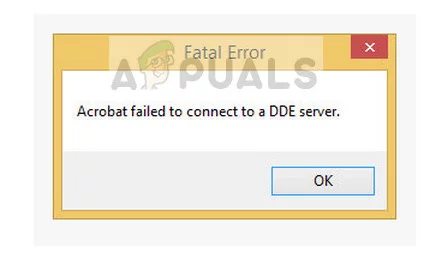
Fatal Error: Acrobat failed to connect to a DDE Server
When experiencing this error message, users reported that their computer got stuck or went in a hanged state where they were unable to do anything. After a while, they got prompted with this error message. Even though the message looks frustrating and may hamper the performance of your computer, the steps for fixing it are very simple and straightforward.
How to fix Acrobat failed to connect to a DDE Server?
Like mentioned before, this error message is ‘mostly’ caused by the software malfunctioning when you are combining several files into one PDF. The reasons in more elaboration why this error message occurs are:
- Acrobat became overloaded or went in an error state when you tried to merge multiple files into one PDF.
- The application is not installed properly or has some missing files .
- There are some problems in the registry of Acrobat software.
Before we start with the solutions, make sure that you have administrator access on your computer with an active internet connection.
Solution 1: Updating Acrobat Software
Before we move on to the technicalities, make sure that you have the latest version of Acrobat installed on your computer. Like mentioned before, it has officially recognized the error in its website. According to Acrobat, the problem is solved with an update which was released to all versions installed in user’s computers.
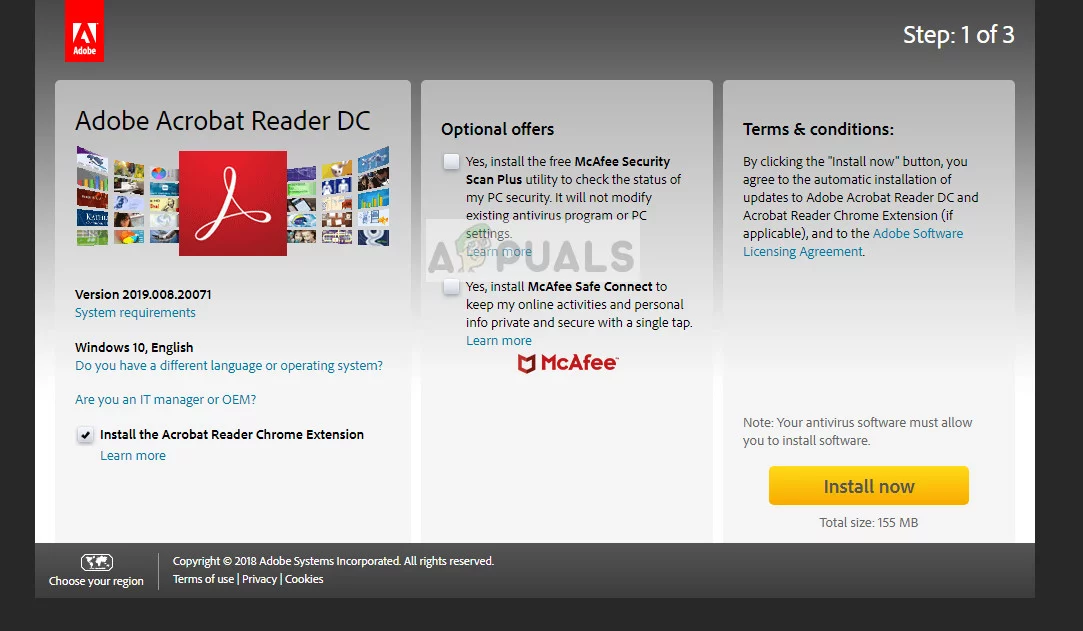
Updating Acrobat: Adobe official website
Make sure that your Adobe software is updated to the latest build available . You can easily check by navigating to the official download website and downloading the software release.
Another thing which you should note is that support for Acrobat 11 is ended by the company. This means that there will be no technical support or runtime distribution. This affects the cumulative and security updates of the product. Hence you should update to Adobe Acrobat DC.
Solution 2: Changing registry values
Changing your Windows registry was the official fix to the solution proposed by Adobe in its official website where it acknowledged the error message. This is the most efficient solution out there to this error message where the key ‘AcroviewA18’ is changed to ‘AcroviewR18’. Make sure that you backup your registry just in case so you can always revert changes if things go bad.
Note : Registry editor is a very powerful tool. Changing items which you don’t know about can make the problem worse. Make sure that you only change the keys which are mentioned below.
- Press Windows + R, type “ regedit ” in the dialogue box and press Enter.
- Once in the registry editor, navigate to the following registry key:
HKEY_CLASSES_ROOT\acrobat\shell\open\ddeexec\application
- Right-click on the key and click Modify .

Modifying Acrobat registry values: Registry editor
- Change the key “ AcroviewA18 ” to “ AcroviewR18 “. (Here, the value of A and R depends on the version of Acrobat installed. For example, for Acrobat 2018, the value will be A18.)
<img loading=“lazy” src=“https://cdn.appuals.com/wp-content/uploads/2018/10/4-23.jpg.webp" onerror=“this.onerror=null;this.src=‘https://blogger.googleusercontent.com/img/a/AVvXsEhe7F7TRXHtjiKvHb5vS7DmnxvpHiDyoYyYvm1nHB3Qp2_w3BnM6A2eq4v7FYxCC9bfZt3a9vIMtAYEKUiaDQbHMg-ViyGmRIj39MLp0bGFfgfYw1Dc9q_H-T0wiTm3l0Uq42dETrN9eC8aGJ9_IORZsxST1AcLR7np1koOfcc7tnHa4S8Mwz_xD9d0=s16000';" alt=“Changing the key “AcroviewA18” to “AcroviewR18” - 4”>
Changing the key “AcroviewA18” to “AcroviewR18”
- Now restart your computer properly and try launching Adobe Acrobat again. Check if the error message is solved.
Note: The ’18’ in the registry key might change to ’19’ if you have a newer version of Acrobat.
Solution 3: Disabling Antivirus software
Another reason why you might experience the error ‘Acrobat failed to connect to a DDE Server’ is because of interference from Antivirus software. When you try to merge several files into one, it requires copying all the data and combining all of it at a single point. This is where they flag the process as a false positive and misleadingly blocks the process.

Disabling Antivirus Software
This scenario was also documented on the official website. There are several noticeable Antivirus features such as Symantec Endpoint who block this feature. You can read our article on How to Turn Your Antivirus Off .
Solution 4: Disabling ‘Protected mode on startup’
Protected mode is meant to provide an additional layer of security to the user’s computer. In this mode, all the malicious PDF documents cannot launch arbitrary executable files on your computer nor can make any changes to the registry.
This feature, even though seems useful, was seen to be bugged. When users disabled this feature, they seem to get rid of the error message instantly. We can try this and see if it works.
- Open Adobe Acrobat and press Ctrl + K . Now select Security from the left navigation bar.
- Uncheck the option ‘ Enabled Protected mode on startup ’ and set the Protected view as Off . Also, uncheck the option ‘ Enable Enhanced Security ’.

Disabling security features – Acrobat
- Now restart your computer completely and launch Acrobat. Check if the error message is resolved.
These solutions should fix the issue at hand just fine. If these solutions don’t work for you, before reinstalling the software, make sure that you try the following tips:
- Press Windows + R, type “ services. msc ” and press Enter. Once in services, check for the service ‘ Network DDE ’ and ‘ Network DDE DSDM ’ and make sure they are enabled.
- End the process tree of Acrobat and restart it. This may fix any discrepancies found temporarily in the system.
- Attempt doing a repair installation of the software. This is different from a fresh install such that you don’t have to download the entire package again.
- Check all add-ins enabled . You can perform intensive checking by checking your event viewer and looking for messages close to the time where you experienced the error.
Solution 5: Removing Adobe DC Completely
If none of the solutions above have fixed your problem. You can try to completely remove Adobe DC from your computer and re-install it. Follow the steps below to completely remove Adobe DC from your Computer.
- Download the DC Remover tool from this link ( here ).
- Once it’s downloaded, right-click on it and click “Run as administrator”.
- Once the removal is completed simply download the Adobe DC again and Install it.
- Check to see if the issue still persists.
How to Fix “Printer is in an error state” Issue?
The error “ WinRAR Error: Next Volume Is Required ” usually appears when you’re extracting a multi-part RAR archive and WinRAR can’t find (or can’t correctly identify) the next file in the sequence . This often happens when a volume is missing , stored in a different folder , or renamed in a way that breaks the archive’s expected order .

In this guide, we’ll go over the most reliable fixes confirmed by affected users, along with what each method is doing behind the scenes so you can choose the right one for your situation.
Important: To extract multi-volume archives, you should always start extraction from the first file in the set. This is usually file.part1.rar , or (in older sets) the main .rar file that comes before .r01 , .r02 , and so on.
1. Download and Place the Missing RAR File
WinRAR needs all parts of a multi-volume archive to complete extraction. This error usually appears when one of the volumes in a set like .part2.rar , .r01 , .r02 , .001 , and similar naming formats is missing . Downloading the missing volume and placing it in the same folder as the other parts allows WinRAR to continue extracting normally .
- Look at the error message or review the list of archive parts in the folder.
- Identify which volume is missing (for example, part2.rar , .r02 , .001 , etc.).
- Go back to the website or source where you downloaded the archive.
- Locate and download the exact missing file using the same naming format as the others.
- Make sure the new file name matches the pattern of the rest. Example: If you have file.part1.rar and file.part3.rar , the missing one must be file.part2.rar .
- Move the downloaded missing volume into the same folder as the other archive parts.
- Confirm that all parts are in a single folder before extracting.
- Right-click the first file in the series (usually part1 or the main .rar file) and select Extract Here or Extract to Folder .
- WinRAR should now detect all volumes and continue extraction normally .
2. Manually Browse & Select the Next Volume
Use this method only if the next volume already exists , but WinRAR is failing to detect it automatically. This can happen due to incorrect naming , the file being in a different location , or a temporary file access issue. Manually browsing helps WinRAR locate the correct volume and resume extraction without interruption .
- Right-click the first file in the series (usually .rar or part1.rar ) and select Extract Here or Extract to Folder .
- When WinRAR cannot find the next volume, it will show the “ Next Volume Is Required ” message.
- A small window will appear, allowing you to manually select the next volume .
- Use the file explorer window to locate the folder where the other archive parts are saved.
- Select the next part based on the naming order (example: select file.part2.rar after file.part1.rar ).
- Make sure the selected file matches the naming format of the archive (no extra characters like (1) and no mismatched numbering).
- WinRAR will resume extraction using the selected volume .
- If additional volumes are missing or stored separately, WinRAR may prompt you again. Repeat the same process until extraction completes.
3. Rename the RAR files in Order
WinRAR relies on a proper naming sequence (such as file.part1.rar , file.part2.rar , file.part3.rar ) to extract multi-volume archives. If a file is named incorrectly, contains extra characters, or is out of order, WinRAR may fail to locate the next volume and show this error. Renaming the files correctly helps WinRAR follow the sequence and extract the archive without interruptions .
Note: Renaming only changes the file name , not the file contents. The goal is to restore the correct sequence so WinRAR can detect the next volume.
- Go to the folder where all the RAR files are saved.
- Make sure all parts of the archive are present and stored in the same folder .
- Check how the parts are currently named . Common patterns include:
file.part1.rar, file.part2.rar, file.part3.rar
file.rar, file.r01, file.r02, file.r03
- Look for files that don’t match the expected numbering pattern (for example, file.part01.rar , file.part1(1).rar , or unrelated names).
- Rename each file so it follows the same order without extra characters or mismatched numbering. Example:
Incorrect: file.part1.rar, file.part3.rar, file.part2(1).rar
Correct: file.part1.rar, file.part2.rar, file.part3.rar
- Make sure the text before the number is exactly the same for all files.
- Only the last part number should change.
- Right-click the first file in the series (usually part1.rar or the main .rar file) and select Extract Here .
- WinRAR should now recognize the sequence and continue extraction normally .
If you still get the same prompt: the archive set is likely incomplete (a part was never downloaded or was removed), or one of the volumes is corrupt and must be re-downloaded from the original source.

