Google Docs offers a dark mode feature that changes the background to a darker color and adjusts the text color to improve visibility and ease eye strain. This feature not only makes the app more comfortable to use, but it also helps conserve battery life on mobile that are using AMOLED/OLED display. If you frequently work at night, enabling dark mode in Google Docs is a smart choice.

Dark mode in Google Docs
In this article, we’ll walk you through the process of enabling dark mode in Google Docs on both desktop and mobile devices and show you how to customize the feature to suit your needs.
Enable Dark Mode on Mobile (iOS and Android)
To enable dark mode in Google Docs on a mobile device, follow these steps:
- Install and open the Google Docs app on your mobile phone.
- Tap on the three horizontal lines located in the top-left corner of the screen.
- Select Settings . Go to Settings
- Under Appearance, you’ll see an option labeled Theme, tap on it. Tap on Choose Theme
- Tap on Dark . Select Dark
The background color of Google Docs will change to black, and the text color will change to white.
Alternatively, if your device has a system-wide dark mode, you can enable it by going to your device settings and turning on the dark mode. This will automatically enable the dark mode for all the apps including Google Docs.
Enable Dark Mode on the Desktop
Google Docs on the desktop does not have a built-in dark mode option. However, users can still enable dark mode on their desktop by using a third-party extension such as Google Docs Dark Mode . This extension can be installed on Chromium based browsers. and allows users to toggle the dark mode on and off with just a single click.
To enable dark mode in Google Docs on a desktop computer, follow these steps:
- Open your web browser and go to the Google Chrome Web Store or Firefox.
- Search for Google Docs Dark Mode or a similar extension .
- Select the extension and click Add to Chrome or Add to Firefox button. Click Add to Chrome
- Once the extension is installed, you will see a new icon on the browser’s extension bar.
- Click on the extension icon, and turn ON the toggle key for dark mode. Turn On the toggle
The background color of Google Docs will change to black, and the text color will change to white. Once you’ve enabled dark mode, you can adjust the settings to customize the look and feel of the interface to suit your needs.
As you follow the steps given above you will enable dark mode on your mobile phone or desktop and can continue work on a comfortable screen.
How to Fix “Printer is in an error state” Issue?
Google Docs is a perfect platform allowing the creation and sharing of documents effortlessly. With this tool, you can let others view, comment, or edit your documents, facilitating smooth collaboration and minimizing confusion.
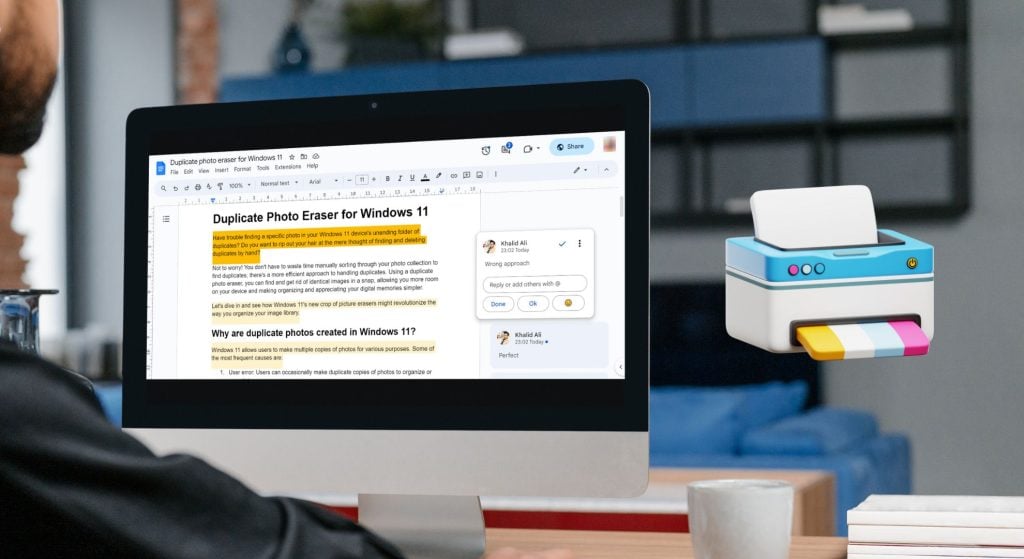
Can you print Google Doc with comments?
1. Capture the page as a screenshot and print
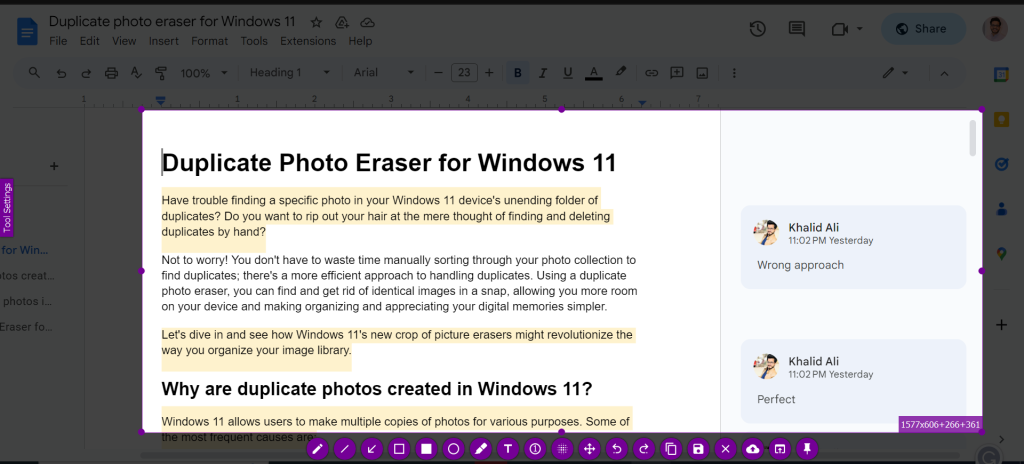
Capture the page as a screenshot and print
You can take a screenshot of the whole document page and then print it as a photo. This way is straightforward but doesn’t give you many options and has some limits.
2. Export the Google Doc to Microsoft Word
- Open your Google Doc and click “ File ” in the top menu. Click File
- Click Download, then select Microsoft Word (.docx). Save it on your computer. Click Download then select Microsoft Word
- Open the Word file from the “ Downloads ” folder. Open the Word file
- When you open the file in Microsoft Word, you’ll see that the comments are included. All comments are visible and can be printed
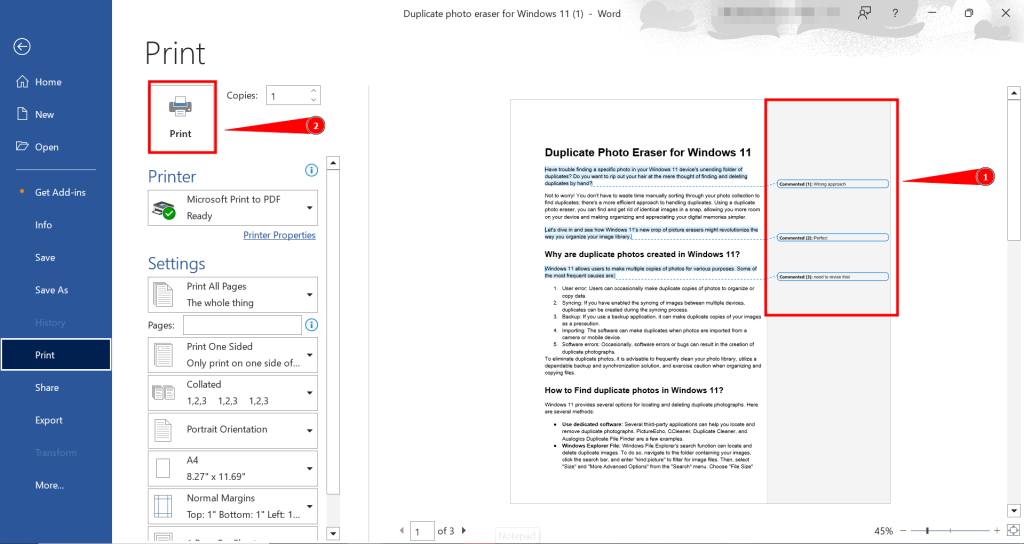
Comments visible in preview
3. Turn the Google Docs into a Webpage
Follow these simple steps to convert your Google Doc into a webpage for printing purposes.
- Click on “ File .” Click on File
- Then hit “ Download ” and choose the “ Webpage format ,” which is (.html). Choose the webpage format
- The webpage downloads as a zip. Unzip the File. Open the HTML file with the browser you like. Open the HTML file
- If you use Chrome , printing is easy. Click the three dots, click Print, or press “ CTRL+ P” on your keyboard. Print it directly from browser
4. Utilizing Chrome Extensions for Comment Printing
GoFullPage is a handy Chrome extension that lets you capture pictures of whole pages. Here’s how you can utilize it in our case:
- Visit the Chrome Web Store and click “ Add to Chrome ” for GoFullPage. Add the extension
- The extension will screenshot your entire document, including all the content and comments. You can save this image to your computer or print it. Download or print the file easily

How to print Google Doc with comments on mobile?
You can quickly screenshot Google Docs on a mobile device by pressing specific button combinations and then print if connected to a compatible printer. Moreover, Google Docs also allows you to export as a Word file or webpage on mobile.
Remember, the exact steps may vary slightly based on your phone’s operating system and the versions of the apps you’re using. Ensure you have the necessary apps installed and updated, and a printer compatible with mobile devices.
