Following a European Union ruling, laptops sold in Europe must now include a high-volume warning, indicating that listening to music and videos at high volume through earphones can lead to hearing loss. Realtek users report a recurring issue where this warning surfaces whenever the volume exceeds 42, and sporadically afterwards. Given that this stems from a ruling, it’s probable that other laptop and system manufacturers will experience the same problem.
After selecting ‘ Allow ‘, users frequently encounter the following message:
High volume can cause permanent hearing damage. Protect your ears by keeping the volume at a safe level.

Method 1: Driver Update
To fix this issue:
- Hold the Windows Key and Press R .
- Type ‘ hdwwiz.cpl ‘ and click ‘ OK ‘.
- Expand the ‘ Sound, Video, and Game Controller ‘ option.
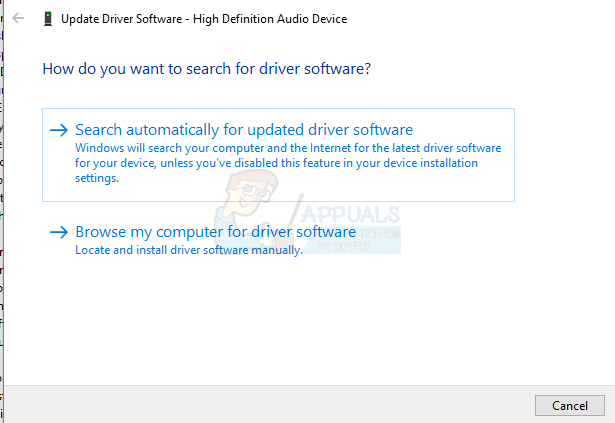
- Right-click Realtek High Definition Audio and select ‘ Update Driver Software .
- Select the ‘ Search Automatically ‘ option and follow the on-screen prompts.
Method 2: Driver Rollback
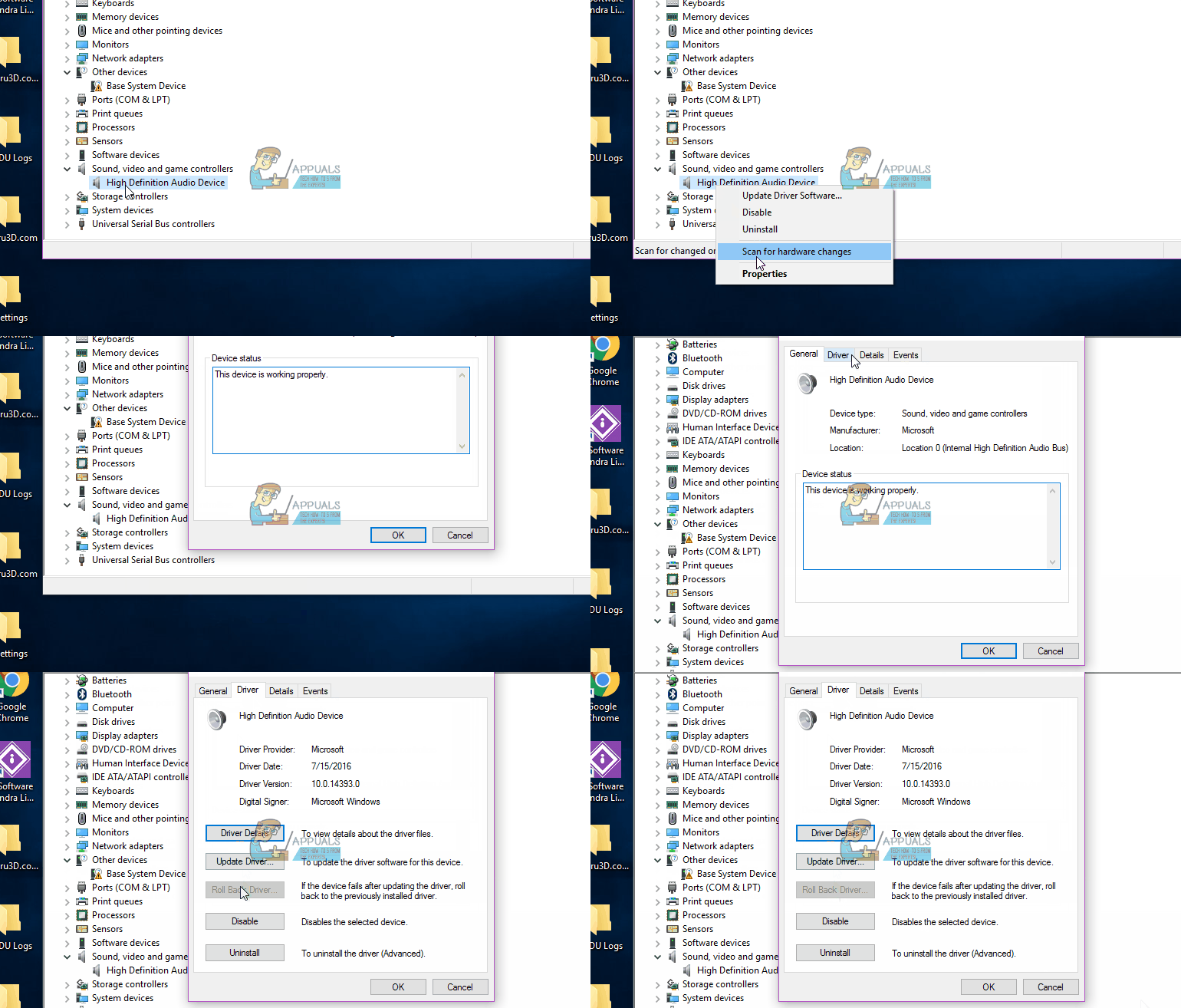
- The first step is to roll back your audio drivers. Open Device Manager by pressing the Windows and X keys on your keyboard, then select Device Manager from the options list.
- In the open window, select “ Sound, Video and Game Controllers ” to view your computer’s corresponding hardware. Find “ High Definition Audio Device ,” right-click it, then select “ Properties .” Click the “ Driver ” tab and search for “ Roll Back Driver .” The process will initiate if an older driver is available.
- If you can’t locate ‘ High Definition Audio Device ,’ search for ‘ Intel SST Audio Device ‘ or any related Audio-tagged device.
- If no previous driver is available for rollback, proceed with the next method.
Method 3: Permanently Remove Realtek Audio Drivers
If you can’t revert to the previous driver, completely removing all Realtek audio drivers is the only effective solution. Press the Windows Key + R , type in ‘ taskmgr ‘, and click OK . Under the Processes tab , find anything labelled as Realtek , right-click, and select ‘ End Task ‘.
Then, navigate to the Device Manager , choose Sound, Video and Game Controllers , and find the entry for Realtek High Definition Audio. Right-click and select Uninstall .
Open Windows Explorer , navigate to C drive > Program Files > Realtek . Right-click the folder, select Properties , then the Security tab . Under ‘ Group or user names ‘, select SYSTEM , then click ‘ Edit ‘. A new window will open, permitting edits to SYSTEM permissions. Deny all permissions, then click ‘ Apply ‘ and ‘ OK ‘.
Reboot your computer and return to Device Manager . If the speaker drivers are missing, a yellow warning sign will appear next to the speaker entry. Right-click this, select ‘ Properties ‘, and click ‘ Update Drivers ‘. Choose the ‘ Let me pick ‘ option, opting for the standard Windows High Definition Audio Drivers instead of the Realtek drivers. Installing these will operate your speakers and bypass the warning popup caused by the Realtek drivers.
