PowerShell is a really powerful command-line tool used for automating and scripting various tasks in Windows. It is a fully featured, advanced version of Command Prompt.
PowerShell is also used to perform various file-related operations, such as file creation and modification. It provides a range of commands and functions for file management, including the ability to delete files .
Deleting a single file using PowerShell.
In order to delete a single file in PowerShell, you will need to use the ‘ Remove-Item ‘ command.
- Open the start menu and type “ Windows PowerShell ” in the “ search box”
- Open it and type the command “ Remove-Item ” along with the file location and name type the command “Remove-Item” along with the file location and name
Remove-Item <FilePath>
Here, < FilePath > represents the location of the file you want to delete. For example, if you want to delete a file called “ example.txt ” located in the “ C:\Temp” directory , use the following command:
Remove-Item C:\Temp\example.txt
Deleting files and folders recursively.
To delete files and folders recursively, you can use the “-Recurse” parameter with the “Remove-Item” command.
- Open “ Windows PowerShell ” and type the command “ Remove-Item ” along with the file location and name with “ -Recurse ” at the end type the command “Remove-Item” along with the file location and name with “-Recurse” at the end
- This will delete the folder located at “ x ” and all its contents .
For example
Remove-Item C:\Temp\example.txt -Recurse
Forcefully Deleting a File.
In order to force delete a file that is write-protected or in use by any process through PowerShell, you will need to use the “ -Force ” parameter with the “ Remove-Item ” command.
- Open “ Windows PowerShell ” and type the command “ Remove-Item ” followed by the file location and name, and add “ -Force ” at the end. type the command “Remove-Item” along with the file location and name, with “-Force at the end
- This will delete the file located at “ x ” even if it is read-only or in use by another process
For example
Remove-Item C:\Temp\example.txt -Force
Deleting files recursively based on their file extensions.
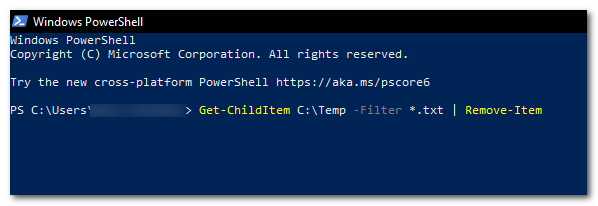
In order to delete files recursively based on file extension (e.g., .txt), you can use the “ Get-ChildItem ” command with the “ -Filter ” parameter to retrieve a list of files, and then delete the files with the “ Remove-Item ” command.
<img loading=“lazy” src=“https://cdn.appuals.com/wp-content/uploads/2023/05/Deleting-files-recursively-based-on-file-extension-1.png" onerror=“this.onerror=null;this.src=‘https://blogger.googleusercontent.com/img/a/AVvXsEhe7F7TRXHtjiKvHb5vS7DmnxvpHiDyoYyYvm1nHB3Qp2_w3BnM6A2eq4v7FYxCC9bfZt3a9vIMtAYEKUiaDQbHMg-ViyGmRIj39MLp0bGFfgfYw1Dc9q_H-T0wiTm3l0Uq42dETrN9eC8aGJ9_IORZsxST1AcLR7np1koOfcc7tnHa4S8Mwz_xD9d0=s16000';" alt=“use the “Get-ChildItem” command with the “-Filter” parameter and the “Remove-Item” command. - 2”>
use the “Get-ChildItem” command with the “-Filter” parameter and the “Remove-Item” command.
Get-ChildItem C:\Temp -Filter *.txt | Remove-Item
Deleting files that match a particular pattern.
<img loading=“lazy” src=“https://cdn.appuals.com/wp-content/uploads/2023/05/Deleting-files-that-match-a-particular-pattern.png" onerror=“this.onerror=null;this.src=‘https://blogger.googleusercontent.com/img/a/AVvXsEhe7F7TRXHtjiKvHb5vS7DmnxvpHiDyoYyYvm1nHB3Qp2_w3BnM6A2eq4v7FYxCC9bfZt3a9vIMtAYEKUiaDQbHMg-ViyGmRIj39MLp0bGFfgfYw1Dc9q_H-T0wiTm3l0Uq42dETrN9eC8aGJ9_IORZsxST1AcLR7np1koOfcc7tnHa4S8Mwz_xD9d0=s16000';" alt=“use the “Get-ChildItem” command with the “-Path” parameter and the “Remove-Item” command to delete them. - 3”>
use the “Get-ChildItem” command with the “-Path” parameter and the “Remove-Item” command to delete them.
You can use the ‘ Get-ChildItem ‘ command to gather all files matching the pattern (e.g., files that contain the word ‘ test ‘ in the file name) with the ‘ -Path ‘ parameter, and then use the ‘ Remove-Item ‘ command to delete them.
Get-ChildItem C:\Temp -Path "*test*" | Remove-Item
Deleting all files in a folder.
<img loading=“lazy” src=“https://cdn.appuals.com/wp-content/uploads/2023/05/Deleting-all-files-in-a-folder.png" onerror=“this.onerror=null;this.src=‘https://blogger.googleusercontent.com/img/a/AVvXsEhe7F7TRXHtjiKvHb5vS7DmnxvpHiDyoYyYvm1nHB3Qp2_w3BnM6A2eq4v7FYxCC9bfZt3a9vIMtAYEKUiaDQbHMg-ViyGmRIj39MLp0bGFfgfYw1Dc9q_H-T0wiTm3l0Uq42dETrN9eC8aGJ9_IORZsxST1AcLR7np1koOfcc7tnHa4S8Mwz_xD9d0=s16000';" alt=“use the “Get-ChildItem” command with the “-File” parameter and the “Remove-Item” command. - 4”>
use the “Get-ChildItem” command with the “-File” parameter and the “Remove-Item” command.
To delete all files in a folder (but not the folder itself), use the “ Get-ChildItem ” command with the “ -File ” parameter to retrieve a list of files, and then delete the results using the “ Remove-Item ” command.
Get-ChildItem C:\Temp -File | Remove-Item
Delete a file only if it exists.
<img loading=“lazy” src=“https://cdn.appuals.com/wp-content/uploads/2023/05/Deleting-a-file-only-if-it-exists.png" onerror=“this.onerror=null;this.src=‘https://blogger.googleusercontent.com/img/a/AVvXsEhe7F7TRXHtjiKvHb5vS7DmnxvpHiDyoYyYvm1nHB3Qp2_w3BnM6A2eq4v7FYxCC9bfZt3a9vIMtAYEKUiaDQbHMg-ViyGmRIj39MLp0bGFfgfYw1Dc9q_H-T0wiTm3l0Uq42dETrN9eC8aGJ9_IORZsxST1AcLR7np1koOfcc7tnHa4S8Mwz_xD9d0=s16000';" alt=“use the “Test-Path” command and then use the “Remove-Item” command - 5”>
use the “Test-Path” command and then use the “Remove-Item” command
To delete a file only if it exists (to avoid an error if the file does not exist), use the “ Test-Path ” command to check whether the file exists, and then use the “ Remove-Item ” command to delete it.
if (Test-Path C:\Temp\file.txt) { Remove-Item C:\Temp\file.txt }
Deleting files that are older than a specified date.
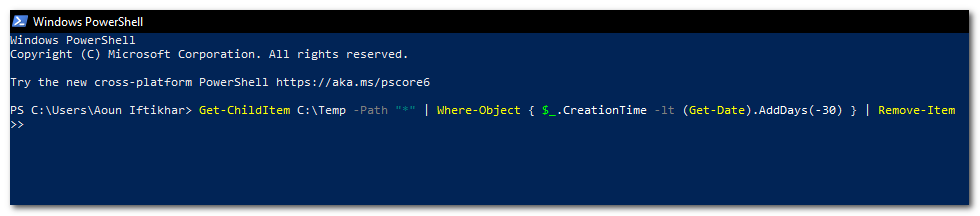
To delete files older than a specified date, use the ‘ Get-ChildItem ‘ command with the ‘ -Path ‘ parameter and a wildcard character ( * ) to retrieve a list of files. Then, pipe the results to the ‘ Where-Object ‘ command to filter the files based on their creation date. Finally, pipe the results further to the ‘ Remove-Item ‘ command to delete them.
Get-ChildItem C:\Temp -Path "*" | Where-Object { $_.CreationTime -lt (Get-Date).AddDays(-30) } | Remove-Item
I hope this article has helped you in deleting files using Windows PowerShell. Always be careful when using these commands, particularly when employing the “ -Force ” or “ -Recurse ” parameters, as they can potentially delete important files or folders. Make sure to double-check your commands before running them to ensure that you are deleting the correct files.


