Does it frustrate you when your Wi-Fi works flawlessly on your phone, yet your laptop seems blind to it? Given our reliance on wireless connectivity for work, social interactions, or leisure, this issue can be quite disruptive.
There is a myriad of reasons why this could happen. In this guide, we’ll uncover common causes that prevent laptops from detecting Wi-Fi networks, along with providing practical solutions to ensure a smooth, uninterrupted wireless experience for you.
Causes & Fixes:
- Restarting Your Laptop
- Airplane Mode
- Wrong Date and Time
- Forget Network
- Weak Signal Strength
- Running the Troubleshooter
- (Re-)Enable Network Discovery
- Disable/Enable the NIC
1. Restarting Your Laptop
Such errors often result from software glitches, so the first logical thing to do is restart your laptop. Click on the “ Windows ” key on your laptop and then click on the “ Power ” icon and select “ Restart .” Once your laptop restarts, the problem may be resolved right then and there.
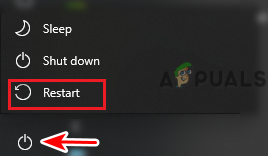
Restarting the computer
2. Airplane Mode
It is also possible that the Airplane mode of your laptop has been turned on. In that case no networks will be detected. To eliminate that as a possibility follow these brief steps:
- Click on the Wi-fi icon next to the volume icon on the taskbar. You might need to click on the caret (up arrow) first for the option to be visible.
- On the menu that pops-up, there will be an “ Airplane Mode ” option, make sure it is turned off .
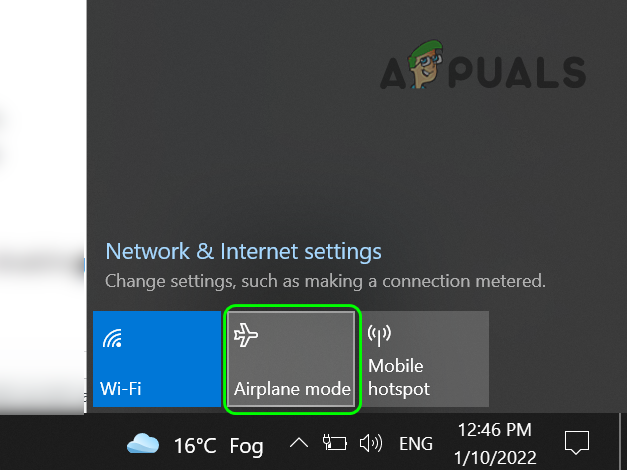
Airplane mode in Windows 10
If you can’t turn off Airplane mode for some reason on your laptop, refer to our comprehensive guide in order to find a fix for this error as it might very well be the culprit.
3. Wrong Date and Time
If your laptop has the wrong date or time, you won’t be able to establish an internet connection. Date and time can get messed up after a software update or upon re-installing Windows, so you need to fix it if it’s wrong . If your date and time are accurate, move to the next method. For everyone else:
- Go to Settings and search for “ date “, click the option saying “ Change date and time .” Change date and time setting
- On the new page that opens up make sure that correct “ Time Zone ” is selected.
- If the date is incorrect, make sure to toggle off the “ Set time automatically ” and click on “ Change ” and then set the correct date and time according to your region. Change date and time option
4. Forget Network
If the Wi-Fi network is visible, but you still can’t connect to it, forget the network . Forgetting the network removes the stored connection details and requires you to reenter the password. This process can sometimes resolve issues by establishing a fresh connection between your device and the router.
While you can reset network settings entirely for a more thorough cleanup if you prefer, the forgetting process is much simpler:
- Click on the Wi-Fi icon and right-click on the specific network.
- Click on “ Forget ” and the network will be forgotten.
- Then click on the network again, enter its password and start using it.
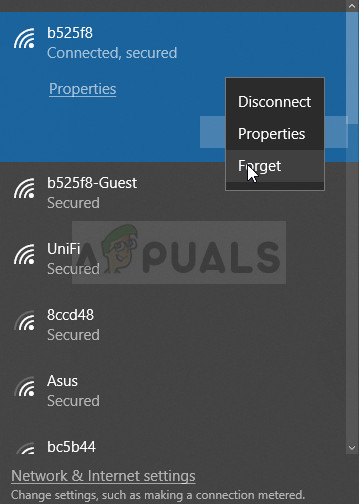
Forgetting the problematic wireless network
If you don’t remember the password, kindly note it down first to avoid facing any issues while connecting to the network again. If needed, see our guide on what to do if Windows isn’t saving Wi-Fi passwords .
5. Weak Signal Strength
Another possible reason for your laptop not detecting Wi-Fi networks is that you are shielded from the signals. The antennae in your phone could be of better quality that it’s able to detect weaker signals where your laptop can’t. This means that you are in an area where the Wi-Fi signals are failing to reach you properly.
The first thing you should do is to confirm that it is the cause. Move your laptop closer to the router and check if the network gets detected.
If it does turn out to be the problem, here are a few fixes you can apply:
- Use Wi-Fi extenders with your router to increase the range of your router signals. Check out our guide to learn how to make DIY Wi-Fi range extenders , or better yet, use that phone of yours that’s getting all the signals as an extender !
- Upgrade your router antennas to a greater wavelength so more area gets covered.
- Try to position yourself in close proximity to the router with as few obstacles (such as walls) in between as possible.
6. Running the Troubleshooter
The next step you can take is to run the built-in internet troubleshooter. It will go through a series of tests to diagnose the issue and suggest a solution for it. Here’s how to run the internet troubleshooter:
- Open Settings and search for “Troubleshoot”, then select the option that says “ Troubleshoot settings .”
- Here, click on “ Additional troubleshooters “, and once it opens, click on “ Internet Connection .” Additional troubleshooters in troubleshooter settings
- Then select “ Run the troubleshooter ” and the process will commence. Internet troubleshoot in process
- Once the troubleshoot ends, restart your laptop and check if it is detecting the network.
7. (Re-)Enable Network Discovery
A possible cause of no Wi-Fi network detection is that your laptop’s Network Discovery has been turned off. This can happen accidentally or after an update. You can check this or turn it back on by following these steps:
- Press the Windows key, search “ Control Panel “, and open it.
- Click “ Network and Internet ” and then click “ Change advanced sharing settings .” Change advanced sharing settings option
- Make sure that “ Turn on network discovery ” is turned on.
8. Disable/Enable the NIC
The Network Interface Card (NIC) is a key hardware component in a computer that facilitates network connections. It is responsible for both wired and, in this case, wireless connectivity. Occasionally, resetting the NIC by disabling and re-enabling it can resolve network detection issues. Follow these steps:
- Press the Windows key, search “ Control Panel “, and then open it.
- Click “ Network and Internet ” and then “ Change adapter settings. “
- On the new page that opens, right click on Wi-Fi and select the “ Disable ” option.
- A moment later, right-click on it again and click the “ Enable ” option. Enable option
Final Remarks
With luck, after applying these methods, you’re now experiencing seamless Wi-Fi on your laptop. If you’re still having issues, don’t fret—try using an Ethernet connection as a short-term workaround. For when your internet does come back around, be sure to check out our guide on how to improve internet speeds in Windows .
How to Fix “Printer is in an error state” Issue?
- Recognizing the importance of a printer’s duty cycle is crucial for choosing a device that matches your print volume needs. Staying within this limit ensures the printer operates efficiently and prolongs its lifespan, minimizing the risk of maintenance issues.
- Proper humidity, temperature, and cleanliness management can significantly enhance printer performance and maintain its duty cycle, preventing unnecessary wear.
- Enhancing a printer with upgrades like additional memory or better mechanical parts can improve its workload handling and extend its practical duty cycle, boosting overall durability and efficiency.
When choosing a new printer, you might come across the term “ duty cycle ” in the specifications. This guide will explain what a duty cycle is, why it matters, and how it can help you choose the right printer. We’ll keep things simple so you can easily understand how to use this information when shopping for a printer.
- Printer Duty Cycle: What It Means and Why It Matters?
- Why the Duty Cycle Is Key to Choosing the Right Printer?
- Duty Cycle vs. Recommended Monthly Print Volume: What’s the Difference?
- What Happens If You Ignore Printer Duty Cycle Recommendations? ↪ Real-World Scenarios: Why Exceeding the Duty Cycle Can Cost You
Printer Duty Cycle: What It Means and Why It Matters?

What is the meaning of Printer Duty Cycle?
The printer duty cycle represents the upper limit of a printer’s capacity—how many pages it can reliably process in a month before the risk of wear or malfunction increases. This figure is crucial for understanding printer performance limits and ensuring that your chosen printer can handle the expected work volume.
Manufacturers determine a printer’s duty cycle through stress testing, where the printer is pushed to its limit to identify how many pages it can produce each month before malfunctioning. These tests help set a reliable performance gateway for users.
A printer’s duty cycle is like a car’s speedometer—you wouldn’t drive a car at top speed all the time, and you shouldn’t push a printer to its maximum duty cycle. Doing so can lead to quicker wear and tear, more frequent maintenance, and a shorter lifespan.
If you’re unsure whether to choose an inkjet or laser printer, this detailed guide compares both options to help you make an informed decision.
Why the Duty Cycle Is Key to Choosing the Right Printer?

The Importance of Duty Cycle in printer selection
Knowing the duty cycle is essential when choosing a printer, as it determines how well the device can handle your monthly print volume without excessive wear or maintenance.
Here is why the duty cycle matters in printer selection:
- Fit for purpose: Selecting a printer with a suitable duty cycle ensures it can handle your monthly printing volume efficiently, reducing stress on its components.
- Longer lifespan and better performance: Staying within the duty cycle ensures optimal print quality and speed while prolonging the printer’s life, avoiding frequent breakdowns.
- Cost efficiency and reduced downtime: Operating within the duty cycle minimizes the need for repairs and reduces operational disruptions, managing long-term costs.
Duty Cycle vs. Recommended Monthly Print Volume: What’s the Difference?

Duty Cycle vs. recommended monthly print volume
The recommended monthly print volume is the optimal number of pages a printer should handle each month for the best performance and longevity. Unlike the maximum capacity indicated by the duty cycle, this number guides regular usage, ensuring the printer operates efficiently without excessive wear.
If your print volume regularly exceeds the recommended amount but stays within the duty cycle, the printer may operate safely in the short term, but it could still experience accelerated wear and reduced lifespan over time.
In such cases, consider upgrading to a higher-capacity printer or spreading print jobs across multiple devices to ensure long-term performance.
Here are the differences between the duty cycle and recommended monthly print volume:
- Duty cycle: Represents the maximum number of pages a printer can handle in a month without breaking down. It assesses the printer’s upper limit.
- Recommended monthly print volume: Suggests a practical, workable number of pages to print each month to keep the printer in good condition over its lifespan.
What Happens If You Ignore Printer Duty Cycle Recommendations?

Consequences of ignoring Duty Cycle recommendations |AndranikHakobyan via Canva
Ignoring the duty cycle limits poses more severe risks than exceeding the recommended monthly print volume, leading to serious long-term consequences.
While exceeding the recommended volume occasionally may result in additional wear and tear, consistently exceeding the duty cycle can lead to frequent breakdowns, reduced performance, and a shortened lifespan.
Ignoring duty cycle limits leads to frequent breakdowns, reduced performance, and increased maintenance, ultimately shortening the printer’s lifespan and causing more frequent operational downtime and higher repair costs. Long-term, pushing a printer beyond its limits leads to greater financial burdens due to premature replacements and inefficiencies.
↪ Real-World Scenarios: Why Exceeding the Duty Cycle Can Cost You
For example, in a busy law firm, overlooking duty cycle limits during a high-stakes period could cause a printer breakdown just before a critical deadline, delaying crucial legal filings and ultimately compromising client service.
For small businesses, consistently exceeding a printer’s duty cycle can lead to costly emergency repairs or premature equipment replacements, straining financial resources.
