- Android emulators cater to various needs, from app development and gaming to simply running Android apps on different operating systems, providing flexibility and a range of features.
- BlueStacks stands out for its ease of use and optimization, MEmu and NoxPlayer for robust performance and customization, and GameLoop specializes in gaming, particularly for popular titles.
- With Windows 11 integrating native Android app capabilities, the landscape of Android emulation is evolving, though tools like Android Studio remain indispensable for developers.
Android emulators have come a long way since they first arrived to the scene. At this point, with the growing demand for inter-device compatibility, Microsoft is rolling out its own solution to run Android apps on Windows natively. However, there are still several applications that operate as fully-fledged Android devices, using the concept of virtualization to run the Android OS on Windows .

This guide will go over some of the best Android emulators on Windows and discuss what sets them apart from the competition.
- Windows 11
- BlueStacks
- MEMU
- NoxPlayer
- GameLoop
- Android Studio
- AndY
1. Windows 11
Android emulators were primarily used for gaming until Microsoft announced that it would be bringing Google Play to Windows . Now, you don’t need a virtual version of Android on any emulator; instead, you can natively run select Android titles on your PC using Google Play Games .

One of the huge plusses of this is that you can connect controllers to any game you play, and not only that but the app also supports 4K monitors , so if you aren’t enjoying gaming on your small phone’s screen, you can always switch to your PC.
2. BlueStacks
BlueStacks is undoubtedly the most popular Android emulator with over 500 million users worldwide. It has been around for over a decade and is commonly known for seamlessly running Android apps on Windows. Whether it’s Candy Crush, Clash of Clans, or simply WhatsApp, the app perfectly simulates an Android mobile device.
Furthermore, with its latest iteration, BlueStacks 5 , the app focuses on optimization, targeting lower-end devices. The app was previously known to be filled with bloatware, but BlueStacks 5 is the cleanest version of the app to date.

The Google Play Store is built-in alongside other necessary features, including a File Manager, browser (Google Chrome), and a Camera app. BlueStacks allows you to change your Device Profile and Network Providers to best simulate the environment you want. Additionally, it has CPU and memory allocation settings built-in, giving you greater control over your device.
All in all, it is a great, reliable, and undoubtedly the most optimized Android emulator on the list; perfect for productivity and gaming on your PC .
3. MEMU
MEmu is another emulator that has been around for a long time and has been kept alive by frequent updates over the years. The main advantage of this emulator is that it perfectly simulates an Android device, or rather a tablet on your screen, providing you with the complete Android experience .
The installation process is quite easy and beginner-friendly, making it easy to set up . MEmu primarily focuses its efforts and features towards gamers, but with a full-fledged Android system, it is equally good for casual users. Google Play Store comes pre-installed, but you can also import third-party apps via APKs . Additionally, it offers plenty of customization options and control over your hardware resource usage.

MEmu Play
MEmu offers a shared Downloads folder , making it really simple to transfer files between Windows and MEmu. You can attach your mouse and keyboard to specific keybinds on the screen to play using physical peripherals . There is also an option to record the screen , which can be great for gamers just starting out and looking for a simple solution to record their gameplay videos.
It does have other functionalities, such as enabling root access, disguising your location, and a 120FPS mode , but all in all, it’s a decent, well-rounded emulator .
4. NoxPlayer
NoxPlayer stands out as one of the smoother, all-rounded emulators on the list. It operates on Android 9 but consistently receives updates, with the latest versions enabling you to create instances running Android 12 as well. The app is generally known to play video games reliably , but since it acts as a proper Android device, it can also do other stuff.

The app allows you to create “ Multi-Instances ,” giving you the option to run multiple games simultaneously . It also boasts a generally user-friendly interface . While the app faced scrutiny for a recent hijacking incident, developers assert that security has been enhanced with recent improvements. All in all, NoxPlayer proves to be a stable and dependable emulator .
5. GameLoop
GameLoop, previously known as Tencent Gaming Buddy , is more of an Android game emulator. It lacks a proper Android device-like UI and is primarily suited for gaming. In fact, it is the official emulator for PUBG Mobile , Genshin Impact , Arena of Valor , and Call of Duty: Mobile .

GameLoop Emulator | Tencent
The emulator provides multiple options to adjust your resolution, anti-aliasing, rendering mode, and gives you complete control over your CPU and memory utilization settings. It has multiple options for keyboard mapping, but undoubtedly, the standout aspect is the optimization it brings to the table.
Despite being relatively new, launching in 2018, GameLoop has gained a massive audience of over 10M users. It’s great on security too, with its proprietary anti-cheat, Tencent Protect to keep an eye on cheaters in competitive environments.
6. Android Studio
Android Studio may not be a full-fledged emulator, but it is much more than that. Focused primarily on developing Android apps, it provides you with an Integrated Development Environment (IDE) with the emulator built-in, allowing you to comfortably deploy your app to the emulator for testing and debugging on a wide array of devices and hardware.

Android Studio | Google
While Android Studio doesn’t let you explicitly game or casually use the emulator as a normal mobile device, it is designed for developers, offering multiple settings to fully configure your code according to different screen sizes, resolutions, and Android API levels.
Android Studio is free and open-source , but it can be resource-intensive at times and may have some limitations when compared to a proper visualization of a mobile device, as seen in apps like BlueStacks or NoxPlayer.
7. AndY
Despite being one of the older players in Android emulators, AndY has been placed lower on the list due to infrequent updates and an older overall interface . The app acts as a full emulator, simulating a proper mobile device. It is suitable for playing mobile games on your PC but is not as optimized as, for example, BlueStacks or Nox.
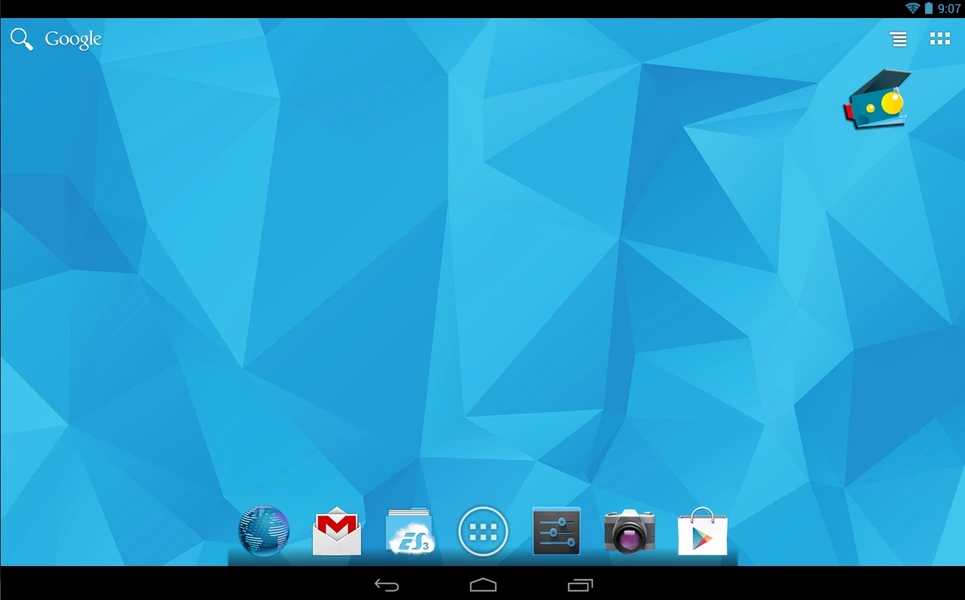
AndY Android Emulator
The app boasts a keyboard mapper, supports external peripherals, and allows you to use your phone as a controller while playing a game. On the flip side, you can’t easily use APKs to install apps , and the installation process is tedious , to say the least.
Most emulators on the list are focused on gaming, but BlueStacks and GameLoop are the ones that offer better stability of the lot.
While Android emulators can’t really replace your mobile phone, it is important that you keep you personal and private data safe. These services are generally reliable, but don’t really have the proper mechanisms in place for more sophisticated cyberattacks like say, an actual mobile device.
For Android app development, Google has created Android Studio that serves as an IDE and allows you to simulate an actual Android device with multiple customization options.
How to Fix “Printer is in an error state” Issue?
The error “ WinRAR Error: Next Volume Is Required ” usually appears when you’re extracting a multi-part RAR archive and WinRAR can’t find (or can’t correctly identify) the next file in the sequence . This often happens when a volume is missing , stored in a different folder , or renamed in a way that breaks the archive’s expected order .

In this guide, we’ll go over the most reliable fixes confirmed by affected users, along with what each method is doing behind the scenes so you can choose the right one for your situation.
Important: To extract multi-volume archives, you should always start extraction from the first file in the set. This is usually file.part1.rar , or (in older sets) the main .rar file that comes before .r01 , .r02 , and so on.
1. Download and Place the Missing RAR File
WinRAR needs all parts of a multi-volume archive to complete extraction. This error usually appears when one of the volumes in a set like .part2.rar , .r01 , .r02 , .001 , and similar naming formats is missing . Downloading the missing volume and placing it in the same folder as the other parts allows WinRAR to continue extracting normally .
- Look at the error message or review the list of archive parts in the folder.
- Identify which volume is missing (for example, part2.rar , .r02 , .001 , etc.).
- Go back to the website or source where you downloaded the archive.
- Locate and download the exact missing file using the same naming format as the others.
- Make sure the new file name matches the pattern of the rest. Example: If you have file.part1.rar and file.part3.rar , the missing one must be file.part2.rar .
- Move the downloaded missing volume into the same folder as the other archive parts.
- Confirm that all parts are in a single folder before extracting.
- Right-click the first file in the series (usually part1 or the main .rar file) and select Extract Here or Extract to Folder .
- WinRAR should now detect all volumes and continue extraction normally .
2. Manually Browse & Select the Next Volume
Use this method only if the next volume already exists , but WinRAR is failing to detect it automatically. This can happen due to incorrect naming , the file being in a different location , or a temporary file access issue. Manually browsing helps WinRAR locate the correct volume and resume extraction without interruption .
- Right-click the first file in the series (usually .rar or part1.rar ) and select Extract Here or Extract to Folder .
- When WinRAR cannot find the next volume, it will show the “ Next Volume Is Required ” message.
- A small window will appear, allowing you to manually select the next volume .
- Use the file explorer window to locate the folder where the other archive parts are saved.
- Select the next part based on the naming order (example: select file.part2.rar after file.part1.rar ).
- Make sure the selected file matches the naming format of the archive (no extra characters like (1) and no mismatched numbering).
- WinRAR will resume extraction using the selected volume .
- If additional volumes are missing or stored separately, WinRAR may prompt you again. Repeat the same process until extraction completes.
3. Rename the RAR files in Order
WinRAR relies on a proper naming sequence (such as file.part1.rar , file.part2.rar , file.part3.rar ) to extract multi-volume archives. If a file is named incorrectly, contains extra characters, or is out of order, WinRAR may fail to locate the next volume and show this error. Renaming the files correctly helps WinRAR follow the sequence and extract the archive without interruptions .
Note: Renaming only changes the file name , not the file contents. The goal is to restore the correct sequence so WinRAR can detect the next volume.
- Go to the folder where all the RAR files are saved.
- Make sure all parts of the archive are present and stored in the same folder .
- Check how the parts are currently named . Common patterns include:
file.part1.rar, file.part2.rar, file.part3.rar
file.rar, file.r01, file.r02, file.r03
- Look for files that don’t match the expected numbering pattern (for example, file.part01.rar , file.part1(1).rar , or unrelated names).
- Rename each file so it follows the same order without extra characters or mismatched numbering. Example:
Incorrect: file.part1.rar, file.part3.rar, file.part2(1).rar
Correct: file.part1.rar, file.part2.rar, file.part3.rar
- Make sure the text before the number is exactly the same for all files.
- Only the last part number should change.
- Right-click the first file in the series (usually part1.rar or the main .rar file) and select Extract Here .
- WinRAR should now recognize the sequence and continue extraction normally .
If you still get the same prompt: the archive set is likely incomplete (a part was never downloaded or was removed), or one of the volumes is corrupt and must be re-downloaded from the original source.
