A Font is defined as a digital file consisting of different characters, symbols, glyphs, etc. Being a computer user, you must have heard this terminology quite often because before begin to type anything on our computer systems, we generally set the desired font. By setting the desired font, we mean that we are setting the different parameters of our characters such as their size , weight , style , etc. These parameters decide how our text will actually look like.
A Font Viewer is a software with the help of which you can view and manage all the fonts that are installed on your computer system. Apart from that, it also prevents the accidental deletion of certain fonts. All of us know that a large number of fonts are generally installed on our computer systems. Have you ever thought about the performance of your machines if all of these fonts are to be activated at once? Definitely, the performance of your PC will deteriorate because of the activation of unnecessary fonts.
Now what a font viewer does is that it groups your fonts into various different categories depending upon their usage and then it activates a particular group of fonts only when it is needed. This saves a lot of your system resources. In addition to this, a font viewer manages a lot of other font related issues which we are going to discuss later in this article. Now without any further exaggeration, we will share with you our list of the 5 Best Font Viewers . Let us check it out together if they are worth using or not.
1. FontBase

FontBase is an amazing free font viewer designed for the Windows , Mac , and Linux operating systems. It has a very friendly user interface which lets a new user get along with this software very conveniently. This software claims to support the largest number of OpenType Features for any font. It also allows you to Copy and View Glyphs in any language and any font. You can easily adjust the height, size, style, etc. of your fonts with the help of the Styling feature of FontBase. The SuperSearch feature of this software helps you in searching for different fonts based upon their properties such as height, width, etc.
This font viewer also facilitates you in using any of the fonts from Google’s Personal Collection just as if it was locally installed on your computer system. You can apply styling to different sections of your page to see if it suits your requirements with the help of the Experiment feature of FontBase. This software also provides you with a Specimen Page where you can see all the fonts together and you can even try out their combinations. The Font Activation feature of this font viewer is so efficient that it has the capability to activate any font even without the need of installing it.

FontBase
You can also create collections of different fonts and then activate them all together just with the help of a single click with the help of the Collections feature of FontBase. This font viewer even provides you with the Nested Folders feature. Therefore, you can always keep all of your files perfectly organized. The Automatic Updates feature of this font viewer releases all of your burden of updating it manually. Last but not least, if you want to occupy more screen space by viewing your fonts in the form of a grid, then you can make use of the Multiple Views feature of FontBase.
2. AMP Font Viewer

AMP Font Viewer is a free font manager designed by AMPsoft for the Windows operating system. This font viewer supports both the TrueType as well as the OpenType fonts. With the help of this software, you can view the installed and uninstalled fonts on your computer system. It has the capability to organize your fonts into various different categories. It allows you to install fonts from a folder either one by one or in the form of a complete list. It can also temporarily install the fonts whenever they are needed by a certain application and uninstalls them as soon as that particular application is closed.

AMP Font Viewer
This software enables you to Organize the list of all the installed fonts while viewing them. You can also Print the list of all installed fonts along with an Example of each for seeing how a particular font looks like. If you want to test a font before using it, then you can do it by selecting that font and utilizing the Scratchpad Area for typing anything you want and finding out if that is what you really need. Moreover, this font viewer is available in English as well as in Spanish which means that if you are a Spanish speaker, even then you can conveniently make use of AMP Font Viewer.
3. NexusFont

NexusFont is a very basic level free font viewer with a minimalistic set of features designed for the Windows operating system. This software is best for those designers who love playing around with fonts. It allows you to Manage , Compare , and Choose any of your desired fonts very easily. The best thing about this font viewer is that you do not even need to install all the fonts while working with it rather you can simply load the ones that you want to work with. It is very simple and easy to use this software. Moreover, since this font viewer is free for everyone, therefore, you can even use it in large enterprises without worrying about anything.

NexusFont
4. Advanced Font Viewer

Advanced Font Viewer is a software that is designed by Styopkin Software for the Windows operating system. This software helps you in choosing the best fonts for whatever you are doing on your computer system. The Simultaneous Browsing of Fonts displays all the fonts installed on your computer system along with the one that you are currently using so that you can easily switch to any other font any time you want. The Printing feature of this font viewer enables you to print all the fonts along with their samples so that you can draw a comparison between all of them and then choose a font according to your own requirements.

Advanced Font Viewer
This software is responsible for handling the Installation and Uninstallation of all of your fonts. The Character Map feature of Advanced Font Viewer lets you zoom in to the characters that you typed while using a certain font so that you can have a closer look at all of its details. It also has a feature known as Information about the Font which you can use whenever you want to know all the different parameters associated with a particular font. Advanced Font Viewer offers us a Free version with a limited set of features whereas its full Paid license is worth $39 per single user.
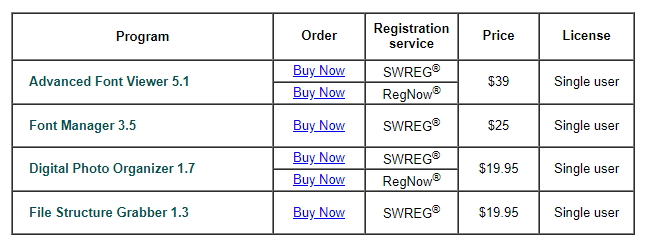
Advanced Font Viewer Pricing
5. Typograf

Typograf is a versatile font viewer designed by Neuber Software for the Windows operating system. It allows you to View all the OpenType , TrueType , and Type 1 fonts. You can view all the information regarding any of the fonts with the help of the Display All Font Properties feature of this font viewer. It enables you to Compare and Print all the fonts in order to choose the best font for your work. Typograf also lets you group your fonts in the form of sets with the help of its Manage Fonts in Sets feature so that you can conveniently load any particular font set as per the requirements of a certain application.

Typograf
This font viewer promotes an easier sharing of font sets across a network with the help of its Network/ Server feature and the best part is that you do not even need to install this software on every individual computer in order to share the font sets. The Database feature of Typograf allows you to catalog all your fonts. It Installs and Uninstalls a particular font by making use of its efficient Font Management feature. This font viewer offers us a Free version which can immediately be downloaded from its website whereas its Paid version costs $35 with a 30 Days Money Back Guarantee .

Typograf Pricing
How to Fix “Printer is in an error state” Issue?
The error “ WinRAR Error: Next Volume Is Required ” usually appears when you’re extracting a multi-part RAR archive and WinRAR can’t find (or can’t correctly identify) the next file in the sequence . This often happens when a volume is missing , stored in a different folder , or renamed in a way that breaks the archive’s expected order .

In this guide, we’ll go over the most reliable fixes confirmed by affected users, along with what each method is doing behind the scenes so you can choose the right one for your situation.
Important: To extract multi-volume archives, you should always start extraction from the first file in the set. This is usually file.part1.rar , or (in older sets) the main .rar file that comes before .r01 , .r02 , and so on.
1. Download and Place the Missing RAR File
WinRAR needs all parts of a multi-volume archive to complete extraction. This error usually appears when one of the volumes in a set like .part2.rar , .r01 , .r02 , .001 , and similar naming formats is missing . Downloading the missing volume and placing it in the same folder as the other parts allows WinRAR to continue extracting normally .
- Look at the error message or review the list of archive parts in the folder.
- Identify which volume is missing (for example, part2.rar , .r02 , .001 , etc.).
- Go back to the website or source where you downloaded the archive.
- Locate and download the exact missing file using the same naming format as the others.
- Make sure the new file name matches the pattern of the rest. Example: If you have file.part1.rar and file.part3.rar , the missing one must be file.part2.rar .
- Move the downloaded missing volume into the same folder as the other archive parts.
- Confirm that all parts are in a single folder before extracting.
- Right-click the first file in the series (usually part1 or the main .rar file) and select Extract Here or Extract to Folder .
- WinRAR should now detect all volumes and continue extraction normally .
2. Manually Browse & Select the Next Volume
Use this method only if the next volume already exists , but WinRAR is failing to detect it automatically. This can happen due to incorrect naming , the file being in a different location , or a temporary file access issue. Manually browsing helps WinRAR locate the correct volume and resume extraction without interruption .
- Right-click the first file in the series (usually .rar or part1.rar ) and select Extract Here or Extract to Folder .
- When WinRAR cannot find the next volume, it will show the “ Next Volume Is Required ” message.
- A small window will appear, allowing you to manually select the next volume .
- Use the file explorer window to locate the folder where the other archive parts are saved.
- Select the next part based on the naming order (example: select file.part2.rar after file.part1.rar ).
- Make sure the selected file matches the naming format of the archive (no extra characters like (1) and no mismatched numbering).
- WinRAR will resume extraction using the selected volume .
- If additional volumes are missing or stored separately, WinRAR may prompt you again. Repeat the same process until extraction completes.
3. Rename the RAR files in Order
WinRAR relies on a proper naming sequence (such as file.part1.rar , file.part2.rar , file.part3.rar ) to extract multi-volume archives. If a file is named incorrectly, contains extra characters, or is out of order, WinRAR may fail to locate the next volume and show this error. Renaming the files correctly helps WinRAR follow the sequence and extract the archive without interruptions .
Note: Renaming only changes the file name , not the file contents. The goal is to restore the correct sequence so WinRAR can detect the next volume.
- Go to the folder where all the RAR files are saved.
- Make sure all parts of the archive are present and stored in the same folder .
- Check how the parts are currently named . Common patterns include:
file.part1.rar, file.part2.rar, file.part3.rar
file.rar, file.r01, file.r02, file.r03
- Look for files that don’t match the expected numbering pattern (for example, file.part01.rar , file.part1(1).rar , or unrelated names).
- Rename each file so it follows the same order without extra characters or mismatched numbering. Example:
Incorrect: file.part1.rar, file.part3.rar, file.part2(1).rar
Correct: file.part1.rar, file.part2.rar, file.part3.rar
- Make sure the text before the number is exactly the same for all files.
- Only the last part number should change.
- Right-click the first file in the series (usually part1.rar or the main .rar file) and select Extract Here .
- WinRAR should now recognize the sequence and continue extraction normally .
If you still get the same prompt: the archive set is likely incomplete (a part was never downloaded or was removed), or one of the volumes is corrupt and must be re-downloaded from the original source.
