Chess is a very commonly played “ two-player” game around the globe. It is considered as a game of intelligence since it is very much technical. So people generally believe that only a handful of geniuses can play this game. However, this is not true. Anyone who has the urge of learning this game can play it. All he needs is a little bit of guidance and some practice that will make him perfect with the passage of time.
Now you must be thinking that you need a physical trainer to teach you how to play chess. Surprisingly, this is also not true. The reason behind that is there are a lot of chess training software available out there that can help you in this regard. You just have to grab the one that best suits your needs. Therefore, we are here for you with a list of 5 Best Chess Training Software . Let us explore them all one by one.
1. Fritz

Fritz Chess is a chess training program with some of the most amazing chess training features whose access can be gained simply by creating an account on Fritz.com . Once you manage to create an account on this website, you can even access the other products and games by Fritz. This software is compatible with the Windows , Mac , iOS and Android operating systems. The On-Demand Video feature of this software allows you to watch various training videos that guide you through all the stages of chess. You can also analyze the different positions of the chess board by making use of the Let’s Check feature.
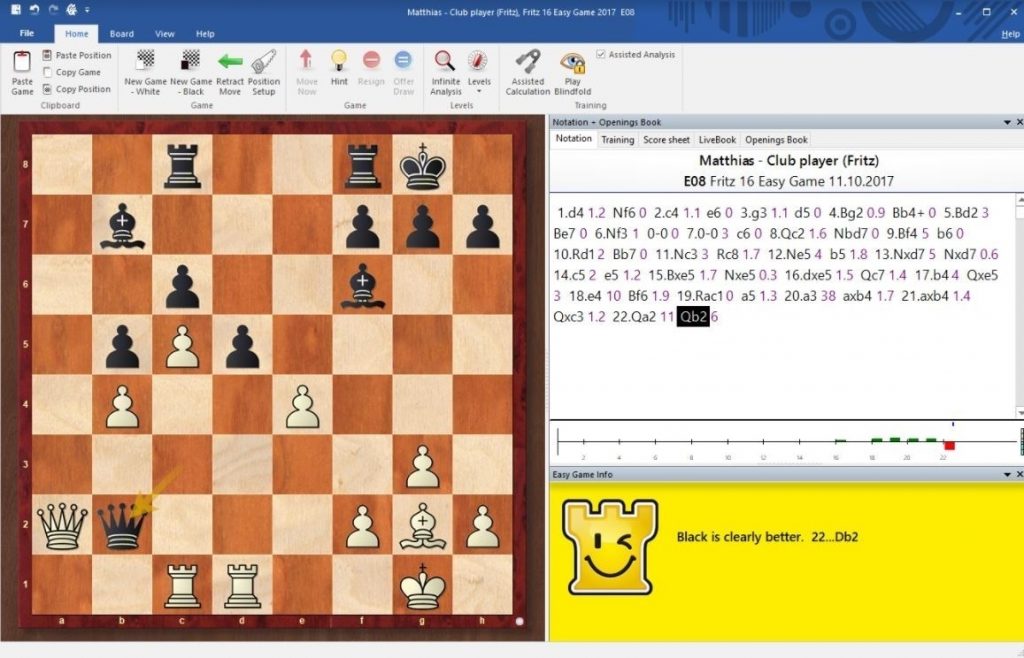
Fritz Chess
The most fascinating feature of this software is Assisted Calculations with the help of which you can try out multiple different moves that can possibly be taken without actually moving your chess pieces. This helps you in taking the right decision. Once you will try out all the possible moves, you will be able to make a better strategy and then finally, you can move the actual chess pieces. Fritz also analyses your whole game throughout the time you are playing chess and once you are done, it gives you a Detailed Analysis Report on your performance that includes screenshots from your game as well as the suggestions to make it even better.
Fritz offers you three different pricing plans that you can choose right according to your own needs. The details of these plans are listed below:
- Developer Plan- This plan is absolutely free of cost.
- Standard Plan- This plan costs $60 per month.
- Premium Plan- This plan is worth $500 per month.

Fritz Pricing
2. Chessmaster

Chessmaster is a chess training software that equally fulfills the needs of the naive players as well as of the experts. This software is compatible with the Windows as well as with Xbox , PlayStation and Nintendo platforms. This software provides you with very helpful details regarding all the chess moves. The Training Mode of this software has the capability of analyzing your whole game and then presenting you with a Detailed Performance Report that helps you in polishing your skills.
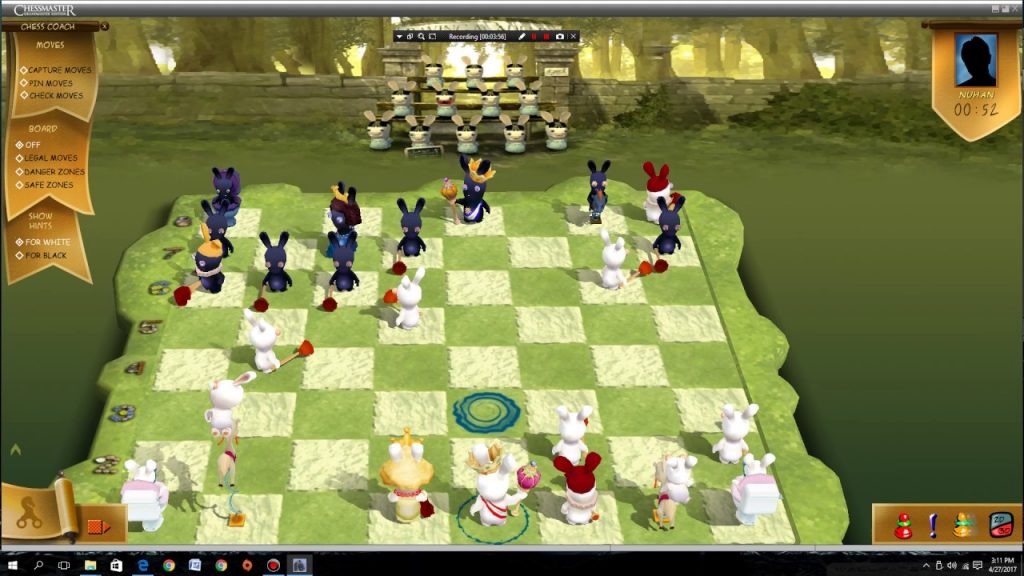
Chessmaster
It provides you with different Difficulty Levels of chess for multiple age groups. If you want to learn the basics of the chess game, then you can switch to the Fun mode of Chessmaster. Chessmaster has a full-featured Online Chess Module that helps you in training yourself for the chess game. The Chessmaster Academy is there to teach you some of the most simple yet intelligent strategies of mastering this game. Chessmaster has a very intuitive and user-friendly interface that helps the users in getting used to this product within no time. In order to know about the accurate pricing of this software, you will need to contact Chessmaster support.
3. Komodo

Komodo Chess is yet another chess training software that plays more like a human hence giving you a very natural chess playing experience. This chess engine is compatible with Chessbase , Fritz , Aquarium , Chess Assistant , Arena and a few other famous GUIs. Moreover, it supports, the Windows , Linux , Mac , and Android operating systems. Komodo also displays Animated Characters that actually move your chess pieces around the chess board. You can even access all the tutorials, videos and other helping materials very easily in order to learn the chess game even more quickly.
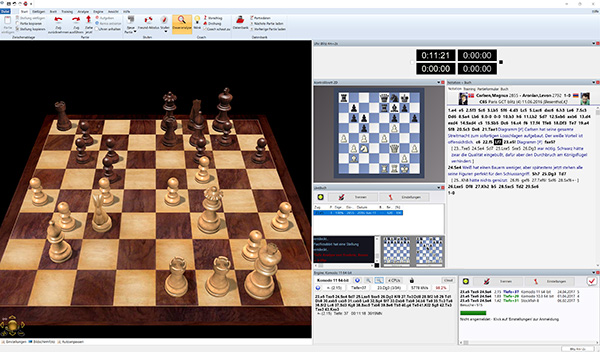
Komodo Chess
As far as the pricing of this chess engine is concerned, then it offers us the following two options:
- Komodo 12.3- This version costs $59.98 .
- Komodo 12.3 + 1 Year Subscription- The price of this version is $99.98 .
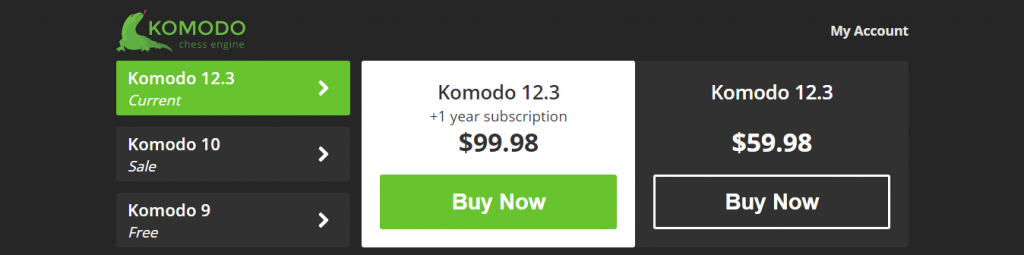
Komodo Chess Pricing
4. Lucas Chess

Lucas Chess is a free chess training program specially designed for the Windows operating system. Just like any good chess training software, Lucas Chess is perfect for both the naive players as well as for the experts. This software also provides you with the flexibility to play against various chess engines without even using the native Training Components of Lucas Chess. For Children, this software has a special Non-Competitive Mode in which the kids can easily learn the chess game with an extreme level of fun and enjoyment.
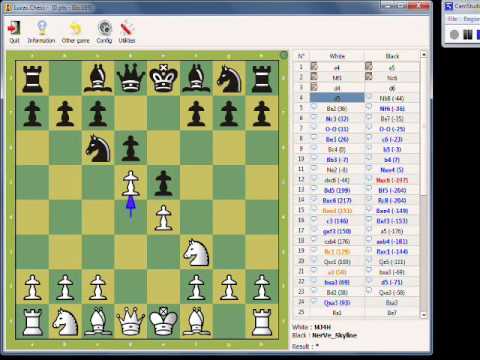
Lucas Chess
The greatest feature of Lucas Chess is that it provides you with a limited number of hints that help you a lot in winning the chess game. The Tutor of Lucas Chess is very efficient in analyzing all of your game moves. Whatever move you choose to take, the tutor suggests you an alternative if your selected move is already not the best one. Moreover, this software comes up with 36 different chess engines. Therefore, you can choose your opponent very conveniently.
5. Lichess

Lichess is an online chess training program with a highly responsive design. It supports Google Chrome , Opera Mini , Microsoft Edge , Apple Safari , Internet Explorer , Mozilla Firefox as well as some other less popular web browsers. It allows you to create and play an unlimited number of tournaments. You can also keep an eye on your performance by making use of the Cloud Engine Analysis of Lichess. It provides you with a large number of lessons on the basics of chess training.
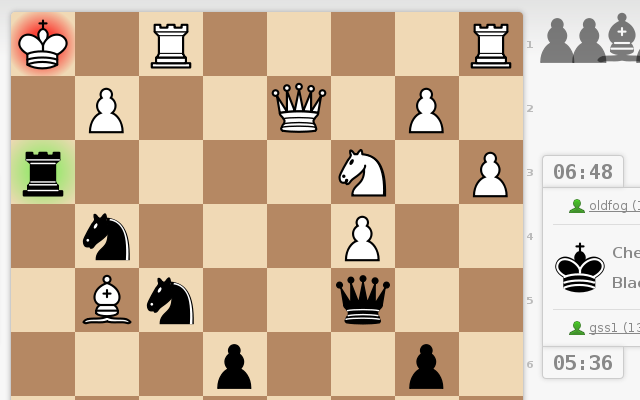
Lichess
You can even watch different chess videos by accessing the Chess Video Library of Lichess. It also has an online forum where you can easily interact with your friends and opponents. Lichess is available in more than 80 different languages which enhances its ease of use to the fullest. In order to access this exceptionally admirable chess training program, all you need to do is to create an account on Lichess.org. Moreover, you also have the complete liberty of customizing the interface of this program according to your own taste.
Now you might be thinking that Lichess must be charging a handsome amount for all these amazing features. But, Lichess proves you wrong by providing you with a Free Account . However, you can also contribute to Lichess by creating the Lichess Patron account but the most exciting thing about Lichess is that the feature set of both the accounts is absolutely the same. There is no single feature in Lichess Patron that is not available in the Free Account. The cost of Lichess Patron is $5 per month but if there are some users who cannot even afford this petty little amount, then they can conveniently go for the Free Account and enjoy the very same features.
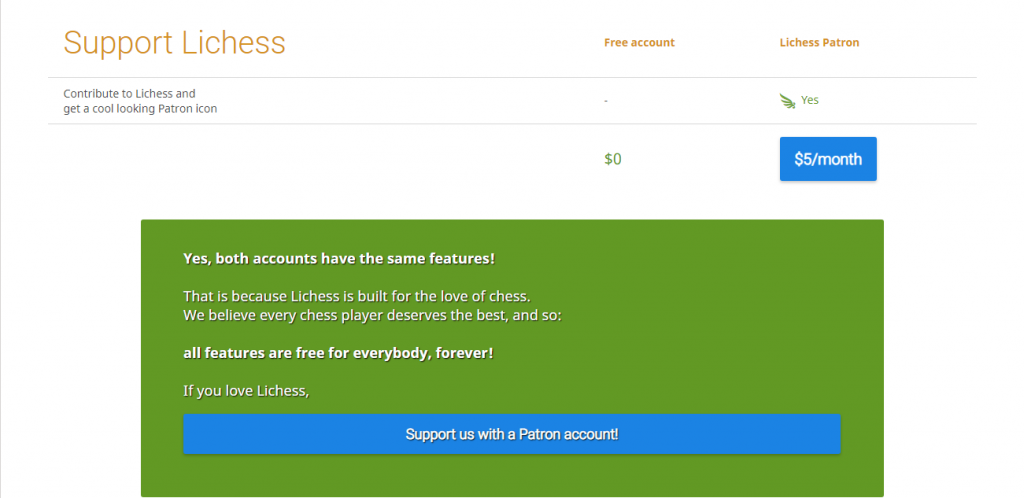
Lichess Pricing
How to Fix “Printer is in an error state” Issue?
The error “ WinRAR Error: Next Volume Is Required ” usually appears when you’re extracting a multi-part RAR archive and WinRAR can’t find (or can’t correctly identify) the next file in the sequence . This often happens when a volume is missing , stored in a different folder , or renamed in a way that breaks the archive’s expected order .

In this guide, we’ll go over the most reliable fixes confirmed by affected users, along with what each method is doing behind the scenes so you can choose the right one for your situation.
Important: To extract multi-volume archives, you should always start extraction from the first file in the set. This is usually file.part1.rar , or (in older sets) the main .rar file that comes before .r01 , .r02 , and so on.
1. Download and Place the Missing RAR File
WinRAR needs all parts of a multi-volume archive to complete extraction. This error usually appears when one of the volumes in a set like .part2.rar , .r01 , .r02 , .001 , and similar naming formats is missing . Downloading the missing volume and placing it in the same folder as the other parts allows WinRAR to continue extracting normally .
- Look at the error message or review the list of archive parts in the folder.
- Identify which volume is missing (for example, part2.rar , .r02 , .001 , etc.).
- Go back to the website or source where you downloaded the archive.
- Locate and download the exact missing file using the same naming format as the others.
- Make sure the new file name matches the pattern of the rest. Example: If you have file.part1.rar and file.part3.rar , the missing one must be file.part2.rar .
- Move the downloaded missing volume into the same folder as the other archive parts.
- Confirm that all parts are in a single folder before extracting.
- Right-click the first file in the series (usually part1 or the main .rar file) and select Extract Here or Extract to Folder .
- WinRAR should now detect all volumes and continue extraction normally .
2. Manually Browse & Select the Next Volume
Use this method only if the next volume already exists , but WinRAR is failing to detect it automatically. This can happen due to incorrect naming , the file being in a different location , or a temporary file access issue. Manually browsing helps WinRAR locate the correct volume and resume extraction without interruption .
- Right-click the first file in the series (usually .rar or part1.rar ) and select Extract Here or Extract to Folder .
- When WinRAR cannot find the next volume, it will show the “ Next Volume Is Required ” message.
- A small window will appear, allowing you to manually select the next volume .
- Use the file explorer window to locate the folder where the other archive parts are saved.
- Select the next part based on the naming order (example: select file.part2.rar after file.part1.rar ).
- Make sure the selected file matches the naming format of the archive (no extra characters like (1) and no mismatched numbering).
- WinRAR will resume extraction using the selected volume .
- If additional volumes are missing or stored separately, WinRAR may prompt you again. Repeat the same process until extraction completes.
3. Rename the RAR files in Order
WinRAR relies on a proper naming sequence (such as file.part1.rar , file.part2.rar , file.part3.rar ) to extract multi-volume archives. If a file is named incorrectly, contains extra characters, or is out of order, WinRAR may fail to locate the next volume and show this error. Renaming the files correctly helps WinRAR follow the sequence and extract the archive without interruptions .
Note: Renaming only changes the file name , not the file contents. The goal is to restore the correct sequence so WinRAR can detect the next volume.
- Go to the folder where all the RAR files are saved.
- Make sure all parts of the archive are present and stored in the same folder .
- Check how the parts are currently named . Common patterns include:
file.part1.rar, file.part2.rar, file.part3.rar
file.rar, file.r01, file.r02, file.r03
- Look for files that don’t match the expected numbering pattern (for example, file.part01.rar , file.part1(1).rar , or unrelated names).
- Rename each file so it follows the same order without extra characters or mismatched numbering. Example:
Incorrect: file.part1.rar, file.part3.rar, file.part2(1).rar
Correct: file.part1.rar, file.part2.rar, file.part3.rar
- Make sure the text before the number is exactly the same for all files.
- Only the last part number should change.
- Right-click the first file in the series (usually part1.rar or the main .rar file) and select Extract Here .
- WinRAR should now recognize the sequence and continue extraction normally .
If you still get the same prompt: the archive set is likely incomplete (a part was never downloaded or was removed), or one of the volumes is corrupt and must be re-downloaded from the original source.
