Audio recording refers to the act of saving or storing someone’s voice or a sound electronically. This mode of recording has been in use for a very long time now. Following are the possible purposes of recording audio:
- For taking interviews .
- For recording lectures .
- For taking notes .
- For keeping reminders .
- For recording testimonies .
Whatever the reason is behind recording audio, you always require a good audio recording software to serve this purpose. The important qualities of a good audio recording software are listed below:
- It should be able to enhance the quality of your recorded audios to the fullest.
- It should have a sufficient amount of audio editing capabilities .
- It should have an intuitive and user-friendly interface .
- It should be able to export and import your audios in various formats .
- It should have a highly affordable price .
In order to facilitate the readers and enable them to take all the advantages of good audio recording software, we have compiled for you a list of 5 Best Audio Recording Software for Windows 10 . Let us see what these tools have in store for us.
1. Wavepad
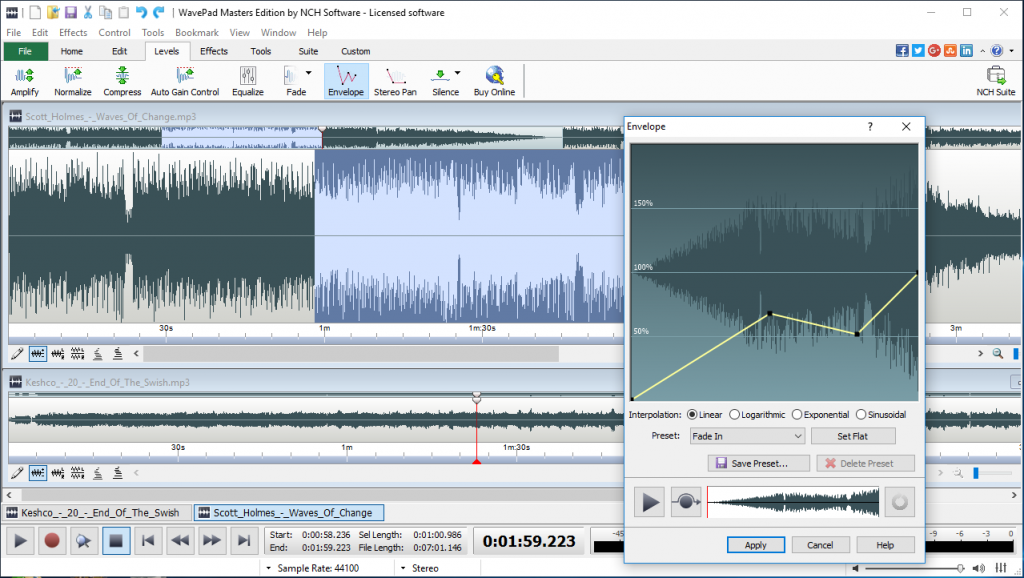
Wavepad is a famous audio recording and editing software for the Windows , Mac , Android and iOS platforms designed by NCH Software . You can record high-quality audios by making use of this software. The story does not end with recording the audio rather it is just a beginning. After recording your audio, the Add Effects feature of Wavepad enables you to edit your audios by adding effects such as echo , amplification , normalization , equalization , noise reduction, etc. that help you in enhancing the quality of your audios.
Wavepad
Apart from these high-level effects, this software also provides you with basic editing features such as audio trimming , audio compression , pitch shifting, etc. The Batch Processing feature of this software allows you to edit multiple audio files at the same time. You can also use advanced audio tools such as Spectral Analysis , Speech Synthesis , Voice Changer, etc. The biggest advantage of this audio recording software is that it supports a wide range of audio import and export formats including MP3 , WAV , OGC, etc.
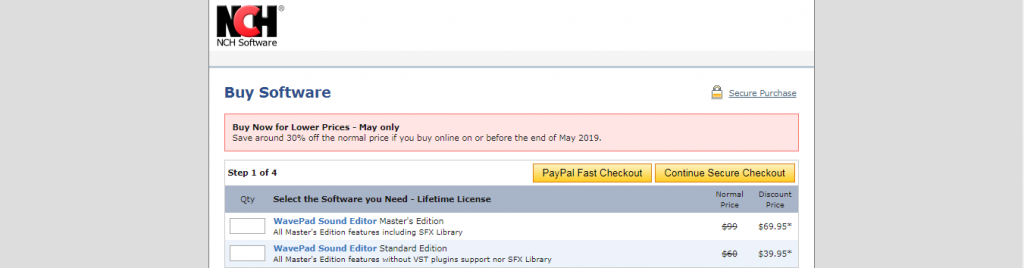
As far as the pricing of Wavepad is concerned, then it offers us the following three editions:
- Free Edition: As the name implies, this edition is free of cost.
- Master Edition: This edition costs $99 .
- Standard Edition: The price of this edition is $60 .
Wavepad Pricing
2. Audacity

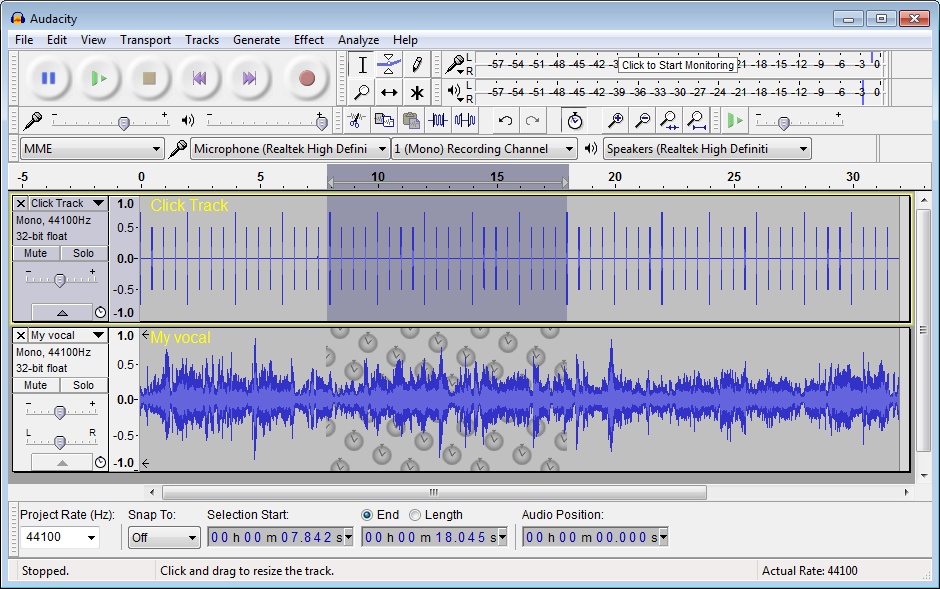
Audacity is a free audio recording and editing software that works for all the three famous operating systems i.e. Windows , Mac, and Linux . It gives you a fully customizable user-friendly interface. It means that if you do not like the default interface of Audacity, then you can change it anytime from the available templates. This audio recorder provides you with the following two recording modes: You can start a new audio clip every time you press the record button or you can append the new audio track to the older one . These modes give you a greater level of flexibility while recording your audios.
Audacity
Audacity provides you with all the latest audio editing features such as noise reduction , edit silence , equalization, etc. It also supports File Compression , Changing of File Formats and Smooth movement of tracks across your timeline. This audio recording software is compatible to work with MP3 , WAV , FLAC, and AAC audio formats. The most fascinating feature of Audacity is that if you ever need any help while using this software, then there are a number of Online Resources available. Moreover, there is also a User Forum where you can conveniently report all of your queries and get them resolved immediately.
3. Windows Voice Recorder

Windows Voice Recorder is a default audio recording software designed solely for the Windows operating system by Microsoft . This utility was previously known as the Sound Recorder . This software allows you to record your audios very easily. After recording your audios, it also gives you the very basic tools to edit your recorded audios. You can Add Markers to your audios to identify the important moments. You can Trim any irrelevant or unnecessary parts of your audios.
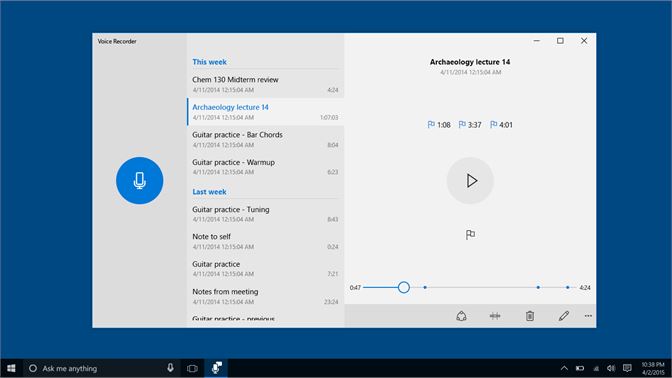
Windows Voice Recorder
The AutoSave feature of Windows Voice Recorder automatically saves your recorded audios as soon as you press the Stop recording button. This saves you from the efforts of saving your recordings manually. You can also Share your recorded audios with your friends and family and also share them on various other applications. Last but not least, since Windows Voice Recorder comes by default with the Windows operating system, therefore, this audio recording software is absolutely free .
4. Zynewave Podium Free

Podium Free is a free audio recording and editing utility designed for the Windows operating system by Zynewave . This software allows you to customize its interface right according to your choice in order to make it easier for use. The Audio Bouncing feature of Podium enables you to record your audio on all the available tracks and then combine audios from all the tracks in order to free them up for more recording.
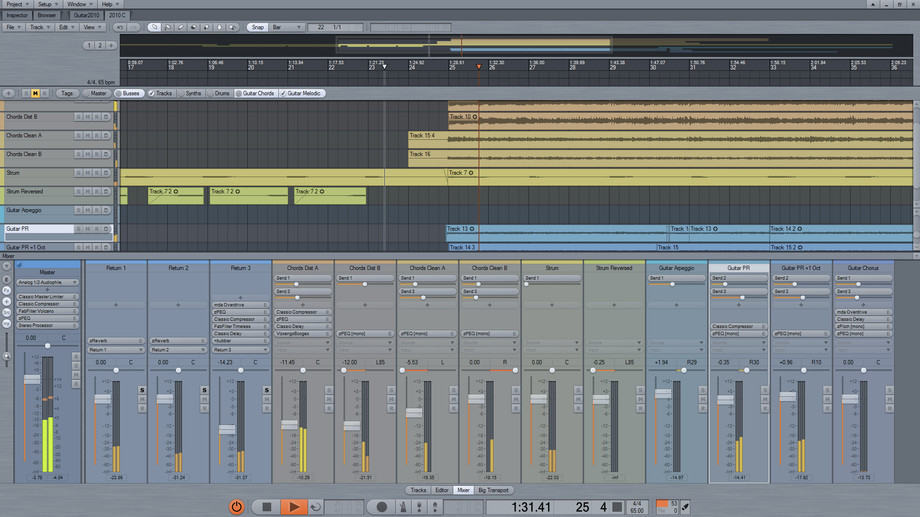
Zynewave Podium Free
The features like Object-Based Project Structure , Mixer Busses , Multi-Channel Audio, etc. let you have more control over your recorded audios. The Hierarchic Engine feature of this software arranges all your soundtracks in the form of a tree in order to make them look more organized. Although this full-featured version of Podium is absolutely free, however, it also offers us a Commercial version with some additional features with a cost of $50 .
5. Ardour
Ardour is a free digital audio workstation designed for the Windows , Mac and Linux operating systems. The Flexible Recording feature of this software allows you to cancel a recording at any time in order to free up your disk space. Ardour offers you an Unlimited Number of Multichannel Tracks which means that you can simultaneously record your audios on multiple channels. This audio recording software also lets you extract an audio track from a video .
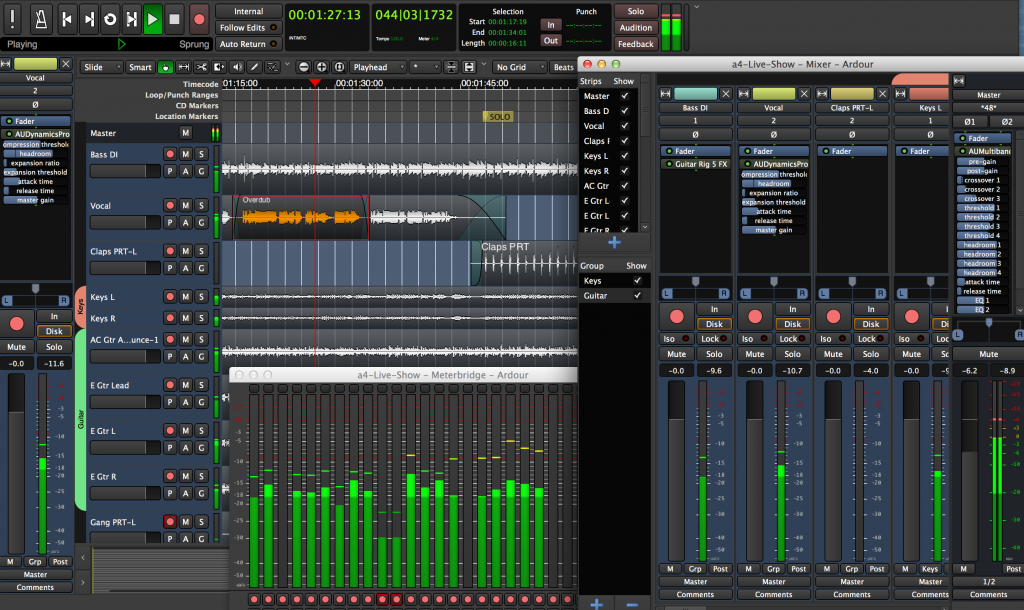
Ardour
The Monitor feature of this software enables you to continuously keep an eye on your audio recordings and control everything. Ardour presents you with all the latest audio editing features such as Strip Silence , Push-Pull Trimming , Rhythm Ferret, etc. to give you a professional audio editing experience. Moreover, it also allows you to Export your audios in multiple formats including WAV , AIFF , Ogg, etc.
How to Fix “Printer is in an error state” Issue?
The error “ WinRAR Error: Next Volume Is Required ” usually appears when you’re extracting a multi-part RAR archive and WinRAR can’t find (or can’t correctly identify) the next file in the sequence . This often happens when a volume is missing , stored in a different folder , or renamed in a way that breaks the archive’s expected order .

In this guide, we’ll go over the most reliable fixes confirmed by affected users, along with what each method is doing behind the scenes so you can choose the right one for your situation.
Important: To extract multi-volume archives, you should always start extraction from the first file in the set. This is usually file.part1.rar , or (in older sets) the main .rar file that comes before .r01 , .r02 , and so on.
1. Download and Place the Missing RAR File
WinRAR needs all parts of a multi-volume archive to complete extraction. This error usually appears when one of the volumes in a set like .part2.rar , .r01 , .r02 , .001 , and similar naming formats is missing . Downloading the missing volume and placing it in the same folder as the other parts allows WinRAR to continue extracting normally .
- Look at the error message or review the list of archive parts in the folder.
- Identify which volume is missing (for example, part2.rar , .r02 , .001 , etc.).
- Go back to the website or source where you downloaded the archive.
- Locate and download the exact missing file using the same naming format as the others.
- Make sure the new file name matches the pattern of the rest. Example: If you have file.part1.rar and file.part3.rar , the missing one must be file.part2.rar .
- Move the downloaded missing volume into the same folder as the other archive parts.
- Confirm that all parts are in a single folder before extracting.
- Right-click the first file in the series (usually part1 or the main .rar file) and select Extract Here or Extract to Folder .
- WinRAR should now detect all volumes and continue extraction normally .
2. Manually Browse & Select the Next Volume
Use this method only if the next volume already exists , but WinRAR is failing to detect it automatically. This can happen due to incorrect naming , the file being in a different location , or a temporary file access issue. Manually browsing helps WinRAR locate the correct volume and resume extraction without interruption .
- Right-click the first file in the series (usually .rar or part1.rar ) and select Extract Here or Extract to Folder .
- When WinRAR cannot find the next volume, it will show the “ Next Volume Is Required ” message.
- A small window will appear, allowing you to manually select the next volume .
- Use the file explorer window to locate the folder where the other archive parts are saved.
- Select the next part based on the naming order (example: select file.part2.rar after file.part1.rar ).
- Make sure the selected file matches the naming format of the archive (no extra characters like (1) and no mismatched numbering).
- WinRAR will resume extraction using the selected volume .
- If additional volumes are missing or stored separately, WinRAR may prompt you again. Repeat the same process until extraction completes.
3. Rename the RAR files in Order
WinRAR relies on a proper naming sequence (such as file.part1.rar , file.part2.rar , file.part3.rar ) to extract multi-volume archives. If a file is named incorrectly, contains extra characters, or is out of order, WinRAR may fail to locate the next volume and show this error. Renaming the files correctly helps WinRAR follow the sequence and extract the archive without interruptions .
Note: Renaming only changes the file name , not the file contents. The goal is to restore the correct sequence so WinRAR can detect the next volume.
- Go to the folder where all the RAR files are saved.
- Make sure all parts of the archive are present and stored in the same folder .
- Check how the parts are currently named . Common patterns include:
file.part1.rar, file.part2.rar, file.part3.rar
file.rar, file.r01, file.r02, file.r03
- Look for files that don’t match the expected numbering pattern (for example, file.part01.rar , file.part1(1).rar , or unrelated names).
- Rename each file so it follows the same order without extra characters or mismatched numbering. Example:
Incorrect: file.part1.rar, file.part3.rar, file.part2(1).rar
Correct: file.part1.rar, file.part2.rar, file.part3.rar
- Make sure the text before the number is exactly the same for all files.
- Only the last part number should change.
- Right-click the first file in the series (usually part1.rar or the main .rar file) and select Extract Here .
- WinRAR should now recognize the sequence and continue extraction normally .
If you still get the same prompt: the archive set is likely incomplete (a part was never downloaded or was removed), or one of the volumes is corrupt and must be re-downloaded from the original source.
