Gone are the days in which people used to keep diaries to store contact numbers and addresses of their family members, friends, colleagues, and acquaintances. Nowadays, every information is stored digitally therefore, human intervention is very little. However, as the life of human beings is becoming easier and easier, the computational world is getting more complex because machines now have to take care of every such thing that was earlier handled by human beings. This is exactly why we need a good address book software to manage our contact details.
An address book software allows you to store the names, contact numbers, email IDs, addresses, etc. of all those people with whom you are most likely to stay in touch. It manages all this information so well that you do not have to spend your energy in keeping a track of it manually. Some of the software even synchronize your data to the Cloud in order to prevent data loss. In this way, your important contact data can stay safe for as long as you want. In this article, we have compiled for you a list of 5 Best Address Book Software for Windows 10 so just have a look at this list quickly to download the best one for yourself.
1. My Personal Address Book

My Personal Address Book is a very useful contact management system designed for Windows 8 and Windows 10 operating systems by Stembridge Software . This address book software allows you to have as many address books as you want in order to stay organized. It means that you can have separate address books for your family members, friends, colleagues etc. This software allows you to send emails to your contacts stored in your address book directly without going separately to your emailing service. This is so because My Personal Address Book comes with Email Integration .

My Personal Address Book
Apart from email integration, this software also enables you to use maps for finding directions to the addresses stored in your address book because of its Maps Integration feature. My Personal Address Book lets you print envelopes and labels addressed to the people stored in your address book. You can even set reminders for any upcoming events. It allows you to print your address books in 5 different sizes. You are allowed to keep a local backup of your address books as well as a backup on OneDrive . You can Import or Export your address books in the csv or xml formats. Moreover, this software also provides you with the ability to Password Protect your address books.
As far as the pricing of this software is concerned, then it offers us the following two editions:
- Standard Edition- The standard edition is available for free.
- Premium Edition- You have to pay an annual subscription for this edition in order to access some additional features of My Personal Address Book.

My Personal Address Book Pricing
2. Free Address Book

Free Address Book is a free contact management software designed for the Windows platform by GAS Softwares . This software allows you to record your contacts along with their names , email IDs , place of residence , phone numbers etc. It provides Advanced Search Filters for searching any contact within your address book very conveniently. You can easily print your address books with various customizations. Free Adress Book lets you Import and Export your address books in the csv format. You can even attach Photos with your contacts in your address book.

Free Address Book
This software enables you to create Groups within your contacts for quickly accessing a bulk of contacts. You can also set Reminders for remembering important events. If you ever get stuck somewhere while using this tool, then it provides you Free Support for resolving your issue. Apart from the regular contact information, you can even store Custom Fields for your contacts. Moreover, this software also provides you with the Contact Synchronization feature which is necessary for keeping all of your contacts on the same page.
3. E-Z Contact Book

E-Z Contact Book is a very user-friendly contact management system dedicated for the Windows operating system. It allows you to create separate address books for keeping your contacts organized. After creating an address book, you are allowed to Sort it in any order. You can create different types of Lists and Reminders with the help of this software. The reminders appear in the form of a pop-up notification on your main window. You can also send emails to your contacts within your address book. E-Z Contact Book enables you to print your address books in 3 different formats.

E-Z Contact Book
You can even Encrypt your contact information for keeping it safe and secure. This software also lets you open web pages in your default web browser. You can Import and Export your contacts in the csv format. This software also has the ability to locate the addresses on Google Maps . You can synchronize your address books across various devices for an easier accessibility. You also print Mail Envelopes and Address Labels by making use of E-Z Contact Book.
The pricing plans of this address book software are listed below:
- Free- As the name implies, this plan is free of cost.
- Full License for 3 Computers- You will need to pay $14.99 for this plan.
- Full License for 5 Computers- E-Z Contact Book charges $22.99 for this plan.
- Full License for more than 5 Computers- You will need to contact E-Z Contact Book for knowing the cost of this plan.

E-Z Contact Book Pricing
4. Pobuca Connect

Pobuca Connect is a famous contact management and address book software specially designed for business and commerical use. It allows multiple people to access a single address book by defining the specific Access Roles and User Permissions . You can immediately call, text or email your contacts stored in your Pubuca Connect address books. It automatically synchronizes your contacts across various devices such as mobile phones, laptops etc. You can even add Internal Notes to each contact stored in your address book for a quick reminder. You can also Tag your contacts for easier referencing.

Pobuca Connect
This software also provides you an Offline Access to your contacts so that you can conveniently use your address book even without an Internet connection. It keeps a track of your Activity Log in order to give an easier traceability of all your activities across Pobuca Connect. You can Import and Export your contacts in xls or csv formats. You can back up your address books to Cloud or to your Local Directory . Pobuca Connect also enables you to connect with various other applications because of Zapier Integration . Moreover, the Custom Caller ID feature allows you to select customized fields to be displayed along with your contacts’ names.
The pricing packages of Pobuca Connect are as follows:
- Free- This package is absolutely free .
- Pro- This package costs $3 per user per month.
- Enterprise- This package is worth $5 per user per month.

Pobuca Connect Pricing
5. C-Organizer

C-Organizer is a very powerful contact management software designed by CSoftLab . This software is full of useful features that fall into multiple categories such as General , Today , Calendar , Tasks , Contacts , Passwords , Notes and Events . The features in General category include password protection, multilingual support, interface customization, adding sticky notes to your contacts, import and export in various formats including txt , csv , xml , html etc. You can set your daily routine plans with the helpful features that fall under Today category.
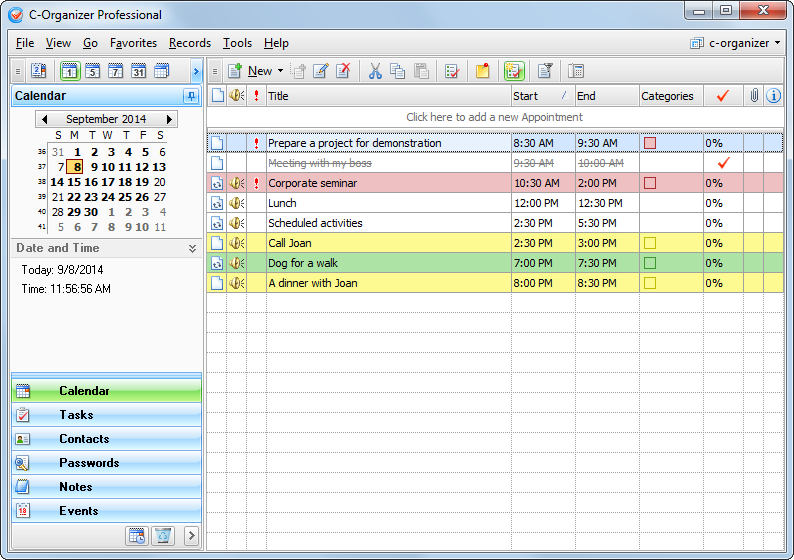
C-Organizer
The Calendar feature allows you to set reminders and also keep a track of your daily progress. It also synchronizes your activities across multiple devices. You can sort various tasks and prioritize them by making use of the Color Filters . You can store all the necessary information regarding your contacts within C-Organizer. This software also lets you call your contacts through a voice modem or by making use of Skype . C-Organizer enables you to Password Protect your contact information and also add notes to your contacts. Moreover, you can also set Reminders for important events my making use of this address book software.
C-Organizer offers a 30 days free trial for all of its packages. Along with this trial, it also gives you a 30 days money back guarantee which means that if you do not like this address book software, then you will get all your money back within 30 days of usage. However, the details of the three different pricing models of C-Organizer are as follows:
- C-Organizer Professional- This model costs $39.95 .
- C-Organizer Lite- This model is worth $29.95 .
- Advanced Diary- This model also costs $29.95 .

C-Organizer Pricing
How to Fix “Printer is in an error state” Issue?
The error “ WinRAR Error: Next Volume Is Required ” usually appears when you’re extracting a multi-part RAR archive and WinRAR can’t find (or can’t correctly identify) the next file in the sequence . This often happens when a volume is missing , stored in a different folder , or renamed in a way that breaks the archive’s expected order .

In this guide, we’ll go over the most reliable fixes confirmed by affected users, along with what each method is doing behind the scenes so you can choose the right one for your situation.
Important: To extract multi-volume archives, you should always start extraction from the first file in the set. This is usually file.part1.rar , or (in older sets) the main .rar file that comes before .r01 , .r02 , and so on.
1. Download and Place the Missing RAR File
WinRAR needs all parts of a multi-volume archive to complete extraction. This error usually appears when one of the volumes in a set like .part2.rar , .r01 , .r02 , .001 , and similar naming formats is missing . Downloading the missing volume and placing it in the same folder as the other parts allows WinRAR to continue extracting normally .
- Look at the error message or review the list of archive parts in the folder.
- Identify which volume is missing (for example, part2.rar , .r02 , .001 , etc.).
- Go back to the website or source where you downloaded the archive.
- Locate and download the exact missing file using the same naming format as the others.
- Make sure the new file name matches the pattern of the rest. Example: If you have file.part1.rar and file.part3.rar , the missing one must be file.part2.rar .
- Move the downloaded missing volume into the same folder as the other archive parts.
- Confirm that all parts are in a single folder before extracting.
- Right-click the first file in the series (usually part1 or the main .rar file) and select Extract Here or Extract to Folder .
- WinRAR should now detect all volumes and continue extraction normally .
2. Manually Browse & Select the Next Volume
Use this method only if the next volume already exists , but WinRAR is failing to detect it automatically. This can happen due to incorrect naming , the file being in a different location , or a temporary file access issue. Manually browsing helps WinRAR locate the correct volume and resume extraction without interruption .
- Right-click the first file in the series (usually .rar or part1.rar ) and select Extract Here or Extract to Folder .
- When WinRAR cannot find the next volume, it will show the “ Next Volume Is Required ” message.
- A small window will appear, allowing you to manually select the next volume .
- Use the file explorer window to locate the folder where the other archive parts are saved.
- Select the next part based on the naming order (example: select file.part2.rar after file.part1.rar ).
- Make sure the selected file matches the naming format of the archive (no extra characters like (1) and no mismatched numbering).
- WinRAR will resume extraction using the selected volume .
- If additional volumes are missing or stored separately, WinRAR may prompt you again. Repeat the same process until extraction completes.
3. Rename the RAR files in Order
WinRAR relies on a proper naming sequence (such as file.part1.rar , file.part2.rar , file.part3.rar ) to extract multi-volume archives. If a file is named incorrectly, contains extra characters, or is out of order, WinRAR may fail to locate the next volume and show this error. Renaming the files correctly helps WinRAR follow the sequence and extract the archive without interruptions .
Note: Renaming only changes the file name , not the file contents. The goal is to restore the correct sequence so WinRAR can detect the next volume.
- Go to the folder where all the RAR files are saved.
- Make sure all parts of the archive are present and stored in the same folder .
- Check how the parts are currently named . Common patterns include:
file.part1.rar, file.part2.rar, file.part3.rar
file.rar, file.r01, file.r02, file.r03
- Look for files that don’t match the expected numbering pattern (for example, file.part01.rar , file.part1(1).rar , or unrelated names).
- Rename each file so it follows the same order without extra characters or mismatched numbering. Example:
Incorrect: file.part1.rar, file.part3.rar, file.part2(1).rar
Correct: file.part1.rar, file.part2.rar, file.part3.rar
- Make sure the text before the number is exactly the same for all files.
- Only the last part number should change.
- Right-click the first file in the series (usually part1.rar or the main .rar file) and select Extract Here .
- WinRAR should now recognize the sequence and continue extraction normally .
If you still get the same prompt: the archive set is likely incomplete (a part was never downloaded or was removed), or one of the volumes is corrupt and must be re-downloaded from the original source.
